The Lexmark E260dn driver can be downloaded free from Lexmark’s official support page, and installing it correctly on Windows takes just a few steps whether you connect over USB or your office network.
The E260dn is a monochrome laser printer built for small office use, with built-in duplex printing and an Ethernet port for network sharing. Because it’s an older business printer, Windows does not always have a built-in driver for it, so getting the right package from Lexmark matters more than with typical consumer printers.
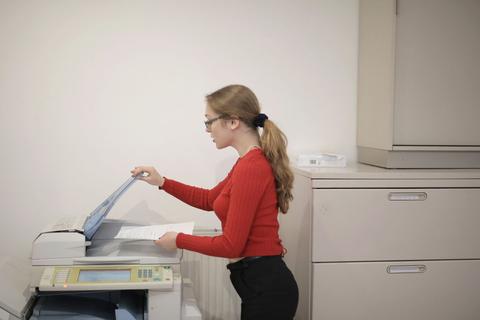
Downloading the Lexmark E260dn Driver
Lexmark keeps drivers for this model on its official Lexmark support page. You can also use the Lexmark Universal Print Driver, which covers many Lexmark laser printers including this one and simplifies future printer swaps in an office.
- Go to the Lexmark support and drivers page and search “E260dn.”
- Select your version of Windows from the operating system list.
- Choose between the model-specific driver or the Universal Print Driver.
- Download the installer package to a folder you can find easily.
- Confirm the download finished completely before opening the file.
For offices managing several Lexmark printers, the Universal Print Driver is usually the better pick since one driver package can control multiple compatible models, saving time on future setups.
Installing Over USB or Network
The E260dn supports both direct USB connection and wired Ethernet networking, and the install steps differ slightly depending on which you use.
- For USB: run the installer, select USB when prompted, then connect the cable when instructed on screen.
- For network: connect the Ethernet cable to your router or switch first, let the printer obtain an IP address, then choose the network option in the installer and select your printer from the detected list.
- If the installer cannot find the printer on the network, print a network configuration page from the printer’s control panel to confirm its IP address, then enter it manually during setup.
- Once installed, print a test page to confirm both connectivity and print quality.
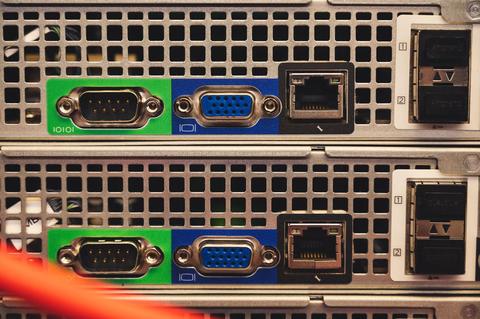
I set one of these up at a small accounting office running Windows 10 that wanted to share the printer over their network instead of connecting it to just one PC. The installer initially couldn’t find the printer because it was on a different subnet than the office router’s default DHCP range. Printing the network configuration page from the printer’s own menu and entering the IP address manually solved it in under two minutes.
Per Marcus Chen, who is an Office Manager at Chen & Associates Accounting, “We’ve had our E260dn running on the network for years now, and once the driver and IP settings were configured correctly, it just sits in the corner and prints reports without anyone touching it.”
Manual Driver Install via Device Manager
If the standard installer fails to detect the printer, you can install the driver manually through Device Manager instead.
- Run the downloaded installer once to extract its files, then cancel before the wizard completes.
- Open Device Manager from the Start button’s right-click menu.
- Find the Lexmark printer, usually listed under “Print queues” or flagged as unknown hardware.
- Right-click it, select “Update driver,” then “Browse my computer for drivers.”
- Point it to the extracted driver folder and check “Include subfolders.”
- Let Windows install the driver from the INF file it locates.

Troubleshooting Installation Failures
- Installer says “no printer found”: Confirm the printer is powered on and the Ethernet or USB cable is fully seated, then restart the installer.
- Network printer not detected: Print a network settings page from the printer menu, note the IP address, and enter it manually during setup.
- Setup crashes on older Windows builds: Right-click the installer, open Compatibility settings, and run it in Windows 8 compatibility mode.
- Print jobs stuck in queue: Restart the Print Spooler service through services.msc, then clear the stuck job and resend it.
- Driver installs but duplex printing doesn’t work: Open printer properties, go to Device Settings, and confirm the duplexer accessory is marked as installed.
For persistent network detection issues, Microsoft’s printer connection troubleshooting guide covers firewall and port conflicts that can block network printers from being discovered, which is worth checking if the printer simply never shows up in the search.
Windows 10 and Windows 11 Behavior
Both Windows versions handle this printer reasonably well once the correct driver is installed, but there are a few differences worth noting:
- Windows 11 sometimes auto-installs a generic PCL driver over network discovery before you run Lexmark’s installer, which works for basic printing but lacks duplex and tray management options.
- The Universal Print Driver tends to be more reliably detected on Windows 11 than the older model-specific package.
- Group Policy print driver restrictions, common in office Windows 11 deployments, can block manual driver installation. Check with your IT administrator if Device Manager install fails silently.
Frequently Asked Questions
Does the E260dn support wireless printing?
No, this model only offers USB and wired Ethernet connections. There is no built-in Wi-Fi on the E260dn.
What does the “dn” in E260dn mean?
The “d” stands for duplex printing and the “n” stands for network, meaning this model includes automatic double-sided printing and a built-in Ethernet port.
Can I use the Universal Print Driver instead?
Yes, Lexmark’s Universal Print Driver supports the E260dn and many other Lexmark laser models, which is convenient for offices running multiple printer types.
Why is my print quality showing faded streaks?
This usually points to a low or unevenly distributed toner cartridge. Gently rock the cartridge side to side and reseat it before ordering a replacement.
Is this printer compatible with Mac or Linux?
Yes, Lexmark provides macOS drivers, and most Linux distributions can print to it using standard PostScript or PCL printing systems.
Conclusion
Installing the Lexmark E260dn driver is straightforward once you know whether you’re connecting by USB or network, and the Universal Print Driver is a solid choice if you manage more than one Lexmark printer. Most setup problems trace back to IP address mismatches or a generic driver installed ahead of time. One tip: always print a network configuration page from the printer itself before troubleshooting on the computer side, since it saves a lot of guesswork.
Ryan has a Computer Science background and more than 20 years of hands-on experience setting up and repairing printers, PCs, and networking gear. He writes practical driver guides at softwaredriverdownload.com, drawn from equipment he has configured himself in real home and office settings.