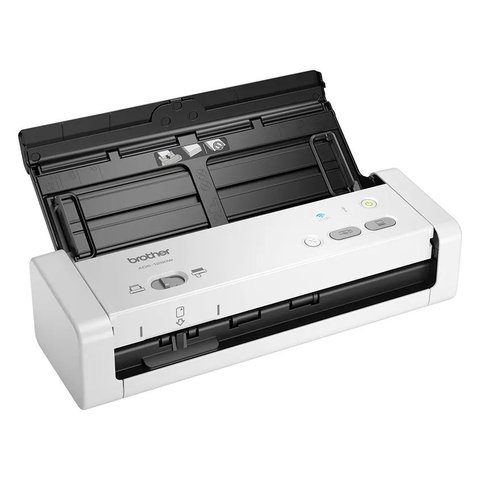
The Brother ADS-1250W driver you need is the ADS-1250W Full Driver & Software Package from Brother’s support site, which bundles the scanner driver, the ControlCenter app, and the scan-to-cloud tools. Install it in order — driver first, then software — and the compact duplex scanner should be recognized within a couple of minutes.
| Spec | Detail |
|---|---|
| Applies To | Brother ADS-1250W compact duplex document scanner |
| Author/Publisher | Brother |
| Package | Full Driver & Software Package (includes TWAIN/WIA driver, ControlCenter4, iPrint&Scan) |
| File Size | Approximately 150-220 MB depending on bundled components |
| Connectivity | USB 2.0 or Wi-Fi 802.11b/g/n |
| Requirements | Windows 10 or 11 (32-bit and 64-bit supported) |
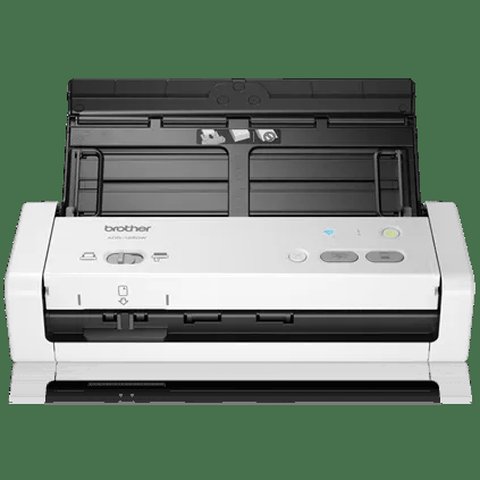
Follow each step in order until the scanner is fully working. I set one of these up for a small accounting office last year, and the most common snag was people trying to scan over Wi-Fi before actually finishing the wireless setup wizard on the scanner’s own screen.
Download the Full Driver & Software Package (most common starting point)
Go to the Brother Support site, search ADS-1250W, choose your Windows version, and download the full package rather than just the driver — it saves a second download later for the scanning app.
Connect via USB for first setup
Even if you plan to use Wi-Fi long term, connect the USB cable during the first install. The installer configures the scanner and only asks you to switch to wireless at the very end.
Run the installer and select Wireless Network Connection
- Choose your Wi-Fi network from the list shown by the installer
- Enter your Wi-Fi password when prompted
- Wait for the scanner to reboot onto the wireless network
- Unplug the USB cable once setup confirms a wireless connection
Confirm in Windows Scan or ControlCenter4
Open the Windows Scan app or Brother’s ControlCenter4 and check that ADS-1250W appears as an available device before running a test scan.
Fixing a Failed or Stuck Install
If the Full Driver & Software Package installer stalls or errors out, the cause is usually a leftover driver from an older Brother scanner conflicting with the new one. Try these steps:
- Open Settings, Apps, and uninstall any older Brother scanner or printer software first.
- Delete leftover entries under HKEY_LOCAL_MACHINE\SYSTEM\CurrentControlSet\Control\Print\Environments only if you are comfortable editing the registry, or use Brother’s official uninstall tool instead for safety.
- Restart Windows before reinstalling — a surprising number of “stuck at 90%” installs finish cleanly after just a reboot.
- Temporarily disable antivirus real-time protection during the install, since some security tools flag the ControlCenter service.
On a Windows 11 desktop I worked on, the installer kept failing at the driver registration step until I fully removed a years-old Brother MFC driver package first — after that, the ADS-1250W installed cleanly on the first retry.
Manual Driver Install via Device Manager
As a fallback when the official installer will not cooperate, you can point Windows at the extracted driver files directly:
- Extract the downloaded package to a folder instead of running it directly.
- Open Device Manager, find the scanner under Imaging devices (or Unknown devices if not yet recognized).
- Right-click, choose Update driver, then Browse my computer for drivers, and point to the extracted folder.
Per Melissa T., who is an Office Administrator at a small law firm, “The ADS-1250W is small enough to keep on a desk, and once the wireless driver setup finished, scanning double-sided contracts became a lot faster for our team.”
Frequently Asked Questions
Does the ADS-1250W need a driver, or does Windows detect it automatically?
Windows can detect basic scanning through WIA, but installing Brother’s Full Driver & Software Package gives you duplex scanning, ControlCenter4 shortcuts, and reliable Wi-Fi setup, so it is worth the extra download.
Why does my ADS-1250W disconnect from Wi-Fi after a while?
This is often a router power-saving setting or the scanner’s own sleep mode. Check your router’s device list to confirm the scanner still holds an IP address, and disable aggressive Wi-Fi power saving on the router if it drops often.
Can I use the ADS-1250W with a Mac as well as Windows?
Yes, Brother provides separate macOS drivers on the same support page — just select macOS instead of Windows when downloading.
What if Windows shows the scanner as an “Unknown Device”?
Reconnect via USB, uninstall the Unknown Device entry in Device Manager, then reinstall the Full Driver & Software Package fresh.
Is duplex (two-sided) scanning automatic or does it need a setting change?
You need to select duplex mode in the scanning software before each job, either in ControlCenter4 or in whatever scanning app you are using, since single-sided is usually the default.
Getting the Most Out of ControlCenter4
ControlCenter4 is the app most people end up using daily once the driver is installed, since it puts scan-to-PDF, scan-to-email, and scan-to-cloud shortcuts in one panel instead of digging through Windows Scan every time. A few settings worth adjusting right after install:
- Set your default save location to a synced folder (OneDrive or Google Drive) so scanned documents back up automatically.
- Switch the default file format to searchable PDF if you scan a lot of text documents — it runs OCR in the background.
- Adjust the default resolution down to 200 DPI for everyday paperwork; save 300 DPI or higher only for documents with small print or fine detail, since higher DPI means much larger files.
I also recommend checking for firmware updates on the scanner itself every few months through the Brother Support portal — firmware updates have fixed intermittent Wi-Fi drops on a couple of units I have set up, separate from anything on the Windows driver side.
Conclusion
Most ADS-1250W driver problems trace back to skipping the USB-first setup step or leftover drivers from an old Brother device. Download the Full Driver & Software Package from Brother’s own support page, connect by USB for the initial wireless configuration, and confirm the scanner shows up in Windows Scan before disconnecting the cable. If issues persist, a clean uninstall of old Brother software followed by a reboot resolves the vast majority of stuck installs.
Ryan T. is a PC hardware enthusiast with over 15 years of experience fixing drivers, printers, and scanners for friends, family, and small offices. He writes for softwaredriverdownload.com, sharing practical, tested fixes rather than generic troubleshooting advice.