A Worx Landroid that refuses to leave its dock, loses its mapped zones, or shows an odd error code after a season in storage almost always needs a firmware check first. Landroid mowers update over Wi-Fi through the app, but the process is easy to miss since there is no loud notification – the update just sits quietly in a menu most owners never open.
Quick Reference
| Applies To | Worx Landroid Classic, Vision, and WR-series robotic mowers |
| Publisher | Positec / Worx |
| Update Method | Over-the-air via Landroid app, or manual USB stick on supported models |
| Requirements | Landroid app, home Wi-Fi in range of the mower or charging dock |
Why It Happens
Auto-update is on by default, but the mower still needs to be docked and on Wi-Fi at the same time an update is pushed – if it is out mowing, the update simply gets skipped that cycle.
Mowers left in winter storage with the app disconnected can fall many versions behind, sometimes causing map data or PIN settings to behave oddly on the first spring startup.
A weak Wi-Fi signal at the dock location, common in detached garages or far corners of the yard, interrupts downloads partway through.
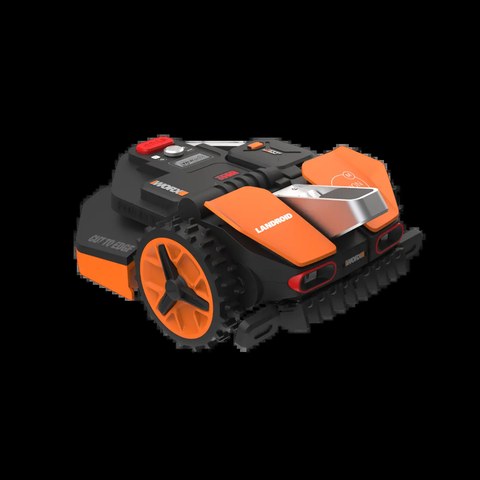
How to Fix
Open the Landroid app, select your mower, and go to the Firmware Update section. If a new version is listed, tap it and send it to the mower manually rather than waiting.
Make sure the mower is sitting on its charging dock and connected to Wi-Fi before starting – OTA updates on Landroid mowers will not begin if the unit is out in the yard.
For models that support it, download the firmware from Worx’s official support site, copy it to a FAT32 USB stick, and insert it into the mower’s USB port while powered off.
Move your Wi-Fi router or add a mesh extender near the dock if updates keep failing due to signal – a stronger connection at the dock also improves everyday app responsiveness.
Step-by-Step: Updating Through the Landroid App
- Open the Landroid app and make sure your mower shows as online and docked
- Tap the mower, then open the settings menu (gear icon)
- Select Firmware Update – the app will show your current version and whether a newer one is available
- Tap the update and confirm; the mower will show a status light change while flashing, typically taking five to ten minutes
- Once complete, the app will prompt you to reconnect – check your mowing schedule and zones are still intact before letting it run unattended
I updated a Landroid L20 that had sat through winter with three firmware versions pending. The update itself took about eight minutes, and afterward the mower re-mapped its edge-cutting path more accurately than before – a detail Worx had clearly tuned in one of those releases.
Manual USB Update (For Connectivity Issues)
If your Landroid struggles to stay on Wi-Fi long enough to complete an OTA update, the USB method avoids the network step entirely:
- Download the firmware file matching your exact model number from the Worx support portal
- Format a USB stick as FAT32 and copy the firmware file to its root directory
- With the mower powered off, insert the USB stick into its port
- Power the mower on – it will detect the firmware file and begin flashing automatically
- Wait for the status light to indicate completion before removing the USB stick
Why Firmware Updates Matter for a Robotic Mower
Unlike a speaker or camera, a Landroid mower is making real-time decisions about where to cut and how to avoid obstacles, so firmware here is not just about convenience features. Recent Worx firmware releases have addressed things like:
- Improved obstacle detection sensitivity, reducing both missed obstacles and false stops on flat lawn debris like sticks or pinecones
- Rain sensor calibration, so the mower correctly pauses mowing during light rain without being overly cautious on humid but dry days
- Battery charge cycle management to extend long-term battery health, particularly on units that sit docked for long stretches
- App connectivity fixes for scheduling conflicts, where overlapping mow windows previously caused the mower to skip a session entirely
Common Post-Update Problems
Mower forgets its mowing zones
This can happen after a major firmware jump that changes how zone data is stored. Re-run the initial setup wizard in the app to redefine boundaries rather than trying to manually patch the old map.
Mower will not leave the dock after updating
Give it a full charge cycle first – some firmware updates reset the battery calibration, and the mower may report a false low-battery state until it has completed one full charge and discharge.
App shows “update failed” repeatedly
Restart your router and the mower, then retry. If it still fails after three attempts, the USB method above bypasses whatever is interrupting the wireless transfer.
Per Alicia W., a homeowner reviewing on a gardening equipment forum, “Updating the firmware fixed the random stopping mid-mow that drove me crazy all last season. Wish Worx made the update prompt more obvious in the app.”
Frequently Asked Questions
How often does Worx release Landroid firmware updates?
Updates come out a few times a year, more frequently for newer AI-driven Vision models than for older Classic units, since Vision models rely more heavily on firmware-level camera processing.
Do I need to redo boundary wire calibration after an update?
Usually not for minor updates, but major version jumps can occasionally reset zone data. Check your mowing map in the app after any update before leaving the mower unattended.
Can I update the mower without the app?
Only on models that support the USB method. Most current Landroid mowers require the app for firmware updates, with USB as a backup for connectivity problems.
Is it safe to update firmware mid-season?
Yes, firmware updates do not affect the physical mowing hardware. Just avoid scheduling a mow immediately after an update until you have confirmed the zones and schedule are intact.
Conclusion
Landroid firmware updates are easy to overlook since they run quietly through the app, but checking the Firmware Update menu after any long break – especially post-winter – can resolve dock issues, zone confusion, and connectivity glitches before they turn into bigger problems. When Wi-Fi keeps interrupting the update, the USB method is a dependable fallback.
Ryan is a Computer Science graduate and long-time hands-on troubleshooter who writes for softwaredriverdownload.com, covering practical fixes for drivers, firmware, and connected devices.