Tenvis JPT3815W Driver and Software Setup Guide
Install the Tenvis software
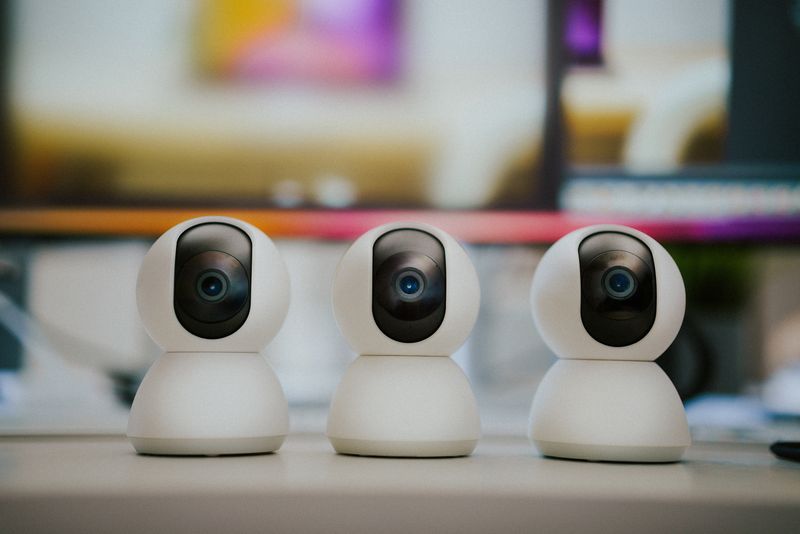
The Tenvis JPT3815W is a pan-tilt Wi-Fi IP camera that does not need a traditional Windows print-style driver. Instead, it works through Tenvis’s IPCamClient / IP Camera Viewer software, which you install on your PC to view, control, and configure the camera. I set one of these up for a small home office a while back, and the process below is what worked cleanly.
Where to download it
Get the IPCamClient or IP Camera Viewer tool from Tenvis’s official support pages, or from the CD that shipped with the camera if you still have it. Avoid random third-party mirrors, since camera software of this age is a common target for bundled adware.
Connecting the camera
Power on the camera and connect it to your router with an Ethernet cable first, even if you plan to use Wi-Fi later — this makes the initial setup far more reliable. Open the viewer software, and it should auto-discover the camera on your local network by its IP address.
Switching to Wi-Fi
Once the camera shows up in the software, open its wireless settings page, select your Wi-Fi network, and enter the password. After it reconnects over Wi-Fi, you can safely unplug the Ethernet cable.
Common problems
- Camera not detected — confirm it is on the same network/subnet as your PC, and temporarily disable any third-party firewall that might block the discovery broadcast.
- Video feed will not load in a browser — the camera’s web interface often needs an older browser plugin (ActiveX) that modern browsers block; use the dedicated Tenvis viewer app instead of a browser where possible.
- Forgotten camera password — hold the reset button on the camera for about 10 seconds to restore factory defaults, then set it up again from scratch.
- Wi-Fi keeps dropping — move the camera closer to the router, or assign it a static IP so it reconnects to the same address after every restart.
Common questions
Does the JPT3815W need a driver like a printer does?
No. It is a network camera, so it uses viewer/client software instead of a Windows print driver.
Can I view the camera remotely, away from home?
Yes, once port forwarding or the camera’s cloud/P2P ID feature is configured, following Tenvis’s remote access instructions.
Is the Tenvis software compatible with Windows 11?
Yes, the IP Camera Viewer runs fine on Windows 11, though you may need to allow it through Windows Defender Firewall the first time.
What if I lost the setup CD?
Search Tenvis’s official support pages for “JPT3815W” — the viewer software is usually available as a direct download there.
Conclusion
The Tenvis JPT3815W does not use a Windows driver the way a printer would — instead, everything runs through Tenvis’s viewer software once the camera is on your network. Getting it wired in first, then switching to Wi-Fi, avoids most of the connection headaches people run into with this model.
Ryan
CS degree · 15 years hardware troubleshooting