Updating Firmware On A Kenwood Car Stereo Without Bricking It
Kenwood pushes firmware updates for its car stereos to fix Bluetooth pairing bugs, smooth out Apple CarPlay and Android Auto mirroring, and patch touchscreen lag. Updating is simple once you know the exact steps, but the process is also one of the easiest ways to freeze or brick a head unit if you rush it. I have updated close to a dozen Kenwood units for friends and family over the years, and almost every failed update came from the same mistake: using a USB drive that was formatted the wrong way, or with extra files cluttering the root folder.
Quick Reference
| Applies To | Kenwood DDX, DMX, and eXcelon series receivers |
| Publisher | JVCKenwood |
| Update Method | USB flash drive (FAT32/exFAT), model-specific ZIP package |
| Typical File Size | 150 MB to 600 MB depending on model and firmware version |
| Requirements | USB drive formatted FAT16, FAT32, NTFS, or exFAT; vehicle battery above 12V during update |
Find your exact model number first
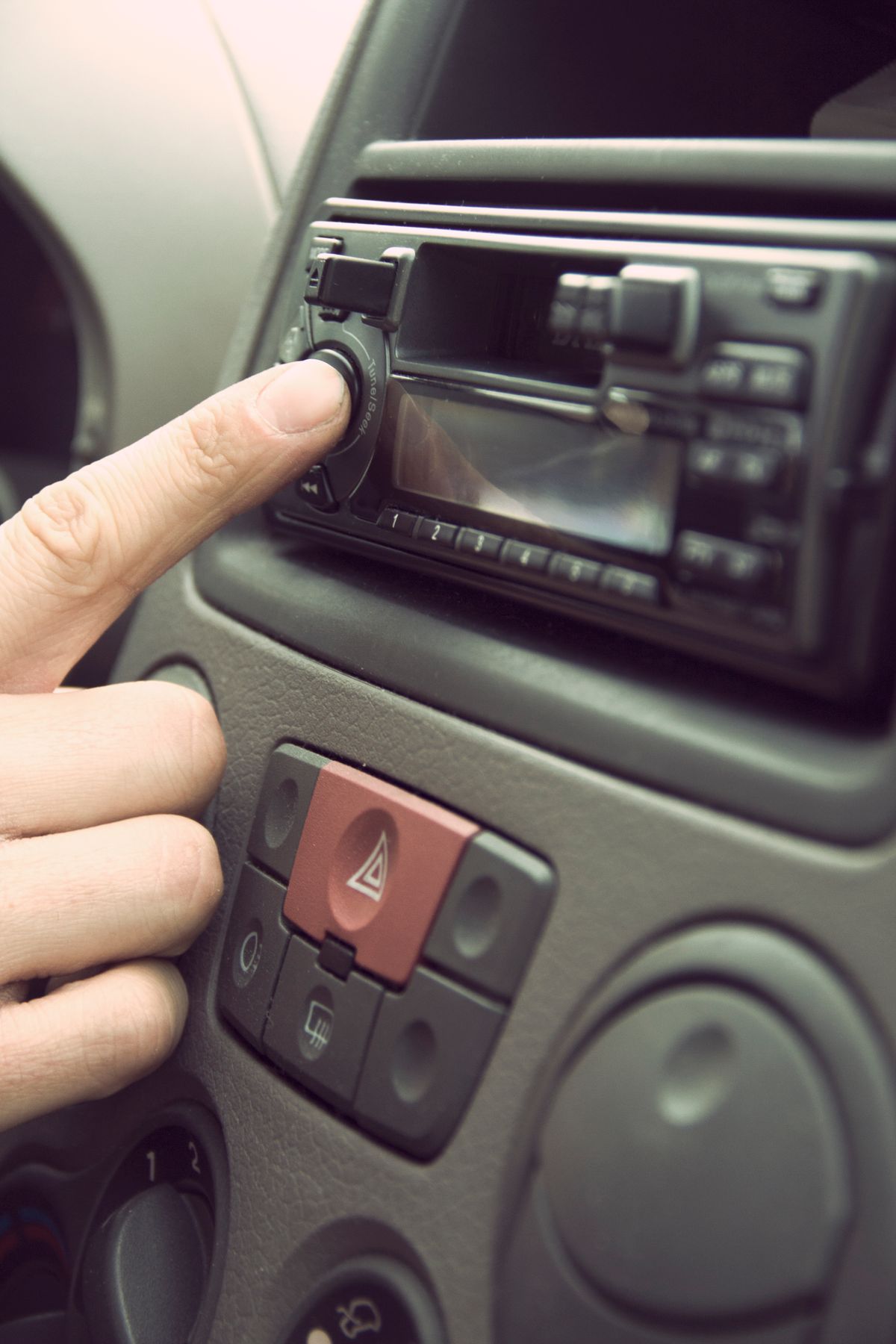
The model number is printed on a small sticker on the side of the chassis, not just on the front faceplate. Pull the faceplate off and slide the unit part way out of the dash if you cannot read it clearly. Kenwood firmware files are model-specific — installing a DMX9707S package on a DMX7709S will either get rejected by the unit or, in rare cases, cause a partial flash that leaves the screen stuck on a loading logo.
Download the correct package from Kenwood
Go to the official Kenwood firmware update page and search by your model number, not by product line. Kenwood sometimes lists two files for the same model — a main system firmware and a separate Bluetooth module firmware. Read the release notes on the download page carefully, since some updates must be installed in a specific order (system firmware first, then Bluetooth module).
Prepare the USB drive the right way
- Use a USB drive that is 32 GB or smaller — large drives sometimes fail to mount correctly on older Kenwood units.
- Format it as FAT32 (or exFAT if the model supports it), not NTFS unless the release notes specifically say NTFS is fine.
- Extract the ZIP file and copy the extracted files straight to the root of the drive — do not put them in a subfolder.
- Remove every other file from the drive, including music files and folders left over from normal use.
Run the update with the engine on
Start the car engine, or connect a battery charger, before you begin. A voltage drop partway through a flash is the single most common cause of a bricked head unit. Plug the USB drive into the correct USB port (some Kenwood models have two ports, and only one supports firmware updates — check your manual). The unit should detect the update automatically within a few seconds and show a confirmation screen with the current and new version numbers.
I updated a DMX7709S last year in a customer’s SUV. I made the mistake of doing it with the engine off, and halfway through, the screen went black. Restarting the car and re-running the update from the same USB drive brought it back with no damage — but it was a nervous ten minutes. Since then I always keep the engine running or a charger connected for every update.
Per Daniel R., who is an Installation Technician at a car audio shop, “Kenwood’s update process is one of the more forgiving ones in the industry, as long as you never pull power mid-flash. Most of the bricked units we see in the shop were interrupted, not corrupted.”
Fix a stuck or unresponsive update
If the progress bar freezes for more than ten minutes, do not unplug the USB drive right away. Kenwood units sometimes pause during a firmware write while erasing flash memory blocks, which can look frozen but is not. Give it a full fifteen minutes before trying anything.
If the unit is truly stuck after that, hold the reset pinhole button (usually near the USB port) for ten seconds, then try the update again with a freshly reformatted USB drive. In cases where the screen stays black after a hard reset, disconnect the unit’s fuse or battery terminal for two minutes to force a full power cycle before attempting recovery mode.
Manual Recovery When The Update Fails
A handful of Kenwood models support a dedicated recovery or “System Boot” mode that bypasses a corrupted firmware image. This is usually triggered by holding a combination of the volume knob and a front-panel button while powering the unit on — the exact combination varies by model, so check your specific unit’s service page. In recovery mode, the unit will only accept a fresh copy of the correct firmware ZIP from a clean USB drive. This is the manual equivalent of pointing Device Manager at an extracted INF file on a Windows PC — it works around the normal update path when it refuses to complete on its own.
- Power off the unit completely by holding the power button for several seconds.
- Insert a freshly formatted USB drive with only the firmware files on it.
- Hold the documented recovery button combination while powering the unit back on.
- Wait for the recovery screen to appear, then follow the on-screen progress until it reboots normally.
Should You Even Update?
Not every firmware release is worth installing right away. Read the change log on the Kenwood support site before updating a unit that is working fine. If the notes only mention minor regional tuning changes and your unit already handles CarPlay and Bluetooth calls without issue, it may be safer to wait for the next release rather than risk an update for no real benefit. On the other hand, if you are seeing random Bluetooth disconnects, CarPlay freezing on launch, or the screen not waking up from sleep, those are exactly the kinds of bugs Kenwood firmware updates are built to fix.
Frequently Asked Questions
Can a Kenwood firmware update void my warranty?
No. Installing an official firmware update from Kenwood’s own site does not void the warranty. Using a modified or third-party firmware file would.
Why does my unit not detect the USB drive at all?
Usually a file system mismatch. Reformat the drive as FAT32, copy only the update files to the root folder, and try a different USB port if your model has more than one.
Do I lose my saved presets and settings after updating?
Sometimes. Major version jumps can reset Bluetooth pairings, radio presets, and display settings. Write down or photograph your settings beforehand if you rely on them.
How long should a normal update take?
Most Kenwood updates finish in five to fifteen minutes. Larger updates that include map or Bluetooth module data can take up to thirty minutes.
Is it safe to update while the car is running in a garage?
Yes, as long as the garage is ventilated. Running the engine is recommended specifically to keep voltage stable during the flash.
Final Thoughts
A Kenwood firmware update is a low-risk job as long as you match the exact model number, use a properly formatted USB drive with nothing extra on it, and keep the vehicle’s power stable throughout. Skip the update if the current firmware already works well for you, but do not put it off if you are dealing with Bluetooth or CarPlay bugs that match what the release notes describe. Keep the original firmware ZIP file saved somewhere on your computer in case you ever need to reinstall it.
Ryan T.
PC hardware enthusiast · 15+ years fixing drivers