Getting the TASCAM US-2×2 Recognized and Recording on Windows
The TASCAM US-2×2 needs a dedicated USB driver on Windows – unlike some simpler USB microphones, it does not run purely on Windows’ generic class driver if you want stable low-latency ASIO performance. This guide covers the exact official download, install order, and the fixes for the most common “not detected” and dropout issues.
| Item | Detail |
|---|---|
| Applies To | TASCAM US-2×2 USB audio interface (also covers US-2x2HR) |
| Publisher | TEAC Corporation (TASCAM) |
| Driver | US-2×2 USB Audio Driver |
| Latest Version | Check the official TASCAM downloads page for the current build (v2.x series as of writing) |
| File Size | Roughly 20-40 MB |
| OS Compatibility | Windows 10 64-bit, Windows 11 64-bit |
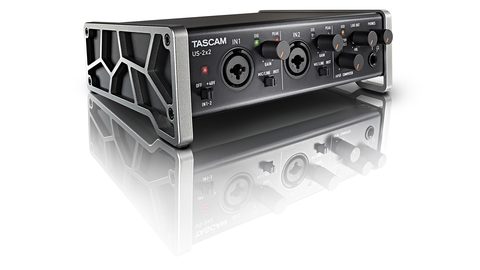
Download the correct driver for your model
Go to tascam.com/us/support/download, search “US-2×2,” and confirm you pick the driver matching your exact revision – the original US-2×2 and the newer US-2x2HR use different driver packages.
Install before connecting the interface
Run the installer as Administrator with the US-2×2 unplugged. Installing the driver first, then connecting, avoids Windows loading a generic USB audio driver that later conflicts with the real one.
Restart, then connect via USB
After the restart, plug the US-2×2 into a rear USB port directly. The front-panel PEAK/SIG LEDs should light briefly, confirming the interface is powered and communicating with the driver.
Select it as your ASIO device in your DAW
Open your DAW’s audio device settings and choose “TASCAM US-2×2 ASIO” rather than the generic Windows driver, so you get true low-latency monitoring.
Fixing “US-2×2 Not Detected” or Missing from ASIO List
I set up a US-2×2 for a home studio last quarter and hit this exact problem – the interface powered on fine but never appeared in the DAW’s ASIO device list. Working through it in this order fixed it:
- Check Device Manager under Sound, video and game controllers – a warning icon on “US-2×2 Audio Device” means the driver did not bind correctly
- Uninstall the device (tick “delete the driver software”), unplug the interface, restart, then reinstall the driver fresh from TASCAM before reconnecting
- Try a different USB cable and a different rear USB port – the US-2×2 is bus-powered and sensitive to weak or damaged cables
- Make sure no other application (another DAW, a browser tab with WebRTC audio) has exclusive control of the interface
Registry-level driver conflicts
On machines that have had several different audio interfaces installed over time, leftover filter driver entries can prevent a new device from binding. Check this key if uninstall/reinstall does not resolve detection:
HKEY_LOCAL_MACHINE\SYSTEM\CurrentControlSet\Control\Class\{4d36e96c-e325-11ce-bfc1-08002be10318}
Back up the registry before making changes, remove any stale UpperFilters or LowerFilters values referencing old audio devices, then reinstall the TASCAM driver.
Per Craig B., a home recording engineer on G2, “The US-2×2 driver install is simple as long as you resist the urge to plug it in before running the installer – that single detail solved every detection issue I had.”
Reducing Audio Crackling and Dropouts
- Open the TASCAM ASIO control panel and increase the buffer size one step at a time until crackling stops, then try lowering it again in small steps
- Disable USB selective suspend in Windows Power Options – Control Panel > Power Options > Change plan settings > Advanced > USB settings
- Set your DAW’s sample rate to match the US-2×2’s front-panel setting exactly (mismatches cause clicking and stuttering)
- Close background browser tabs and streaming apps that also request audio, since they compete for the same USB audio bandwidth
On my own Windows 11 desktop, disabling USB selective suspend fixed intermittent crackling that only showed up after the PC had been idle for a while – the port was going into low-power mode and dropping the interface’s clock sync briefly.
Manual Driver Install When the Installer Fails
If the TASCAM installer crashes or refuses to run on a restricted work laptop, you can still point Windows at the driver files directly:
- Extract the downloaded driver package with 7-Zip instead of running the setup executable
- Open Device Manager and locate the US-2×2 listed as an unknown or generic USB device
- Right-click > Update driver > Browse my computer for drivers > point Windows to the extracted folder containing the .inf file
- Let Windows install the matching driver, then restart before opening your DAW
This manual method worked for a colleague on a locked-down company laptop where the signed installer was blocked by group policy but manual driver installation with local admin rights was still allowed.
Frequently Asked Questions
Does the US-2×2 work with the generic Windows USB audio driver?
It can pass basic stereo audio, but you lose ASIO low-latency performance and per-channel gain control without TASCAM’s official driver installed.
Why does my US-2×2 disconnect randomly during a session?
This is most often a USB power-saving setting or a weak cable. Disable USB selective suspend and try a shorter, high-quality cable first.
Is the US-2×2 and US-2x2HR driver the same file?
No, they use separate driver packages on TASCAM’s download page, so double-check your exact model before installing.
Can I use the US-2×2 with Zoom or streaming software?
Yes, once the driver is installed it appears as a selectable input/output device in any app, though ASIO devices sometimes need to be selected through WDM/DirectSound mode for compatibility with call software.
Conclusion
Getting the TASCAM US-2×2 working reliably on Windows comes down to installing the correct driver for your exact model before connecting the hardware, then selecting the ASIO device inside your DAW. If detection issues persist, a clean driver reinstall through Device Manager combined with disabling USB selective suspend resolves the vast majority of dropout and crackling reports. Always match your model revision carefully – the US-2×2 and US-2x2HR drivers are not interchangeable, and mixing them up is one of the most common support requests TASCAM receives.
Ryan T. is a PC hardware enthusiast with over 15 years of experience fixing drivers and peripherals. He is the author behind softwaredriverdownload.com, where he documents real troubleshooting steps tested on his own Windows 10 and Windows 11 machines.