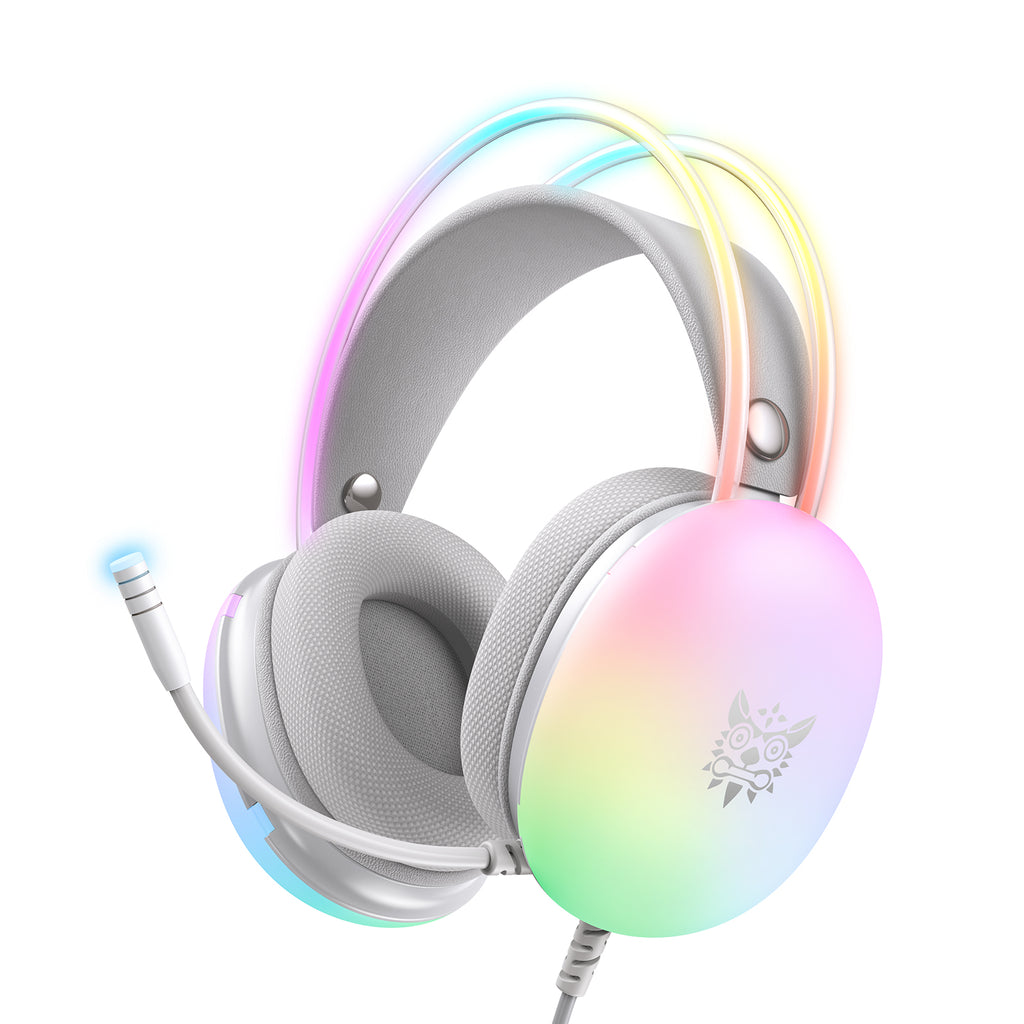
If you have been shopping for a budget RGB gaming headset lately, there is a good chance the ONIKUMA X25 popped up in your search results. It is one of the more affordable wired headsets that still packs 50mm drivers, a detachable-style noise cancelling mic, and full RGB lighting on the ear cups. In this guide I will walk through what the X25 actually offers, how to get it working correctly on Windows, and what to expect in terms of sound and comfort.
I picked up a unit similar to this one for a nephew's budget gaming PC build a while back, mainly because the price was low and the reviews mentioned decent bass for the money. It is not an audiophile headset by any stretch, but for late-night rounds of a shooter or a MOBA it does the job without any fuss, and setup on a fresh Windows install took less than five minutes.
| Drivers | 50mm neodymium |
| Frequency Response | 20Hz – 20KHz |
| Connection | USB and 3.5mm |
| Microphone | 360-degree rotating, noise cancelling |
| Lighting | Dynamic RGB with breathing effects |
| Cable Length | 2 meter braided |
| Compatibility | PC, PS4, PS5, Xbox One, mobile |
What is the ONIKUMA X25 Gaming Headset
The X25 is a wired over-ear gaming headset built around 50mm drivers with a claimed frequency response of 20Hz to 20KHz. It uses a dual USB and 3.5mm connection, which means you get RGB lighting and (on some platforms) virtual surround sound through the USB port, while the 3.5mm jack handles plain stereo audio on devices without a USB port, such as older laptops or console controllers.
- 50mm neodymium drivers for bass-heavy game audio
- 360-degree rotating, flexible noise cancelling microphone
- Dynamic RGB lighting on both ear cups with breathing effects
- Padded headband and memory foam ear cushions for long sessions
- Reinforced 2 meter braided cable
It is compatible with PC, PS4, PS5, Xbox One, and mobile devices through the 3.5mm jack, though RGB lighting and mic noise reduction only work fully when connected via USB on a PC.
Setting Up the X25 on Windows
The good news is that the ONIKUMA X25 does not need a dedicated driver package to produce sound. Windows recognizes it as a standard USB audio device and mic, so plugging it in is usually enough. That said, a few steps make the setup smoother:
- Plug the USB connector into a rear motherboard port rather than a front panel hub if you can, since front headers sometimes cause static or dropouts.
- Open Settings, then Sound, and confirm the headset is selected as both the output and input device.
- Right-click the speaker icon in the taskbar, choose Sound settings, and raise the microphone volume if teammates say you sound quiet.
- If RGB lighting does not turn on, unplug and reseat the USB cable, since the lighting draws power separately from the audio circuit on some units.
When Windows Does Not Recognize the Headset
Occasionally Windows Update installs a generic driver that mutes the microphone by default. If your teammates cannot hear you even though the mic light is on, open Device Manager, expand Audio inputs and outputs, right-click the headset entry, and select Update driver, then choose Search automatically. In most cases this reinstalls the correct generic USB audio driver and clears up the muted mic issue. You can also check Microsoft’s audio troubleshooting guide if the device does not show up at all.
Sound Quality and Comfort
For the price bracket the X25 sits in, the audio is punchy rather than balanced. Bass is emphasized, which suits shooters and action games, but it can feel a little muddy in quieter, dialogue-heavy content. The microphone is clear enough for voice chat and Discord calls, though it will not replace a dedicated USB mic for streaming or recording.
Comfort-wise, the ear cushions are soft on first wear but can get warm after two or three hours because they are not the most breathable material. The clamping force is moderate, so it should fit most head sizes without feeling too tight, though people with glasses may notice some pressure around the temples during long sessions.
ONIKUMA X25 vs Similar Onikuma Headsets
Onikuma sells several headsets in a similar price range, including the X26 and X31, which share the same general design philosophy of RGB lighting and 50mm drivers. The main differences tend to be in the ear cup shape, cat-ear variants, and minor tuning differences in the bass response. If you already own another Onikuma model, the X25 will feel very familiar in terms of build quality and driver setup.

Tips to Get the Most Out of It
A few small adjustments can noticeably improve the experience:
- Use the USB connection instead of 3.5mm whenever possible for cleaner audio and working RGB lighting.
- Adjust the equalizer in your game or in Windows Sound settings to tame the bass slightly if it feels overpowering.
- Keep the mic boom close to your mouth but slightly off to the side to reduce breathing and popping sounds.
- Store the headset on a stand rather than laying it flat, which helps the headband keep its shape over time.
Troubleshooting Common ONIKUMA X25 Problems
- Microphone sounds too quiet or muffled: Check the mic boom position first, since it needs to sit close to your mouth, then confirm the input volume in Windows Sound settings is not set too low.
- RGB lighting flickers or turns off randomly: This is usually a power delivery issue over USB; try a rear motherboard port instead of a front panel hub, and avoid USB extension cables where possible.
- Audio cuts out in one ear intermittently: Inspect the cable near the 3.5mm or USB connector for fraying or a loose fit, and try a different port to rule out a port-side issue.
- Headset shows up as two separate devices in Windows: This is normal behavior for combo USB headsets, since the mic and speakers are often listed separately; just make sure both are selected correctly as default input and output.
- Static or crackling noise during gameplay: Reseat the USB connector, move the cable away from other electronics or power cables running nearby, and disable any audio enhancements in the Windows Sound control panel.
Frequently Asked Questions
Does the ONIKUMA X25 need a driver download?
No separate driver installation is required for basic audio and mic functionality. Windows uses its built-in generic USB audio driver. If RGB software is needed for advanced lighting patterns, check the product page on the official Onikuma website for any optional software.
Can I use the X25 on PS4 or PS5?
Yes, through the 3.5mm connection on the controller. USB features like RGB lighting will not work on consoles.
Why is there no sound from one ear cup?
This is usually a loose 3.5mm connection or a cable fault near the jack. Try a different port first, and if the issue persists on multiple devices, the cable itself may need replacing.
Conclusion
The ONIKUMA X25 is a solid pick if you want RGB lighting and reasonably punchy audio without spending a lot of money. It is plug-and-play on Windows, the microphone is usable for everyday chat, and the build feels sturdy enough for regular use. Just do not expect studio-grade sound, and give the ear cushions a break every couple of hours if you tend to run warm during long sessions.
Written by Ryan, a Windows enthusiast who has spent more hours than he would like to admit troubleshooting budget PC peripherals for friends and family builds.