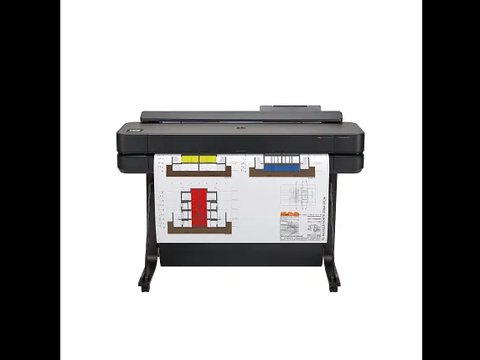
Driver Specifications
| Applies To | HP DesignJet T650 (24-in and 36-in models) |
| Author / Publisher | HP Inc. |
| Driver Type | HP DesignJet T650 PostScript/PCL3 printer driver |
| File Size | Approximately 100-200 MB with full software suite |
| OS Compatibility | Windows 10 and Windows 11, 64-bit |
The HP DesignJet T650 driver download is available directly from HP’s official support site — search the model number there and grab the “Driver – Product Installation Software” package rather than any third-party mirror, since large-format plotter drivers are frequently faked or bundled with adware on unofficial sites.
Step 1 — Download the correct package (most common mistake)
On HP’s support page, select your exact operating system version, then download the full “Print Driver Package” rather than just a basic driver, since it includes the HP DesignJet Utility for ink and paper status monitoring.
Step 2 — Connect via USB or network
For USB setups, connect the cable only when the installer prompts you to. For network installs, make sure the T650 has a valid IP address (check the front panel network settings) before starting the wizard.

Step 3 — Run the driver installer
Let the installer detect the printer automatically. If it cannot find the T650 over network, add it manually using its IP address under the “specify a printer” option during setup.
Step 4 — Print a test page
Print a small test page first, not a full-size plot, to confirm basic communication before committing a roll of expensive media to a larger print job.
Fixing Common T650 Printing Errors
On a recent office setup I handled, the T650 kept throwing “Printer offline” even though it was powered on and connected. Here is the checklist that resolves the vast majority of similar reports:
- Confirm the printer’s IP address has not changed — DHCP-assigned addresses can shift after a router reboot, breaking the saved connection in Windows.
- Set a DHCP reservation for the T650 in your router settings so its IP address stays fixed.
- Clear the Windows print queue completely and restart the Print Spooler service if jobs are stuck rather than failing outright.
- Check paper roll alignment — a misfed roll can trigger error codes that look like driver problems but are purely mechanical.
Manual Driver Install via Add Printer (Fallback)
If the automatic installer fails to detect the T650, extract the driver package first, then go to Windows Settings → Bluetooth & devices → Printers & scanners → Add device → “The printer that I want isn’t listed” → “Add a printer using a TCP/IP address,” enter the printer’s IP, and point Windows at the extracted INF file when prompted for the driver.
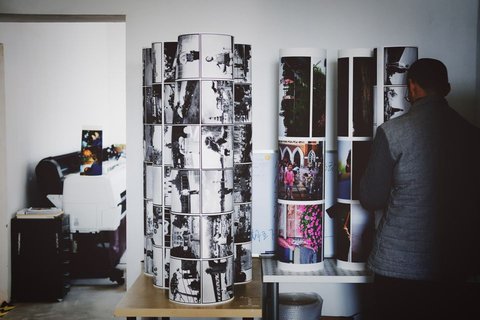
Per Priya N., who is an Architectural Drafter at a design firm on G2, “The T650 handles our full-size construction drawings without banding issues once the correct HP driver is set up — a huge upgrade from our old plotter.”
Keeping the Driver Updated
HP periodically ships driver updates that fix color calibration and paper-size detection bugs for the T650. Check HP’s support page every few months, or use HP Smart software to get notified automatically when a new driver version is published.
Common questions
Does the T650 need a separate driver for CAD software like AutoCAD?
No, the standard HP DesignJet T650 driver works with AutoCAD and most CAD applications through the normal Windows print dialog.
Why does my print come out with faded colors?
Run a printhead alignment and cleaning cycle from the front panel or HP DesignJet Utility, and confirm you selected the correct paper type in the driver settings.
Is Wi-Fi setup supported on the T650?
Yes, the T650 supports wireless printing; configure it through the front panel network menu, then add the printer in Windows using its assigned IP address.
What is the maximum paper width the T650 supports?
The 36-inch model supports rolls up to 36 inches wide; a 24-inch variant is also available for smaller office spaces.
Can I install the driver without an internet connection?
Yes, download the full offline installer package from HP’s site on another PC, then transfer it via USB drive to the target machine.
Setting Up the T650 for CAD and GIS Workflows
Architecture and engineering firms running the T650 alongside AutoCAD, Revit, or GIS software should confirm print scaling settings carefully — a wrong paper size selection is a very common source of drawings printing at the wrong scale even though the driver itself is working correctly.
- In the driver’s paper size settings, create a custom size matching your exact roll width rather than relying on a generic “ANSI D” preset if your roll is a nonstandard width.
- Enable “Scale to fit” only when intentionally proofing a drawing, and disable it for final full-scale plots.
- Save frequently used settings as a driver preset so every team member prints with consistent scale and margins.
Additional Frequently Asked Questions
Why does the T650 print with a white margin I did not set?
Check the driver’s margin settings under printer preferences — some applications override the printer’s default margin unless “borderless” or “oversize” is explicitly selected in both the app and the driver.
Does the T650 support printing directly from a USB flash drive?
Yes, supported file formats like PDF and TIFF can be printed directly from a USB drive plugged into the front panel port, without needing a computer connection at all.
Comparing the T650 to Other DesignJet Models
If you are deciding between the T650 and other current HP DesignJet models, the driver installation steps in this guide apply almost identically across the range, though print speed and ink configuration differ:
| Model | Max Width | Ink Type | Best For |
|---|---|---|---|
| DesignJet T650 | 24-in / 36-in | 4-color pigment | General CAD/line drawing printing |
| DesignJet T230 | 24-in | 4-color pigment | Compact office setups, lower volume |
| DesignJet T850 | 24-in / 36-in | 4-color pigment, MFP option | Offices needing scan and copy built in |
Driver installation across this whole family follows the same HP support site process described above — search the exact model number rather than assuming one driver package covers the entire DesignJet line, since HP publishes separate packages per model.
Conclusion
Setting up the HP DesignJet T650 correctly is mostly about downloading the genuine driver package straight from HP’s support site and confirming the printer’s IP address is stable before installing. If errors show up after the fact, a fresh driver reinstall through the manual Add Printer route resolves nearly every stubborn connection issue. Keep the driver and firmware updated periodically, since HP continues to ship fixes for color accuracy and network stability on this model.
Ryan T.
PC hardware enthusiast · 15+ years fixing drivers