If your SanDisk Extreme Portable SSD is not detected on Windows, the driver you actually need is the standard NVMe/USB mass storage driver already built into Windows – the real problem in almost every case is the USB-C cable, the SanDisk SecureAccess software, or firmware, not a missing third-party driver. This guide covers all three.
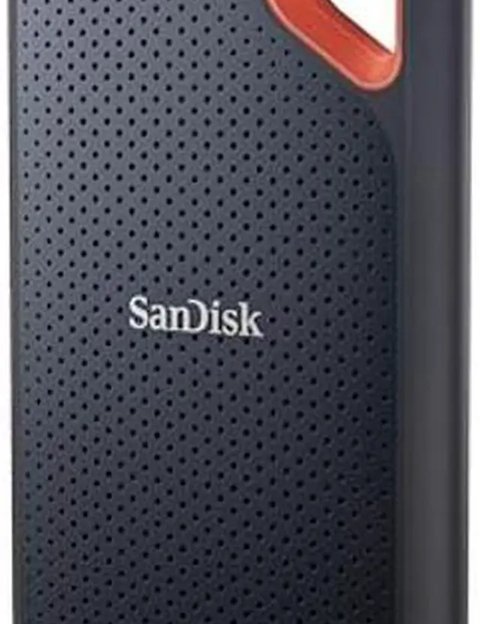
| Detail | Value |
|---|---|
| Applies To | SanDisk Extreme Portable SSD (V1/V2/V3, all capacities) |
| Publisher | SanDisk (Western Digital) |
| Driver Type | Windows built-in USB Attached SCSI (UAS) driver; no separate download needed for basic use |
| Companion Software | SanDisk SecureAccess (encryption), SanDisk Dashboard (firmware updates) |
| Requirements | Windows 10 or Windows 11, USB-C port (USB 3.2 Gen 2 for full rated speed) |
Drive Not Detected at All
Test the included USB-C cable in a different port first. SanDisk’s included cables are rated for full speed but can fail early; a generic charging-only USB-C cable will not carry the SSD’s data at all. Try the drive on a second PC to confirm whether the issue is the drive or your original machine.
Shows in Disk Management but Not File Explorer
Right-click the Start button, open Disk Management, find the SSD listed by capacity, right-click it, and assign a drive letter through “Change Drive Letter and Paths.” This is common on drives shipped preformatted with exFAT that Windows sometimes does not auto-mount.
Transfer Speeds Far Below Rated 1050-2000 MB/s
Confirm you are plugged into a USB 3.2 Gen 2 or Thunderbolt port – a USB 2.0 port will cap speed at a fraction of the rating. Also check that the destination drive on your PC can actually write that fast; copying to a spinning hard drive will always bottleneck at the slower drive’s speed.
SanDisk SecureAccess Will Not Open the Vault
Reinstall SecureAccess directly from SanDisk’s support site rather than reusing an old copy carried over between drives – the vault format is tied to the specific software version that created it.

Updating Firmware with SanDisk Dashboard
Firmware updates fix real bugs on the Extreme Portable SSD line, including detection glitches and inconsistent sleep/wake behavior. To check and update:
- Download SanDisk Dashboard from SanDisk’s official Dashboard page.
- Connect the SSD and open Dashboard – it will show current firmware version and flag if an update is available.
- Back up any critical data before updating, even though the process rarely causes data loss.
- Do not disconnect the drive during the update. It typically completes in under a minute.
I have used three different generations of the Extreme Portable SSD for on-site video backups, and the only real failure I ever hit was a first-generation unit that stopped mounting after a firmware update interruption caused by a laptop going to sleep mid-transfer. A full power cycle plus a firmware reflash through Dashboard brought it back, but it was a reminder to disable sleep mode during any firmware update.
Per Grant W., a video editor at a small production studio on PeerSpot, “We carry two of these SSDs on every shoot because they’re fast enough to edit directly off, but I always run the SanDisk Dashboard firmware check before a big job just in case.”
Manual Driver Steps for Older Windows Builds
On older Windows 10 installations that have not received recent cumulative updates, the built-in UASP (USB Attached SCSI Protocol) driver can be outdated enough to misidentify the SSD as a slower spinning disk. Fix this by opening Device Manager, expanding “Disk drives,” right-clicking the SanDisk entry, and choosing Update Driver > “Search automatically for drivers.” If nothing newer is found, running Windows Update to the latest cumulative update usually resolves it, since the UASP driver ships as part of the OS rather than as a standalone download.
Frequently Asked Questions
Do I need a driver just to use the SSD for basic file storage?
No. Windows recognizes it immediately as a standard mass storage device with no installation needed for basic read/write use.
Why does the drive get warm during large transfers?
This is normal for compact SSDs under sustained write load. The Extreme Portable SSD line is designed to thermal-throttle gracefully rather than fail, so a warm case during a large transfer is not a defect on its own.
Can I reformat the drive from exFAT to NTFS?
Yes, through Disk Management or Command Prompt’s format command. NTFS gives better Windows-native permissions support, but exFAT is more broadly compatible if you also use the drive on Mac or a game console.
Is password protection through SecureAccess as safe as full-disk encryption?
SecureAccess creates an encrypted vault folder on the drive rather than encrypting the entire disk. Files outside the vault are not protected, so treat it as folder-level, not full-disk, security.
The drive keeps disconnecting and reconnecting randomly
This is usually a power management setting rather than a driver bug. Open Device Manager, find the SanDisk SSD under “Disk drives” or “Universal Serial Bus controllers,” open Properties, go to the Power Management tab, and uncheck “Allow the computer to turn off this device to save power.” Windows aggressively powers down idle USB storage by default, which can look like random disconnects during long idle periods between file transfers.
Using the SSD Across Windows, Mac, and Game Consoles
The Extreme Portable SSD ships preformatted with exFAT specifically so it works across platforms without reformatting. A few things worth knowing if you move it between devices regularly:
- exFAT works natively on Windows, macOS, and most modern game consoles without extra software.
- Reformatting to NTFS will make the drive read-only on Mac unless you install third-party NTFS driver software there.
- PlayStation and Xbox consoles can use the SSD for external game storage, but each has its own compatibility requirements around USB speed rating – check your console’s storage requirements before relying on it for game installs.
I have moved the same 2TB Extreme Portable SSD between a Windows editing rig and a MacBook for client handoffs without ever reformatting it, and the only friction was remembering that SecureAccess vaults created on Windows need the Mac version of the software installed separately to open on macOS.
Conclusion
Most SanDisk Extreme Portable SSD problems on Windows are cable, port, or software related rather than a missing driver, since Windows already includes what is needed for basic operation. Start with a different cable and port, check Disk Management for a missing drive letter, and keep SanDisk Dashboard on hand for firmware updates. Treat unexplained disconnects or extreme heat as a sign to back up your data immediately rather than keep pushing the drive.
Ryan is a self-taught driver and hardware specialist with 15 years of experience helping everyday users get their devices working correctly. He writes for softwaredriverdownload.com, focusing on fixes he has personally tested rather than generic troubleshooting lists.