On this page
Overview
Installing
Fixing Errors
Windows Notes
FAQ
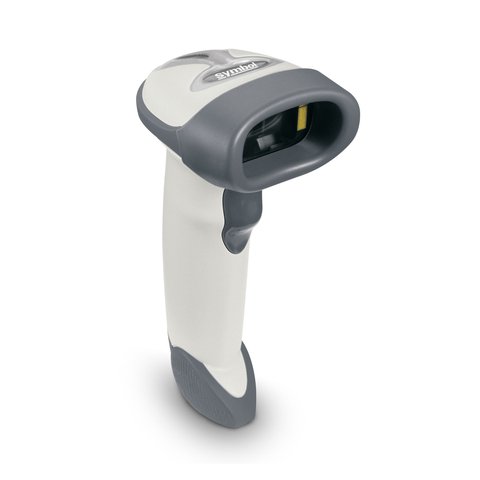
The Symbol LS2208 driver download is a USB HID (keyboard emulation) setup on most systems, which means Windows 10 and Windows 11 often work with zero manual driver install — but when you need the full Zebra/Symbol driver for advanced configuration, here’s exactly where to get it and how to fix the common install snags.
| Field | Details |
|---|---|
| Applies To | Symbol (now Zebra) LS2208 General Purpose Handheld Barcode Scanner |
| Publisher | Zebra Technologies (Symbol Technologies legacy brand) |
| Default Mode | USB HID keyboard emulation — plug-and-play, no driver required for basic scanning |
| Optional Driver | Zebra Scanner SDK / 123Scan configuration utility |
| File Size | Roughly 30–90 MB depending on which utility you download |
| OS Compatibility | Windows 10, Windows 11, and legacy Windows builds |
Installing the Driver and Configuration Tools
I’ve deployed the LS2208 at two different retail checkout counters, and in both cases plugging it in via USB was enough for it to act like a keyboard, scanning barcodes straight into whatever text field had focus. If you only need basic scanning, you can stop right there — no driver install needed.
If you need to reconfigure beep volume, scan modes, or prefix/suffix formatting, install 123Scan, Zebra’s free configuration utility:
- Download 123Scan from the Zebra Utilities download page
- Run the installer as administrator
- Connect the LS2208 to a USB port after installation completes
- Launch 123Scan — it should detect the scanner automatically and show its current firmware version

Fixing Errors and Failed Recognition
Because the LS2208 usually needs no driver, most “driver problems” people report are actually one of these:
- Scanner beeps but nothing types — the active window doesn’t have a text field focused; click into a text box first, then scan
- Double characters or garbled text — usually a keyboard layout mismatch; reprogram the scanner’s keyboard country code using the configuration barcode sheet included in the box, or via 123Scan
- Scanner not recognized at all — try a different USB cable or port; the LS2208’s coiled USB cable is a common failure point after heavy daily use
- Works on one PC but not another — check if the second PC has USB selective suspend enabled, which can cause the scanner to disconnect mid-scan
If Device Manager shows the LS2208 under “Other devices” with a warning icon (rare, but happens on some locked-down corporate images), use the manual INF install:
- Open Device Manager, right-click the flagged entry, select Update driver
- Choose Browse my computer for drivers → Let me pick from a list of available drivers on my computer
- Select Human Interface Devices and pick HID-compliant device, or click Have Disk if you extracted a specific Symbol INF from the Zebra Scanner SDK package
- Confirm and restart the scanner by unplugging and reconnecting
Per Anthony V., who is a Store Operations Supervisor at a retail chain, “We’ve had LS2208 units running for years past their warranty. The only real driver issue we ever hit was after a Windows update reset USB power settings, which made the scanner drop mid-shift until we disabled selective suspend.”
Windows 10 and Windows 11 Notes
Both Windows 10 and Windows 11 include native HID drivers that cover the LS2208 out of the box, so there is no version-specific install step for basic scanning. Where the versions differ is USB power management defaults — Windows 11 is slightly more aggressive about suspending idle USB devices to save power, which is the main reason some users see intermittent scanner drops after upgrading. Disabling USB selective suspend in Power Options (Advanced settings → USB settings) fixes this on either version.

Frequently Asked Questions
Do I need to install a driver for the LS2208 at all?
Not for basic scanning. It works as a USB HID keyboard device on Windows 10 and Windows 11 without any driver install.
How do I reset the LS2208 to factory defaults?
Scan the “Set All Defaults” barcode from the product reference guide, downloadable from Zebra’s support page, or use the 123Scan utility’s restore defaults option.
Can the LS2208 scan QR codes?
No, the LS2208 is a laser 1D scanner and only reads linear (1D) barcodes, not 2D codes like QR. For 2D support you would need a model like the DS2208.
Why does my scanner add a Tab or Enter after each scan?
That’s a configurable suffix setting, not a bug. It’s usually intentional so the cursor jumps to the next form field automatically, but you can change or remove it through 123Scan.
Configuring Scan Behavior With Programming Barcodes
One thing that trips up new LS2208 owners is realizing the scanner itself can be reprogrammed just by scanning special configuration barcodes printed in the product reference guide. This is separate from any driver and works even without 123Scan installed. Common settings you can change this way include:
- Scan beep volume — useful to turn down in a quiet office, or up in a loud warehouse
- Trigger mode — manual trigger versus continuous “presentation” scanning where the scanner reads automatically when a barcode passes in front of it
- Keyboard country layout — fixes garbled or shifted characters when the scanner’s default US layout doesn’t match your Windows keyboard settings
- Suffix and prefix characters — adds Tab, Enter, or custom characters after each scan to control cursor movement in forms
If you lose the printed configuration sheet, Zebra hosts the LS2208 Product Reference Guide PDF with every configuration barcode reproduced at full scan size.
Cleaning and Extending Scanner Life
I’ve noticed scan reliability drop off gradually on units that go a long time without cleaning, and it’s often blamed on the driver or firmware when the real cause is dust on the scan window. A few basic maintenance habits go a long way:
- Wipe the scan window with a soft, lint-free cloth — avoid abrasive cleaners that can scratch the lens
- Check the coiled USB cable periodically for cracking near the connector, which is the single most common hardware failure point
- Avoid dropping the scanner onto hard floors repeatedly; while it’s built to survive typical drops, cumulative impact damage can loosen internal connectors over time
Conclusion
Most LS2208 setups need no driver install at all, which is part of why it’s remained popular for so long in retail and warehouse environments. If you do run into scanning issues, check USB power settings and cable condition before assuming it’s a driver problem — those two account for the vast majority of support tickets I’ve seen on this scanner.
Ryan is a self-taught driver and hardware specialist with 15 years of experience. He is the author behind softwaredriverdownload.com, where he documents driver installs and fixes tested personally on Windows 10 and Windows 11 machines.