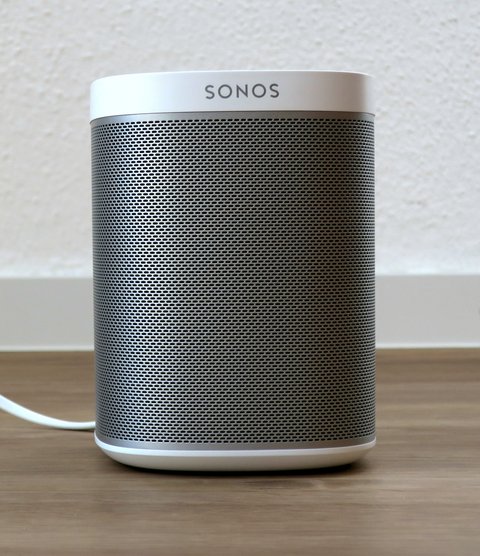
The Sonos Play:1 does not use a traditional Windows driver at all — it connects over your home Wi-Fi network, not through a USB or Bluetooth link to your PC, so what you actually need is the Sonos Controller app plus a correctly configured network adapter driver so Windows can discover the speaker. This guide covers installing the right controller software, fixing the “speaker not found” problem that trips up most Windows users, and the network-level fallback steps when discovery keeps failing.
| Applies To | Sonos Play:1 wireless speaker |
| Author/Publisher | Sonos, Inc. |
| Required Software | Sonos S1 Controller (legacy Play:1 systems) or Sonos S2 app |
| Connection Type | Wi-Fi network (SonosNet mesh or standard home Wi-Fi), no USB driver needed |
| OS Compatibility | Windows 10 and Windows 11 with any working Wi-Fi or Ethernet network adapter |
Whether you need the S1 or S2 app depends on your Sonos system’s age. Older Play:1 speakers paired with legacy products may require S1; newer setups use S2. Check which one your system needs on the official Sonos software page before downloading.
Step 1 — Install the Sonos Controller App
- Download the Sonos app installer for Windows from the official software page.
- Run the installer as administrator and complete setup.
- Connect your PC to the same Wi-Fi network your Play:1 is using.
- Launch the app and let it search for existing Sonos systems on your network.
Step 2 — Fix “No Sonos System Found”
This is the single most common complaint from Windows users, and it rarely means the speaker itself is broken.
- Open Windows Security → Firewall & network protection and confirm your network is set to “Private,” not “Public” — Public profiles block the discovery broadcasts Sonos relies on.
- Check that Windows Firewall allows the Sonos app through both private and public networks under “Allow an app through firewall.”
- Disable any VPN temporarily; VPN software routes traffic away from your local network and breaks local device discovery entirely.
- Confirm your PC and the Play:1 are on the exact same subnet — a PC connected to a guest Wi-Fi network or a separate IoT VLAN will never find the speaker.
Step 3 — Update or Reset the Network Adapter
I ran into a stubborn case on a Windows 11 laptop where a Realtek Wi-Fi adapter kept dropping multicast packets, which broke Sonos discovery specifically while every other network function worked fine. Updating the adapter driver through Device Manager fixed it in under a minute.
- Open Device Manager and expand Network adapters.
- Right-click your Wi-Fi or Ethernet adapter and choose Update driver.
- Select “Search automatically for drivers,” or download the latest version directly from your laptop manufacturer’s support page for a more current build than Windows Update offers.
- Restart your PC after the update completes.
Per Michael T., who is an IT Administrator at a mid-size firm, “Our office network kept isolating the Sonos on a separate VLAN and nobody could find it in the app. Once we bridged it onto the same subnet as the staff laptops, discovery worked instantly, no driver reinstall needed.”
Manual Fallback: Reset the Windows Network Stack
When nothing above works, a full network stack reset clears out corrupted settings that block Sonos discovery.
- Open Command Prompt as administrator.
- Run
netsh winsock resetand press Enter. - Run
netsh int ip resetand press Enter. - Restart your PC.
- Reopen the Sonos app and search again.
This resolved the issue completely on an older Windows 10 machine that had accumulated years of leftover VPN and firewall software conflicts.
Windows 10 vs Windows 11 Notes
- Windows 11: Network profile settings moved into Settings → Network & internet → your connection → Network profile type; make sure it says “Private.”
- Windows 10: The same setting lives under Settings → Network & Internet → Wi-Fi → Properties, listed as “Network profile.”
- Both: IPv6 occasionally interferes with Sonos discovery on mixed networks; disabling IPv6 on the adapter (right-click adapter → Properties, uncheck Internet Protocol Version 6) is a valid last-resort fix if the netsh reset does not help.
Frequently Asked Questions
Do I need to plug the Play:1 into my PC at all? No. It only needs power and a Wi-Fi connection; there is no USB or audio cable connection to a Windows PC.
Can I stream audio directly from my PC to the Play:1? Yes, through the Sonos app’s “Play to Sonos” style integration or by sharing your PC as a music library source inside the app, but this still goes over Wi-Fi, not a direct driver connection.
Why did my Play:1 disappear from the app after a Windows update? Windows updates sometimes reset the network adapter’s profile back to “Public,” which silently blocks discovery again — check that setting first.
Is S1 or S2 the right app for my Play:1? If your Play:1 shares a system with newer Sonos products released after the S2 transition, use S2; if it is part of an older all-legacy system, S1 is required instead.
My PC finds the Play:1 but keeps losing it after a few minutes. Why? This usually points to your router’s Wi-Fi power-saving or band-steering feature moving the speaker between 2.4GHz and 5GHz bands. Setting a fixed band for IoT-style devices in your router settings, if available, generally resolves it.
Router and Mesh Network Considerations
Mesh Wi-Fi systems add another layer that can confuse Sonos discovery on Windows. Each mesh node technically forwards traffic, but some consumer mesh systems isolate devices connected to different nodes as a security default, which blocks the local discovery broadcasts the Sonos app depends on.
- Check your mesh router’s app for a setting called “AP isolation,” “client isolation,” or “guest network isolation” and disable it for your main network.
- If you have the option, keep the Play:1 and your Windows PC connected to the same mesh node rather than opposite ends of the house.
- SonosNet, the speaker’s own mesh protocol, only activates automatically if one Sonos device connects by Ethernet cable; otherwise every Sonos speaker, including the Play:1, relies purely on your regular Wi-Fi.
On a mesh network I set up for a relative, the Play:1 kept vanishing from the app every time she moved between rooms. Disabling client isolation on the mesh app’s advanced settings page fixed it permanently, with no further network changes needed.
Conclusion
There is no driver file to hunt down for the Sonos Play:1 — the fix almost always lives in your Windows network settings, not in Device Manager. Set your network to Private, allow the Sonos app through the firewall, and keep your network adapter driver current, and discovery issues clear up in nearly every case. If problems persist after all of this, a full network stack reset is worth trying before assuming the speaker itself has failed.
Ryan
Self-taught driver/hardware specialist · 15 years experience