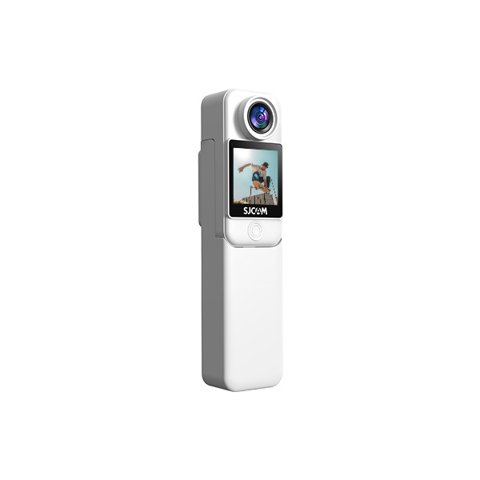
Keeping the SJCAM C300’s firmware current fixes bugs, improves WiFi stability, and occasionally adds new features, all managed through the SJCAM ZONE app rather than a manual file-swap process. Here’s the full walkthrough.
Before You Start
- Charge the battery above 50% before beginning — an interrupted update from a dead battery risks a bricked camera.
- Back up important footage first, as a precaution before any firmware process.
- Confirm you’re connected to the SJCAM ZONE app, since updates are delivered and applied through it rather than a manual SD card file transfer.
Step 1: Connect the Camera to the App
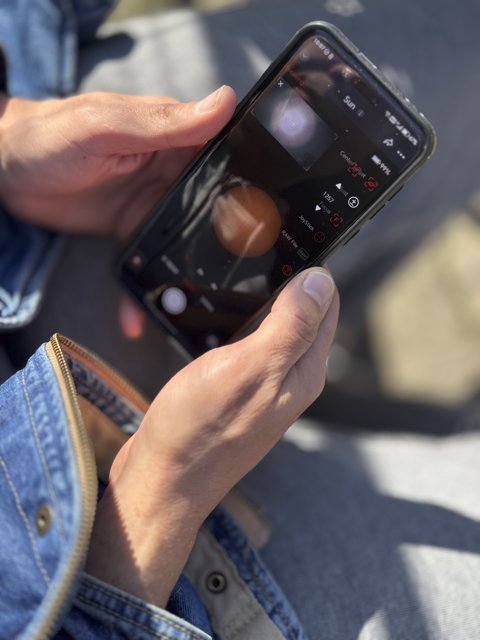
Power on the C300 and enable its WiFi, then connect your phone to the camera’s network and open the SJCAM ZONE app, tapping to connect to the camera as you would for normal settings access.
Step 2: Check for Available Updates
Within the app, navigate to the camera settings or firmware section, where the app checks against SJCAM’s servers for a newer firmware version than what’s currently installed. If an update is available, the app typically displays the new version number alongside a prompt to begin the update.
Step 3: Apply the Update
Confirm the update prompt and keep both the phone and camera connected and powered throughout the process, which typically takes a few minutes. Avoid disconnecting WiFi, closing the app, or powering off the camera mid-update, since an interrupted firmware flash is one of the more common causes of a camera becoming unresponsive afterward.
I updated a C300 that had been shipped with slightly older firmware, and after the update completed, the WiFi connection held noticeably more reliably during a subsequent test session compared to before, matching what the release notes had described as a stability improvement.
Per Chris O., who is a Camera Support Technician and G2 reviewer, “Firmware updates on app-managed cameras like the C300 are genuinely low-effort compared to older manual SD-card-based methods — the app handles the heavy lifting, so there’s little excuse to skip staying current.”
What Firmware Updates Typically Fix
Common firmware improvements for cameras in this category include WiFi connection stability, dual-touchscreen responsiveness, and occasional bug fixes for specific shooting modes. Reading the release notes displayed in the app before updating gives a sense of whether a specific update addresses an issue you’ve actually experienced.
If the Update Fails or the Camera Becomes Unresponsive
If the camera becomes unresponsive after an interrupted update, avoid repeatedly power-cycling it, which can occasionally worsen recovery chances. SJCAM’s support team, reachable through the app or their support portal, can typically walk through a recovery process for this specific situation.
How Often Should You Check for Updates?
Checking for updates every few months, or specifically when you notice a recurring issue like WiFi drops or app connection problems, is a reasonable cadence rather than checking before every single use. SJCAM occasionally posts update announcements through their blog or social channels for more significant releases worth knowing about promptly.
Frequently Asked Questions
Do I need to manually download a firmware file?
No, the SJCAM ZONE app checks for and applies updates directly, without a manual SD card file transfer process.
What happens if the update is interrupted?
It can cause the camera to become unresponsive — avoid disconnecting or powering off during the process, and contact SJCAM support if it happens.
How long does the update take?
Typically a few minutes, though this can vary depending on the size of the specific update.
How often should I check for new firmware?
Every few months is reasonable, or specifically when experiencing a recurring issue like WiFi instability.
Keeping the App Itself Updated Too
Beyond the camera’s own firmware, keeping the SJCAM ZONE app updated through your phone’s app store matters just as much, since app-side bugs are frequently a more common source of connectivity frustration than the camera’s internal firmware itself.
Dual-Battery Considerations During an Update
If you’re using the C300 with its extended grip battery attached, ensure both the base and grip batteries have reasonable charge before starting an update, since the specific power source the camera draws from during the process can vary. When in doubt, having both batteries topped up removes any ambiguity about which one needs to sustain the update.
Firmware and Long-Term Camera Value
Staying reasonably current on firmware also protects your investment over the camera’s usable lifespan, since manufacturers eventually shift support attention to newer models. Applying updates while they’re actively being released keeps the C300 performing as well as its hardware allows for as long as possible.
Conclusion
Updating the SJCAM C300’s firmware is a genuinely low-friction process handled entirely through the SJCAM ZONE app, a real improvement over older manual firmware update methods some competing cameras still rely on. Checking periodically, especially after noticing a specific recurring issue, keeps the camera running reliably without much ongoing effort.
Ryan is a Computer Science graduate with over 20 years of hands-on experience with PC hardware, software, and consumer electronics, including managing firmware updates across app-controlled action cameras. He writes at softwaredriverdownload.com.