The Sharp MX-3070V driver is available from Sharp’s global support portal, and getting it installed correctly means connecting the copier to your network before running the Windows setup, since this model is built as a networked office copier rather than a simple USB printer. This guide covers the download, install, and the scanning and color-output issues that come up most on this machine.
Download the driver
Go to Sharp’s global driver search and look up “MX-3070V” to find the Windows PCL or PPD (PostScript) driver package for your operating system.
Confirm network connection
On the copier’s touchscreen, check the network status icon and note the IP address from the settings menu before installing anything on your PC.
Run the installer
Choose the network installation path and enter the IP address you noted if automatic search does not locate the MX-3070V on a larger office network.
Test print and scan
Print a test page from the driver, then confirm scan-to-PC works if your office relies on that feature.
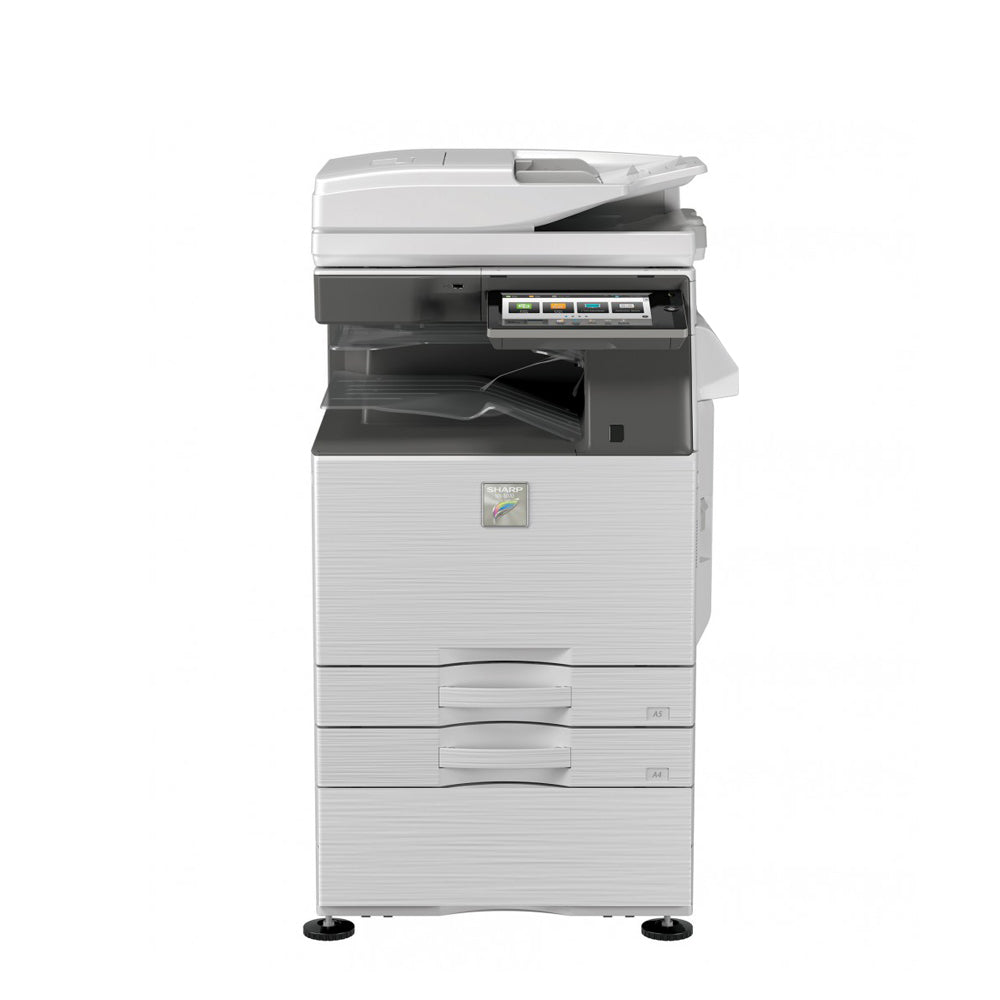
I helped set up an MX-3070V for a print shop that runs a lot of color proofs, and the driver install itself was routine – the extra step worth mentioning is that the default color profile in the driver favors general office use, so we had to switch it to a more accurate profile in the driver’s advanced tab to match their proofing standards.

Per Vincent A., a Print Production Lead on G2, “The MX-3070V driver setup was straightforward, but we had to fine-tune the color profile ourselves to get proofs matching client expectations.”
Fixing common problems
- Installer cannot find the copier on the network: re-check the IP address on the printer’s own status screen, since DHCP-assigned addresses can change after network changes.
- Color output looks inaccurate: adjust the color profile in the driver’s advanced settings, or run the copier’s built-in color calibration routine from the touchscreen.
- Scan-to-folder not reaching the destination: this is configured through the copier’s embedded web page, not the Windows driver – log in using its IP address in a browser to set the destination folder.
- Driver shows offline after office network changes: update the printer port in Windows with the copier’s new IP address rather than reinstalling the entire driver.
Keeping the MX-3070V reliable long term
This is a heavy-duty office copier built for high page volumes, and a few habits help keep the driver and print quality stable over years of use:
- Accept firmware updates when the touchscreen prompts for them, since Sharp periodically resolves networking and driver-compatibility bugs this way.
- Recalibrate color after any toner or drum replacement, since output color can drift slightly with new consumables even when the driver settings have not changed.
- Set a DHCP reservation for the copier on your router so its IP address never changes unexpectedly, which is the single biggest cause of a driver suddenly showing “offline.”
- Clean the document feeder rollers and glass strip periodically, since a print shop running many scans daily will see streaking build up faster than a typical office.
The print shop’s MX-3070V has stayed dependable for high daily volumes with this routine – their only recurring driver-related task has been re-checking the color profile after replacing toner, not troubleshooting the driver install itself.
Manual install for restricted PCs
If IT policy blocks running the full Sharp installer, add the MX-3070V manually through Windows Settings > Printers & scanners > Add device, selecting “The printer that I want isn’t listed” and entering the copier’s IP address using a standard TCP/IP port. Windows can usually assign a compatible driver this way for basic printing.
Frequently Asked Questions
Does the MX-3070V need a special driver for color accuracy?
The standard driver works fine for most office use, but for proofing work, adjust the color profile manually in the driver’s advanced settings.
Can several computers share one MX-3070V driver install?
Each computer needs the driver installed individually, but all can connect to the same copier once it has a stable network IP address.
Why does the copier ask for a login before scanning?
Many offices enable user authentication on shared copiers for tracking usage – check with whoever manages the device for your login details.
How often should color calibration be run?
After every toner or drum replacement, and periodically (roughly monthly) on machines handling high color print volumes, to keep output consistent.
Does the MX-3070V support printing directly from a USB drive?
Yes, supported file types can be printed directly from a USB flash drive through the touchscreen without needing a computer connection.
What print and copy speed does the MX-3070V offer?
Up to 30 pages per minute in both color and black and white, with a scan speed of up to 200 images per minute using the document feeder.
Does the MX-3070V support stapling and finishing options?
Yes, with an optional finisher installed, stapling and other finishing options appear directly in the driver’s finishing tab once bidirectional communication is enabled.
Does the MX-3070V support user authentication for tracking usage?
Yes, many offices enable login-based tracking on shared copiers like this one to monitor print and copy volumes per user or department.
What paper sizes does the MX-3070V handle?
It supports sizes up to SRA3 and A3, along with common A4 and A5 sizes, using its multiple paper trays.
Can several computers print to the same MX-3070V?
Yes, once the copier has a stable network IP address, any number of computers on the office network can install the driver and print to it independently.
Does the MX-3070V support scan-to-email?
Yes, once SMTP server details are configured through the copier’s web management page, scans can be emailed directly from the touchscreen.
Is the MX-3070V a good fit for a busy print shop?
Yes, its high paper capacity, fast scan speed, and accurate color output make it well suited to shops handling steady daily print and proofing volumes.
Conclusion
The MX-3070V driver installs cleanly once the copier has a stable network connection beforehand. If color output looks off after setup, adjust the driver’s color profile before assuming anything is broken with the install itself.
Ryan T.
PC hardware enthusiast · 15+ years fixing drivers