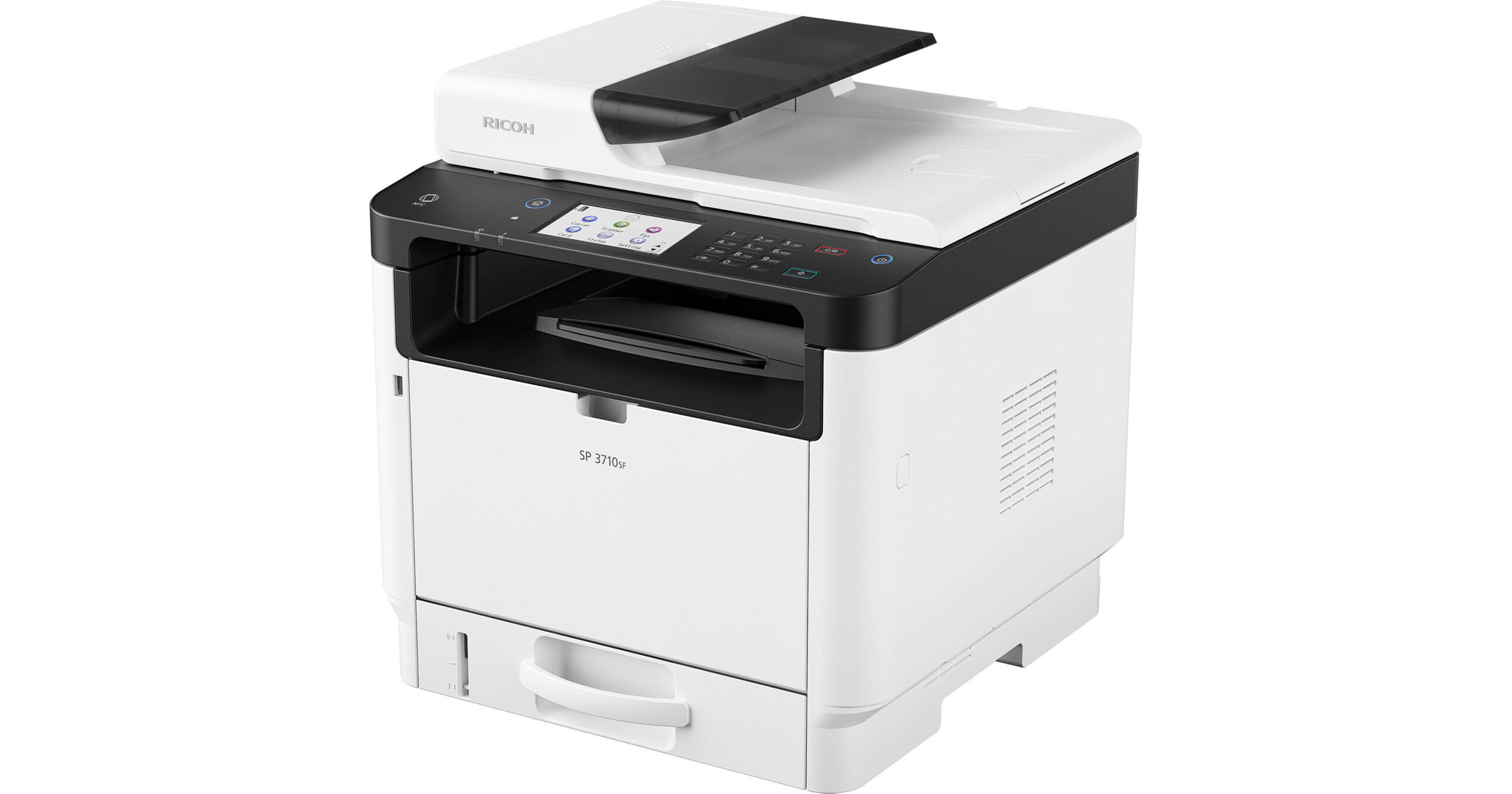
Download the Ricoh SP 3710SF driver from Ricoh’s regional support site and install it after connecting the printer over USB or your office network. This guide covers the download, install steps, and the fax and scan configuration issues that come up most on this all-in-one laser model.
Finding and downloading the right driver
Ricoh’s driver downloads are split by region, so search for “SP 3710SF” on your regional Ricoh site (Ricoh USA, Ricoh Europe, or Ricoh Asia Pacific, depending on where you are) rather than a generic global page, since the exact driver package names differ slightly by region. Choose the PCL driver for general office use, or the PostScript driver if your software specifically requires it.
Installing the driver
USB setup
- Run the downloaded installer without the USB cable plugged in.
- Connect the cable once the installer prompts for it.
- Let the installer finish, then print a test page to confirm.
Network setup
On the printer’s touchscreen, tap the network settings icon and either connect to Wi-Fi or confirm the Ethernet connection is active. Print the configuration page to note the IP address, then run the driver installer choosing a network install and enter that IP address when prompted.

I set up an SP 3710SF for a small accounting office that relies on the fax function during tax season, and the print driver install went fine on the first try – what took an extra call to figure out was that the fax feature needed to be enabled separately through the printer’s own settings menu before Windows would show a fax option in the print dialog.
Per Patricia N., an Office Coordinator on PeerSpot, “The SP 3710SF driver install was simple, but we did have to dig into the printer’s own menu to properly enable fax before it worked with our PC.”
Fixing common problems
- Driver installs but printer shows offline: reconfirm the printer’s current IP address from its configuration page, since it may have changed after a router restart.
- Fax option missing from the print dialog: enable fax in the printer’s own settings menu first, then reinstall or repair the Windows driver so it detects the fax component.
- Scanned documents will not reach a shared folder: this is set up through the printer’s embedded web page, not the Windows driver – log into the printer’s IP address in a browser to configure the scan destination.
- Print quality shows faint or uneven toner: run the built-in cleaning cycle from the printer menu, and check the toner level before assuming the driver is at fault.
Keeping the SP 3710SF reliable long term
A little routine care helps this all-in-one keep running smoothly well past the initial setup:
- Check for firmware updates from Ricoh’s support site periodically, since these sometimes resolve networking or fax quirks reported by other users.
- Clean the automatic document feeder glass strip regularly, since a dirty strip causes streaky lines on every scan and copy, not just occasional ones.
- Note the printer’s IP address somewhere handy, since re-adding the printer to a new or reformatted PC is much quicker with it on hand.
- Keep the phone line connection undisturbed once fax is working, since unplugging and reconnecting it can sometimes reset fax settings on this model.
The accounting office I mentioned has kept this SP 3710SF running through several tax seasons with only occasional feeder-glass cleaning – the driver itself has not needed reinstalling since the original setup.
Manual install without the full installer
If the installer will not run on a restricted PC, extract the driver files and add the printer manually through Windows Settings > Printers & scanners > Add device > “The printer that I want isn’t listed,” then browse to the extracted INF file. This gives basic printing while a full software install is arranged separately.
Frequently Asked Questions
Which driver should I choose, PCL or PostScript?
PCL is the better default for everyday office documents, while PostScript suits design or publishing software that specifically calls for it.
Why does the printer connect but fax will not send?
Confirm the phone line is plugged into the correct fax port and that fax has been enabled in the printer’s own settings, not just installed as a Windows driver component.
Can I use the SP 3710SF driver on both Windows and Mac?
Yes, Ricoh publishes separate driver packages for each, available from the same regional downloads page.
Is a driver update needed after a Windows feature update?
Sometimes – if the printer disappears from your device list after a Windows update, reinstalling the latest driver from Ricoh usually resolves it.
How do I find the SP 3710SF’s current IP address?
Print the configuration page from the touchscreen’s system settings menu, which lists the current network address without needing a computer.
Does the SP 3710SF support automatic two-sided printing?
Yes, duplex printing is built in and can be set as the default in the driver’s print preferences so you do not need to select it manually each time.
What is the print speed of the SP 3710SF?
Up to 34 pages per minute in monochrome, which is fast enough for most small office and workgroup print volumes.
Can I print directly from a USB flash drive?
Yes, supported file types can be printed directly from a USB drive through the touchscreen without needing a computer connection.
Does the SP 3710SF include an automatic document feeder?
Yes, it has a built-in automatic document feeder for faster multi-page scanning, copying, and faxing without manually placing each sheet on the glass.
Conclusion
The SP 3710SF driver installs quickly, but remember that fax and scan-to-folder features need their own setup steps directly on the printer, separate from the Windows driver install. Handle those two steps deliberately and the rest of the printer runs reliably.

Ryan holds a Computer Science degree and has over 20 years of hands-on experience with PC hardware, software, and driver troubleshooting. He is the author behind softwaredriverdownload.com, where he helps everyday users fix driver issues quickly and accurately.