Once you’ve got more than one or two Reolink cameras added, the default naming and ordering in the app stops being helpful fast. Renaming cameras, reordering the device list, and switching the app’s display language are all handled from a few specific menus that aren’t always obvious on first look.
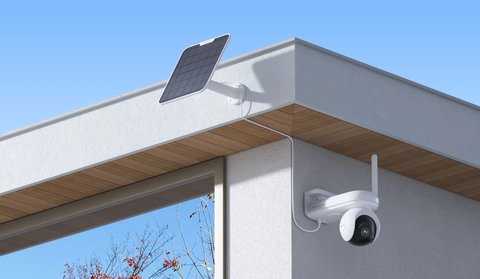
Renaming a Camera
- Open the camera from the device list and go to its Device Settings
- Select Device Info or the camera name field at the top of the settings menu
- Enter a new name, ideally something location-based like “Front Door” or “Garage” rather than the default model number
- Save and return to the main list to confirm the new name displays correctly
Reordering the Camera List
By default, cameras appear in the order they were added, which rarely matches how you actually want to check them day to day.
- On most versions of the app, press and hold a camera’s thumbnail on the main list until it becomes draggable
- Drag it up or down to its new position, then release to lock in the order
- Repeat for each camera until the list matches your preferred priority, like most-checked cameras at the top
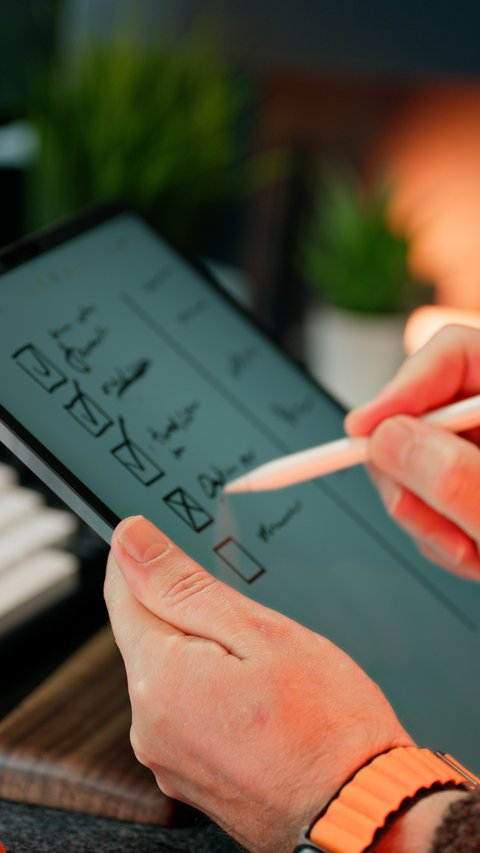
Putting your most-checked camera, like a front door or driveway view, at the very top of the list saves a surprising amount of daily friction once you’re managing four or five cameras instead of just one.
Changing the App’s Display Language
- Open the app’s general settings, usually accessed from an icon on the main screen rather than inside a specific camera
- Look for a Language option, separate from any individual camera’s settings
- Select your preferred language from the list and restart the app if prompted
This setting is independent of your phone’s system language, so you can run the Reolink app in a different language than the rest of your device if needed.
For additional app configuration details, see Reolink’s official support center and the Reolink App & Client download page.
Frequently Asked Questions
Does renaming a camera affect its recordings or settings?
No, renaming only changes the display label; recorded footage and configured settings stay exactly the same.
Can I organize cameras into groups instead of just reordering?
Some versions of the app support grouping by location or NVR channel in addition to manual reordering; check your app’s device list options.
Will changing the app language affect notification text?
Yes, push notification wording typically follows the app’s selected display language.
Does the camera order sync across two phones on the same account?
This can vary by app version; some sync ordering across devices on the same account, while others keep it local to each phone.
Conclusion
Renaming cameras, reordering the device list, and switching the app language are all quick one-time adjustments that make a multi-camera setup much easier to manage day to day. It’s worth doing all three the first week you’re running more than one or two cameras, rather than living with the default clutter.
Ryan
CS graduate · 20+ years testing PC hardware and smart home apps