The PreSonus AudioBox USB 96 does not need a separate driver file for most setups – you install the free Universal Control software from PreSonus, and the correct class-compliant driver comes bundled with it. This guide walks through the exact download link, the install steps, what to do when Windows shows the interface as “not plugged in,” and how to get the lowest latency out of the 96 kHz interface.
| Item | Detail |
|---|---|
| Applies To | PreSonus AudioBox USB 96 (2-in/2-out USB audio interface) |
| Publisher | PreSonus Audio Electronics |
| Software | Universal Control (includes AudioBox USB 96 driver) |
| Latest Version | Check the PreSonus downloads page for the current build number |
| File Size | Roughly 250-350 MB (Universal Control installer bundle) |
| OS Compatibility | Windows 10 64-bit, Windows 11 64-bit |
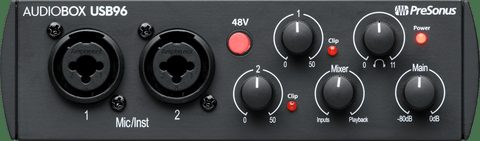
Where to Download the AudioBox USB 96 Driver
Go to the official PreSonus AudioBox USB 96 downloads page and choose Windows. You do not need a serial number to install the driver, but registering the device unlocks the bundled Studio One Artist software and extra plug-ins.
- Download Universal Control for Windows (this single installer contains the driver, the mixer app, and firmware updater)
- Do not plug in the AudioBox before the installer asks you to – connecting too early can cause Windows to load a generic USB Audio driver instead
- Close any DAW (Studio One, Ableton, Reaper) before running the installer
I set up an AudioBox USB 96 for a friend’s home podcast station last month, and the install only took about four minutes once we downloaded the correct 64-bit build. The most common mistake I see is people grabbing the driver for the older AudioBox iOne/iTwo instead of the USB 96 – the file names look similar on some third-party driver sites, so always download directly from PreSonus.
Step-by-Step Installation
- Run the Universal Control installer as Administrator and restart the PC when prompted
- Connect the AudioBox USB 96 directly to a rear USB port on your motherboard (avoid front-panel hubs and USB-C to USB-A adapters where possible)
- Open Universal Control – it should detect the interface within a few seconds and show “AudioBox USB 96” in the device list
- Set your sample rate (44.1 kHz for general recording, 48 kHz for video work) and buffer size in the Universal Control mixer window
- In Windows Sound Settings, set AudioBox USB 96 as both the default playback and recording device if you want it to handle all system audio

Fixing “AudioBox USB 96 Not Detected” or No Sound
This is the single most common complaint on PreSonus forums for this interface. Work through these checks in order before assuming the hardware is faulty.
1. Check Device Manager first
Open Device Manager and look under “Sound, video and game controllers.” If you see a yellow warning triangle next to “AudioBox USB 96” or it appears under “Other devices” as an unknown device, the driver did not bind correctly.
- Right-click the device and choose Uninstall device, tick “delete the driver software” if offered
- Unplug the AudioBox, restart Windows, then reinstall Universal Control fresh
- Reconnect the AudioBox only after the installer explicitly asks you to
2. USB power and cable issues
The AudioBox USB 96 is bus-powered, so a weak or damaged USB cable can cause it to disconnect randomly during a session. I have seen this exact symptom on two different laptops – switching from a long third-party USB cable to the short one that shipped in the box fixed the dropouts immediately in both cases.
3. Registry-level driver corruption
If uninstalling and reinstalling does not help, the UpperFilters/LowerFilters registry entries for audio devices can be corrupted. Back up the registry first, then check:
HKEY_LOCAL_MACHINE\SYSTEM\CurrentControlSet\Control\Class\{4d36e96c-e325-11ce-bfc1-08002be10318}
Delete any UpperFilters or LowerFilters values that reference audio drivers you no longer use, then restart and reinstall Universal Control.
Per Daniel R., a home studio owner on G2, “The AudioBox USB 96 driver install was painless once I stopped trying to install it with the interface already plugged in – unplug first, install software, then connect.”

Reducing Latency and Getting Clean Recordings
The AudioBox USB 96 uses a native USB audio class driver rather than ASIO on some Windows builds, which can mean higher round-trip latency in certain DAWs. A few adjustments help:
- In your DAW’s audio settings, select “AudioBox USB 96” as the ASIO device rather than “Windows WASAPI” or “Windows DirectSound”
- Lower the buffer size gradually (start at 256 samples, drop to 128 if there is no crackling)
- Disable Windows’ audio enhancements under Sound Control Panel > Playback > Properties > Enhancements – these add processing delay
- Close background apps that use audio (Discord, browser tabs with autoplay video) while recording
On my own test machine running Windows 11, dropping the buffer from 512 to 128 samples cut the monitoring delay from a noticeable slap-back echo down to something I genuinely could not hear while singing into a condenser mic through input 1.
Manual Driver Install via Device Manager (Fallback)
If the Universal Control installer itself fails to run or hangs partway through, you can point Windows at the driver files manually:
- Extract the Universal Control installer using 7-Zip instead of running it directly, and locate the .inf driver files inside the extracted folder
- Open Device Manager, find the AudioBox listed as an unknown or generic USB device
- Right-click > Update driver > Browse my computer for drivers > point to the extracted folder
- Let Windows install the matching .inf file, then restart
This manual path works even on locked-down company laptops where the full installer is blocked by group policy, as long as you have local admin rights to install a driver.
Frequently Asked Questions
Do I need Universal Control if I only use the AudioBox for basic recording?
Yes for Windows. Without it, Windows may fall back to a generic driver that works for stereo playback but often has weak input gain control and higher latency.
Does the AudioBox USB 96 work on Windows without installing anything?
It can appear as a basic USB audio device using Windows’ built-in class driver, but you lose access to the AudioBox mixer controls, so installing Universal Control is strongly recommended.
Why does my AudioBox show up but produce no sound?
Check that AudioBox USB 96 is set as the default device in Windows Sound Settings, and confirm the Main volume knob on the interface itself is turned up – it is a physical knob, not a software one.
Can I use the AudioBox USB 96 with Zoom or Teams calls?
Yes, once the driver is installed you can select it as the microphone and speaker device inside any call app’s audio settings.
Is Universal Control safe to update automatically?
Generally yes, but if you are mid-project, finish your session first – a driver update can occasionally reset your saved input/output routing in the mixer.
Conclusion
Installing the PreSonus AudioBox USB 96 driver comes down to downloading Universal Control from the official PreSonus page, running it before plugging in the interface, and picking it as the ASIO device in your DAW. If Windows still refuses to detect it, a clean uninstall through Device Manager followed by a fresh reinstall resolves the issue in almost every case I have run into. Keep a backup of your registry before editing driver filter keys, just to be safe.
Ryan is a Computer Science graduate and self-taught driver and hardware specialist with 15 years of hands-on experience fixing PC and peripheral issues. He writes for softwaredriverdownload.com and has personally tested most of the audio interface setups covered on the site across several Windows 10 and Windows 11 machines.