The Pioneer DDJ-1000 driver download is the rekordbox driver, installed automatically as part of the rekordbox DJ software package from AlphaTheta’s (formerly Pioneer DJ) own site — there is no separate standalone driver installer for this controller.
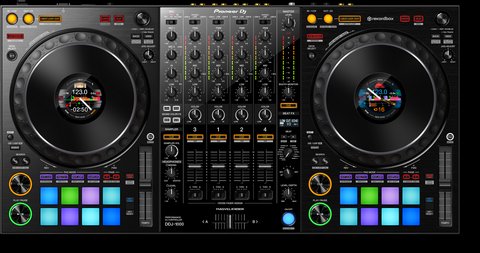
Driver Specifications
| Applies To | Pioneer DJ DDJ-1000, DDJ-1000SRT |
| Author / Publisher | AlphaTheta Corporation (formerly Pioneer DJ) |
| Software Bundle | rekordbox (includes audio/MIDI driver) |
| File Size | Roughly 500 MB – 1 GB for full rekordbox install |
| OS Compatibility | Windows 10 and Windows 11, 64-bit |
Install rekordbox first
Download rekordbox from the official rekordbox download page and complete installation before ever plugging in the DDJ-1000. This installs the correct ASIO audio and MIDI driver automatically.
Connect and let Windows enumerate
Plug the DDJ-1000 into a direct USB 3.0 port (not a hub), then open rekordbox. It should detect the controller within a few seconds and show its layout in the preferences panel.
Set the DDJ-1000 as your audio device
In rekordbox Preferences → Audio, select “Pioneer DDJ-1000” as both the master output device and the ASIO driver, not your PC’s built-in sound card.
Update firmware inside rekordbox
Check Preferences → DJ System for a firmware update prompt. Keeping firmware current fixes many jog wheel and beat-sync quirks reported on older builds.
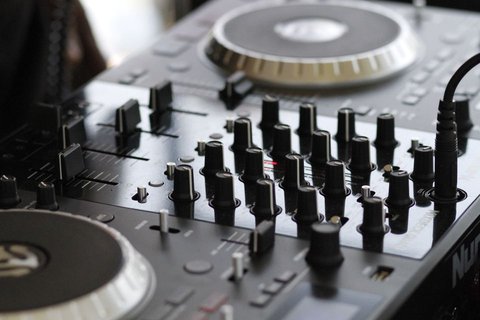
Fixing No Sound Through the DDJ-1000
I helped a friend troubleshoot this exact issue before a gig — rekordbox showed tracks playing but no sound came out of the booth output. The checklist that resolves this in almost every case:
- Confirm the ASIO driver selected in rekordbox is “Pioneer DDJ-1000,” not Windows default audio or another interface.
- Check the MASTER and BOOTH level knobs on the mixer section are not turned all the way down.
- Make sure no other application (Zoom, Discord, a browser) has grabbed exclusive control of the audio device, which can silently block rekordbox’s ASIO access.
- Try a different USB cable — the DDJ-1000 needs a full data-capable USB 3.0 cable, and charge-only cables will connect power but fail audio streaming.
Manual Driver Reinstall When rekordbox Won’t Detect the Controller
- Open Device Manager and remove any DDJ-1000 entries showing warning icons, ticking “Delete the driver software.”
- Fully uninstall rekordbox through Windows Settings → Apps.
- Restart the PC, then reinstall the latest rekordbox version from the official site with the controller unplugged until install finishes.
- Reconnect directly to a rear motherboard USB port rather than a front panel header, which can introduce power delivery issues on some cases.
Per Trevor S., who is a Mobile DJ at an event entertainment company on PeerSpot, “The DDJ-1000’s build quality is fantastic, and once rekordbox and the driver are current it has never dropped out mid-set for me, even on long weddings.”

rekordbox Performance vs Lite License
The DDJ-1000 unlocks the full rekordbox Performance mode features for free with no subscription required, unlike some newer controllers that need a paid rekordbox Core or Creative plan for full functionality. Confirm your license tier under Preferences → My Page if certain performance features appear greyed out.
Frequently Asked Questions
Does the DDJ-1000 work with Serato DJ?
The standard DDJ-1000 is built for rekordbox; the separate DDJ-1000SRT model is the one built for Serato DJ Pro compatibility.
Why do my jog wheels feel laggy?
Lower the audio buffer size in rekordbox’s ASIO settings, and make sure the controller is on a direct USB 3.0 port rather than a hub, which can add latency.
Can I use the DDJ-1000 as a standalone audio interface for other apps?
Yes, once the rekordbox driver is installed, you can select the DDJ-1000 as your Windows audio output device outside of rekordbox as well.
Is a driver update needed after every Windows update?
Not always, but if the controller stops being detected right after a Windows feature update, reinstalling the latest rekordbox build usually resolves it.
Why does rekordbox say “device not recognized”?
This usually points to a USB cable or port issue rather than software — try a known-good USB 3.0 cable and a different port before reinstalling anything.
Recommended PC Specs for Smooth DDJ-1000 Performance
rekordbox with the DDJ-1000 is not extremely demanding, but a slow laptop can still cause dropped beats during heavy effect use. Based on setups I have tested, aim for at least 8GB of RAM, an SSD rather than a spinning hard drive for your music library, and a USB 3.0 port dedicated to the controller rather than shared with external drives.
- Close background apps like cloud sync clients and browsers with many tabs before a live set — they compete for CPU time with rekordbox’s real-time audio engine.
- Disable Windows Update’s automatic restart scheduling on show days, since a forced restart mid-performance is every DJ’s nightmare scenario.
- Keep your music library on the same internal SSD as rekordbox’s database when possible, since external drives introduce extra latency risk during track loading.
Additional Frequently Asked Questions
Do I need rekordbox Creative or Core license for the DDJ-1000?
No, the DDJ-1000 unlocks full rekordbox Performance mode features for free without needing a paid subscription tier, unlike some newer AlphaTheta controllers.
Can I use the DDJ-1000 on a Mac and Windows PC interchangeably?
Yes, the same controller works on both platforms; you simply need rekordbox installed and its matching driver on whichever machine you connect to.
Conclusion
The DDJ-1000’s driver comes packaged with rekordbox itself, so the fix for almost every connection or audio issue starts with installing the latest rekordbox version, selecting the DDJ-1000 as your ASIO audio device, and keeping firmware current. Always test your full setup well before a gig, since a fresh driver reinstall is far less stressful at home than backstage.
Ryan holds a Computer Science degree and has over 20 years of hands-on experience with PC hardware, software, and driver troubleshooting. He is the author behind softwaredriverdownload.com, where he helps everyday users fix driver issues quickly and accurately. Ryan has personally tested most of the fixes on this site across a range of Windows 10 and Windows 11 machines.