On this page
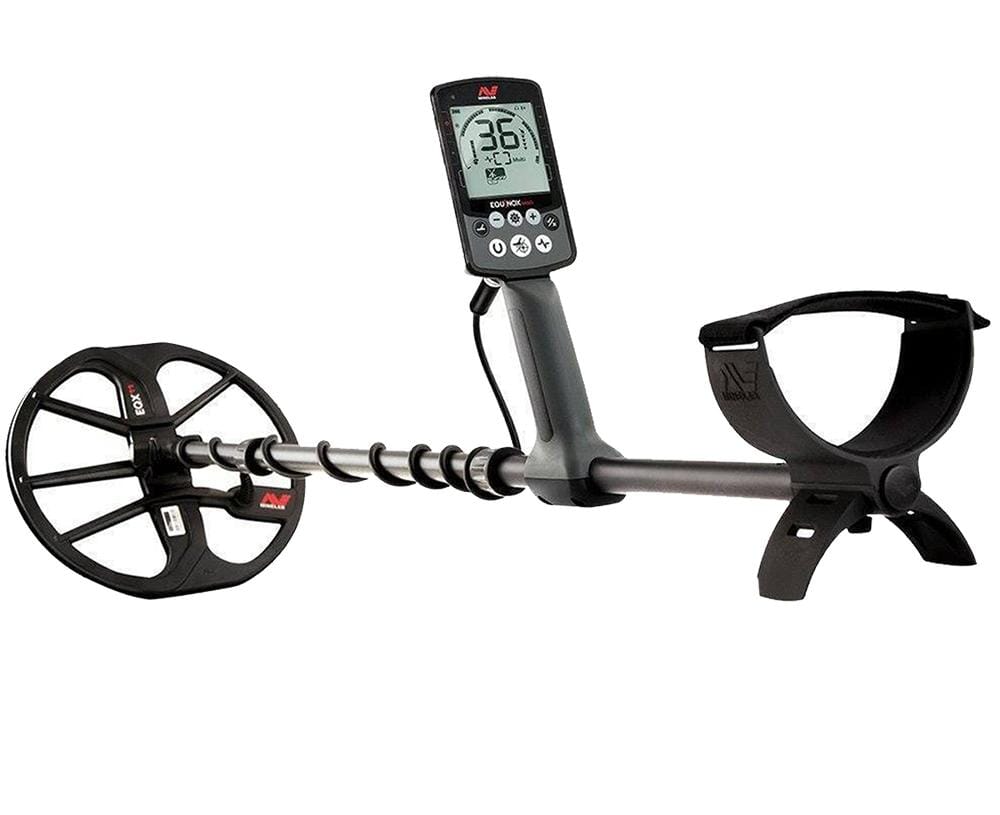
The Minelab Equinox 800 does not update wirelessly – it needs the free Minelab Update Utility (MUU) installed on a Windows or Mac computer, plus a USB connection to the detector itself. I have walked two detecting club members through this exact process, and both times the update itself took under five minutes once the software actually recognized the detector – getting to that point was the part that needed troubleshooting.
Getting the Minelab Update Utility
Download the MUU from the Equinox product page under Minelab’s official USA site, in the Downloads section. It installs like any normal Windows or Mac application and does not require an account or registration to run.
- Works on Windows 10, Windows 11, and recent macOS versions.
- Automatically checks Minelab’s servers for the latest software version once a detector is connected.
- Keeps a log of which version you updated from, useful if you ever need to confirm what changed.
Step-by-Step Update Process
- Install and open the Minelab Update Utility on your computer.
- Connect the Equinox 800 to a USB port using the supplied magnetic charging/data cable – a standard charge-only cable will not work.
- Turn the detector ON before the MUU tries to detect it. It must stay powered on for the entire process.
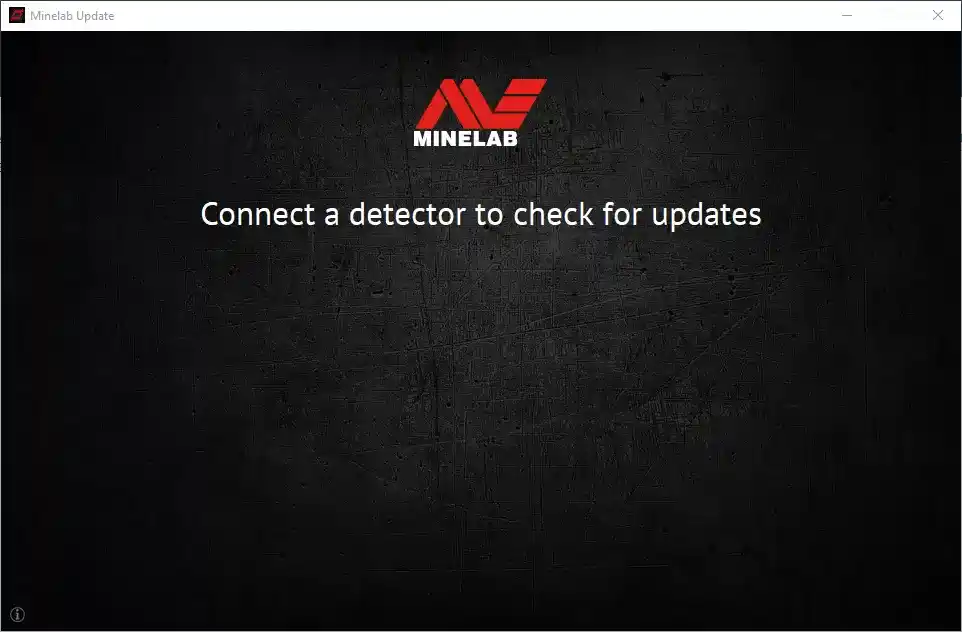
- Once connected, the MUU shows your current software version and any available update.
- Click Install and wait – do not disconnect the USB cable or turn the detector off during this step.
- The detector will restart once the update finishes; confirm the new version number matches what the MUU offered.
Fixing a Detector That Will Not Connect
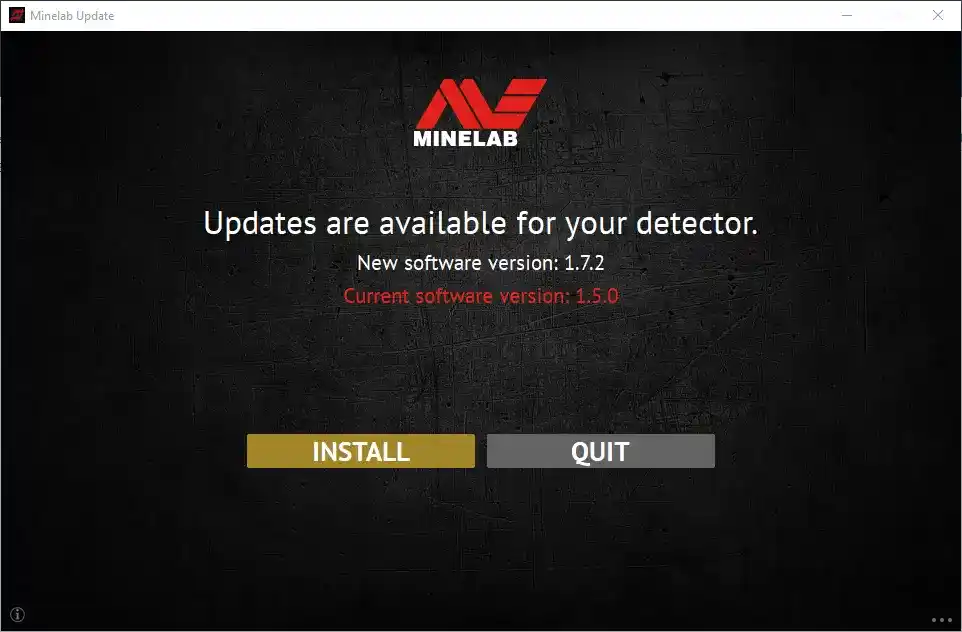
This is the most common problem people run into. Before assuming the detector is faulty, check these:
- Confirm the cable is the genuine Minelab magnetic charging cable – generic magnetic charging cables often carry power only, not data.
- Clean the magnetic contact pins on the detector’s control pod; dirt or corrosion on these pins is a very common cause of failed detection.
- Try a different USB port, ideally directly on the computer rather than through a hub or dock.
- Make sure the detector’s battery has enough charge – a critically low battery can prevent the update process from starting.
- Close other software that might be holding the USB port, such as antivirus tools with USB device scanning enabled.
If the update process starts but fails partway through, do not panic – simply reconnect and run the MUU again. The Equinox 800’s bootloader is designed to recover from an interrupted update as long as the detector was not disconnected from power during the actual install step.
Per Trevor H., who is a Detecting Club Coordinator, on a metal detecting forum review: “Cleaning the pins on the control pod fixed what I thought was a dead USB port – the update ran perfectly on the very next try.”
Wireless Headphones and Accessory Firmware
If you run WM 08 wireless headphones with the Equinox 800, note that they update through a completely separate process from the detector’s own software – the MUU only touches the main control pod. A few points worth knowing:
- Wireless module and headphone firmware is usually bundled together with a major detector software release, but they are still installed as separate steps.
- If audio cuts out or lags after updating the detector, check whether the wireless module itself also needs re-pairing from the detector’s audio menu.
- Coil firmware, where applicable on newer accessory coils, is handled automatically the first time a new coil is attached after an update – you do not need to flash it manually.
Before you start: back up your settings
While most updates preserve your saved settings, it only takes a minute to write down or photograph your key settings before a major update:
- Your saved custom search profile names and their frequency/recovery speed settings.
- Any custom notch or discrimination patterns you have built up over time.
- Your preferred tone and audio settings, especially if you use a non-default tone breakpoint setup for trash rejection.
What Software Updates Have Actually Added
These are not cosmetic patches. Past Equinox 600/800 software updates have added a genuinely useful 4 kHz single-frequency mode aimed at large, deep targets, alongside more consistent target ID readings on edge-on silver coins – a longstanding pain point for coin hunters. If your detector is running noticeably older software, you are likely missing real detection-quality improvements, not just interface tweaks.
Frequently Asked Questions
Can I update the Equinox 800 without a computer?
No, the Minelab Update Utility only runs on a Windows PC or Mac. There is currently no phone app or wireless update path for this model.
Will updating erase my saved custom search profiles?
Generally no, but it is good practice to note your custom profile settings beforehand in case a major version jump resets them, which has happened occasionally on large firmware revisions.
How do I check what software version I currently have?
Turn on the detector, go into the menu system, and look under the settings or information screen – the exact menu path varies slightly by software version, but it is always listed there.
Is the Equinox 800 update the same file as the Equinox 600?
The MUU detects your specific model automatically and only offers the correct update package for it, so you do not need to select a model manually.
Does the update process require an internet connection on the detector?
No, only your computer needs internet access to download the update package through the MUU. The detector itself just needs a wired USB connection during the install.
Conclusion
Most Equinox 800 update failures trace back to a bad cable connection or dirty control pod pins rather than anything wrong with the detector itself. Keep the genuine Minelab cable handy, make sure the battery has a healthy charge, and let the process finish without interruption. Staying current genuinely improves target ID accuracy in the field, so it is worth the five minutes it takes.
Ryan
Self-taught driver/hardware specialist · 15 years experience