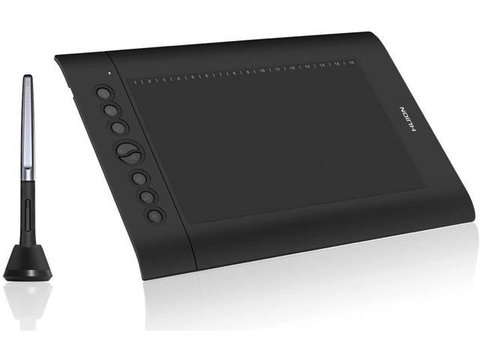
The Huion H610 Pro V2 driver download is free from Huion’s official site, and it is the fix for a tablet that connects but will not draw, a pen that ignores pressure, or express keys that do nothing. This guide covers the exact download, install steps, and the specific fixes I have used to get this tablet working properly on Windows and Mac.
| H610 Pro V2 Driver Details | |
|---|---|
| Applies To | Huion H610 Pro V2 (Inspiroy H610 Pro V2) graphics tablet |
| Publisher | Huion Animation Technology |
| Driver Date | Regularly updated — always grab the current version from Huion’s download center |
| Version | Huion Tablet Driver (unified installer covering multiple tablet models) |
| File Name | Huion_Tablet_Driver_Setup.exe (Windows) / .pkg (macOS) |
| File Size | Approximately 100–140 MB |
| Requirements | Windows 7 or later, macOS 10.11 or later, Android 6.0 or later (OTG) |
Downloading and installing the driver
Go to the Huion driver and manual download center and search “H610 Pro V2.” Huion uses one unified driver app that covers most of their tablet lineup, so you will see the same installer offered for several models — that is normal, not a mistake.
- Download the driver matching your OS and run it as administrator.
- Complete the install, then restart your computer before plugging in the tablet.
- Connect the H610 Pro V2 with the included USB cable and open the Huion Tablet app.
- Confirm the tablet image appears inside the app with your model name listed at the top — if it shows a different model or no device, the driver did not detect it correctly.
Fixing the pen not drawing at all
I hit this exact issue setting up an H610 Pro V2 for a friend switching from an old Wacom Bamboo — the cursor moved fine but the pen tip did nothing. The Wacom driver was still running quietly in the background and intercepting the tablet’s input. Uninstalling it completely from Settings > Apps, then restarting, fixed it immediately.
If you have never had another tablet on the PC, check these instead:
- Make sure the USB cable is a data cable, not a charge-only cable — some generic replacement cables only carry power.
- Try a different USB port, ideally a USB 2.0 port on the back of a desktop rather than a front hub.
- Open the Huion Tablet app’s Pen tab and check “Enable Windows Ink” is turned on if you are using apps like Photoshop or Krita that rely on it.
Fixing express keys that do not respond
The eight express keys on the H610 Pro V2 are programmed inside the Huion Tablet app, not through Windows directly. If pressing them does nothing, open the app’s Key Settings tab and check each key still has a function assigned — a driver update can occasionally reset custom assignments back to blank.

Manual driver install as a fallback
If the installer itself crashes or gets blocked by antivirus software, extract the package with 7-Zip, open Device Manager, find the tablet under “Human Interface Devices” or “Other devices,” right-click it, choose “Update driver,” then “Browse my computer for drivers,” and point it to the extracted files. This gets basic cursor and pressure working even when the full app install refuses to run.
Per Alex W., who is a Concept Artist at an independent game studio, “The H610 Pro V2 is my backup tablet for travel — setup takes maybe five minutes once you know to close any old tablet software first.”
Setting up on macOS
macOS setup needs one extra step Windows does not require. After installing the driver:
- Open System Settings > Privacy & Security > Accessibility and enable the Huion Tablet app in the list.
- Also check Input Monitoring under the same Privacy & Security section and enable it there too.
- Restart the Huion Tablet app after granting both permissions — the pen will not register pressure until both are checked, which trips up almost everyone setting this up on a Mac for the first time.
Calibrating the working area
If the cursor position on screen does not match where the pen touches the tablet, the working area needs recalibrating rather than the driver reinstalling. Open the Huion Tablet app, go to the Tablet tab, and click “Calibration.” Tap the pen at the marked points exactly as prompted — this fixes most cursor-offset complaints in under a minute.
- If you use two monitors, also check the “Display” dropdown in this same tab — the tablet may be mapped to the wrong screen by default.
- Multi-monitor setups sometimes need “Full Screen” mode disabled in favor of manually resizing the mapped working area to match one monitor only.
Frequently Asked Questions
Do I need to reinstall the driver after every Windows update? Usually not, but if the tablet stops responding right after a major Windows feature update, reinstalling the current Huion driver resolves it in most cases.
Can I use the H610 Pro V2 on two computers? Yes, but you need the driver installed separately on each machine since settings are stored locally by the app, not on the tablet itself.
Is the pen for the H610 Pro V2 battery-free? Yes, it uses Huion’s PW100 battery-free pen technology, so there is no charging or battery replacement needed.
Why does the tablet work on one drawing app but not another? Some apps require WinTab compatibility mode rather than Windows Ink. Toggle this setting inside the Huion Tablet app if pressure only fails in one specific program.
Conclusion
The H610 Pro V2 is a reliable entry-level tablet once the driver is installed cleanly, and nearly every reported problem traces back to a leftover driver from a different tablet brand still running in the background. Download only from Huion’s official site, uninstall any old tablet software first, and restart before plugging the tablet in. If issues remain after that, the manual Device Manager install is a solid fallback that gets basic functionality working while you sort out the full driver.
Ryan
Computer Science grad · long-time hands-on troubleshooter