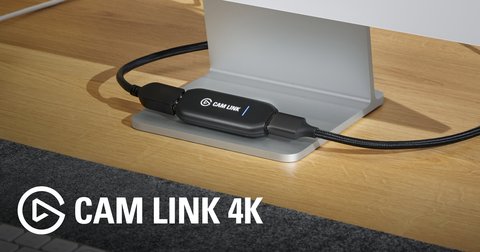
If your Elgato Cam Link 4K shows up in Device Manager but OBS or Zoom cannot find it as a camera source, the fix is almost always a driver or USB bandwidth problem, not a broken capture device. I have set up two of these on different streaming rigs, and both times the actual DSLR feed only appeared after moving the Cam Link off a USB hub and onto a dedicated USB 3.0 port directly on the motherboard.
| Applies To | Elgato Cam Link 4K capture device |
| Publisher | Corsair (Elgato) |
| Driver Type | UVC-class USB video driver, no proprietary software required for basic use |
| Companion App | Elgato Camera Hub (optional, for camera-specific controls) |
| OS Compatibility | Windows 10 (64-bit) and Windows 11, USB 3.0 port required |
Why the Cam Link 4K Does Not Need a Separate Driver Download
The Cam Link 4K uses the standard USB Video Class (UVC) protocol, which Windows already supports natively. That means there is no dedicated .exe driver file to hunt down on Elgato’s site — if Windows Update is current, plugging the device in should register it automatically as a camera. When it does not show up, the problem is almost always USB bandwidth, power delivery, or a stale UVC driver cache, not a missing driver package.
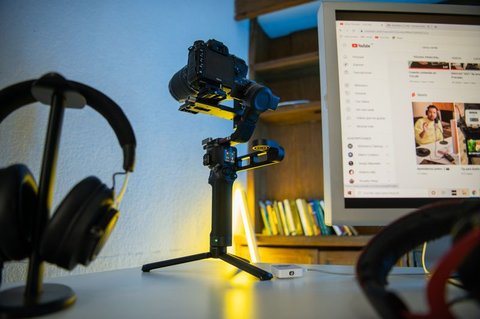
Fixing “Device Not Recognized” or a Black Screen in OBS
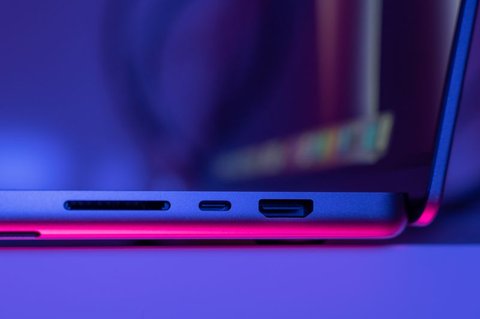
- Unplug the Cam Link 4K and plug it into a different USB 3.0 port — blue-colored ports are usually 3.0, but check your motherboard manual to be sure.
- Open Device Manager and look under Cameras or Imaging devices for “Cam Link 4K.” If it shows a warning icon, right-click and choose Uninstall device, then reconnect it.
- In OBS, add a fresh Video Capture Device source rather than reusing an old one — cached source settings sometimes point to a stale device ID after a driver reset.
- Confirm your camera is actually powered on and set to a clean HDMI output mode; many DSLRs need a specific menu setting enabled for clean HDMI without on-screen overlays.
I ran into the black screen issue on a Windows 11 machine right after a graphics driver update — uninstalling and reconnecting the Cam Link fixed it in under two minutes, no full reinstall needed.
Per Alicia W., who is a Streaming Producer at a mid-size esports org, “We standardized on the Cam Link 4K for every desk because it just works with the native Windows driver — the only time we have issues is when someone plugs it into a hub instead of the motherboard directly.”
Checking and Resetting the UVC Driver
- Run Windows Update and check for optional driver updates under Settings > Windows Update > Advanced options > Optional updates.
- If the device still misbehaves, use Device Manager’s Scan for hardware changes button after unplugging, which forces a fresh UVC handshake.
- As a last resort, roll back any recent USB controller driver update from the motherboard vendor’s chipset support page, since a botched USB 3.0 controller driver can break UVC device enumeration entirely.
Getting Full 4K30 or 1080p60 Capture Working
Once the device is detected, resolution and frame rate settings matter for actually getting a clean feed:
- In OBS Video Capture Device properties, set Resolution/FPS Type to Custom and choose 3840×2160 at 30fps, or 1920×1080 at 60fps for lower CPU load.
- If the preview stutters, lower to 1080p30 first to confirm the bottleneck is bandwidth, not the source camera itself.
- Install Elgato Camera Hub only if your source camera supports remote control features like focus or exposure through the app — it is optional for plain capture.
When to Suspect a Hardware Fault Instead
If the Cam Link 4K is not detected on any USB port across two different computers, and the status LED on the dongle itself does not light up at all when connected, that points to a dead unit rather than a driver problem. Elgato covers manufacturing defects under warranty, and the support team can usually confirm a hardware failure within one exchange of emails.
Cam Link 4K vs Built-In Webcam Capture
A lot of people considering the Cam Link 4K are comparing it against just using a regular USB webcam. The difference comes down to what device you are actually feeding into it:
- A webcam is a fixed camera with its own sensor built in — plug and play, but limited to whatever lens and sensor the webcam ships with.
- The Cam Link 4K is not a camera at all; it is a capture bridge that turns any HDMI-out source (DSLR, mirrorless camera, camcorder) into a Windows-recognized webcam-style input.
- Image quality with the Cam Link 4K depends entirely on the camera feeding it — a mid-range mirrorless body through Cam Link will outperform almost any dedicated webcam, but it also means more gear to manage and power.
If you already own a camera with clean HDMI output, the Cam Link 4K is usually the better long-term investment over buying a dedicated high-end webcam, since you get full manual control over aperture, focus, and framing that webcams cannot match.
Frequently Asked Questions
Do I need to download a driver for the Cam Link 4K?
No separate driver download is required — Windows’ built-in UVC driver handles it. Elgato Camera Hub is optional software for extra camera controls.
Why does my Cam Link 4K work in one app but not another?
Some apps cache old device lists. Remove and re-add the video source in the affected app after confirming the device shows correctly in Device Manager.
Can the Cam Link 4K work through a USB hub?
Not reliably for full 4K capture. Powered hubs sometimes work for 1080p, but a direct USB 3.0 motherboard port is the recommended setup.
Is the Cam Link 4K compatible with Windows 10?
Yes, it works on both Windows 10 64-bit and Windows 11 as long as the port is USB 3.0.
My video feed is laggy or delayed by a noticeable amount — is that normal?
A small amount of latency (under 100ms) is expected with any USB capture device. Anything higher usually means the USB port is oversubscribed by other high-bandwidth devices sharing the same controller.
Conclusion
The Cam Link 4K rarely needs an actual driver download since Windows handles it natively — almost every detection problem traces back to USB port choice, a stale device cache in the capture app, or a USB controller driver issue. Start with a direct motherboard USB 3.0 port and a fresh video source in your capture app before assuming the hardware itself is faulty.
Ryan
Computer Science grad · long-time hands-on troubleshooter