|
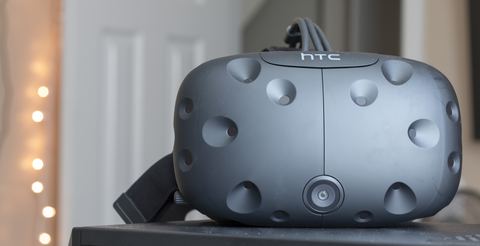
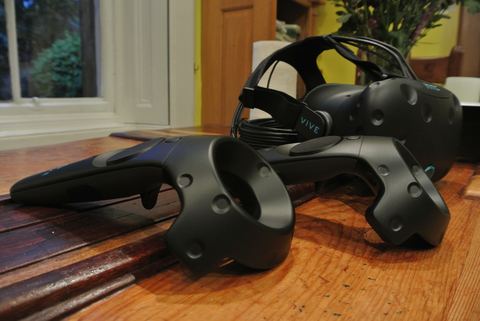
If Windows does not recognize your HTC Vive, the fix is to install SteamVR along with the HTC Vive drivers, which install together as one bundled package through Steam. The HTC Vive was one of the first room-scale consumer VR headsets, and it still works well today as long as the driver stack is set up correctly. Unlike some peripherals, the Vive does not use a single standalone driver file. Instead, SteamVR installs and manages the headset, controller, and base station drivers together. Below is the full setup process along with the fixes I use most often when readers write in about a Vive that will not connect.
Applies To: HTC Vive, HTC Vive Pro (original base station generation)
Author/Publisher: HTC Corporation / Valve Corporation (SteamVR) Driver/Software Date: Current release, maintained through SteamVR updates Version: SteamVR 2.x File Name: Installed automatically through the Steam client File Size: Approximately 1.2 GB (SteamVR plus Vive drivers) OS Compatibility: Windows 10 (64-bit), Windows 11 (64-bit)
Setting Up the HTC Vive Driver
Manual Driver Install Through Device ManagerIf a component still shows as unrecognized after installing SteamVR, you can push the driver through manually.
I helped set up a Vive at a friend’s small VR arcade a while back, and the most common issue we ran into was not the driver itself but USB bandwidth. Running the link box off a USB hub shared with other devices caused random tracking dropouts until we moved it to a dedicated USB 3.0 port on the motherboard.
Troubleshooting Common Issues
Keeping the Driver Stack HealthyBecause SteamVR manages the Vive drivers as a bundle, one of the simplest maintenance habits is letting Steam keep SteamVR itself up to date rather than pinning an older version. HTC and Valve occasionally push driver fixes through routine SteamVR updates that resolve tracking quirks or base station pairing issues without you needing to touch Device Manager at all. If you have auto-updates disabled for SteamVR specifically, it is worth re-enabling them just for this application. It also helps to periodically unplug and reseat the link box’s USB and video cables, especially on a workstation that gets moved or reconfigured often. Loose connections are far more common than actual driver corruption, and reseating cables takes a fraction of the time a full SteamVR reinstall does. Windows 10 vs Windows 11 DifferencesSteamVR and the HTC Vive drivers work on both Windows 10 and Windows 11 without major differences in day-to-day use. The one thing I have noticed on Windows 11 is that USB power management settings are more aggressive by default, which can cause the link box to briefly disconnect during idle periods. Disabling USB selective suspend for that port in Windows power settings clears it up on both systems, but it comes up more often on Windows 11 installs. Frequently Asked QuestionsDo I need a separate HTC Vive driver outside of SteamVR?No. SteamVR installs and manages all the Vive-specific drivers automatically. There is no standalone driver package to download separately. Why do my Vive base stations keep losing tracking?This is usually a line-of-sight or interference issue rather than a driver problem. Check that both stations can see each other and the play area clearly. Is the HTC Vive still supported on Windows 11?Yes, current versions of SteamVR fully support Windows 11. Disabling USB selective suspend on the link box’s port can help with occasional disconnects. My headset link box is not being detected by Windows at all. What should I check first?Try a different USB 3.0 port, ideally one connected directly to the motherboard rather than a hub, and confirm the link box’s power adapter is plugged in. |
Quick Reference
Related Links |
Conclusion
Getting the HTC Vive recognized by Windows is really about installing SteamVR correctly and giving the link box a stable USB 3.0 connection. Once SteamVR detects the headset, base stations, and controllers, the built-in Room Setup wizard takes care of the rest.