On this page
HP Smart App
Control Panel
Embedded Web Server
Stuck Updates
FAQ
Updating firmware on an HP OfficeJet Pro printer is done through the HP Smart app, the printer’s own touchscreen control panel, or its built-in web page – all three methods pull the same update directly from HP’s servers, so pick whichever is easiest to reach from your printer.
This covers the current OfficeJet Pro line (8020e/8025e series, 9010e/9015e/9020e series, and the older 8710/8720/9010 non-e models). I have updated firmware on several OfficeJet Pro units for family and clients, and the HP Smart app method below is consistently the least error-prone of the three – it is also the one HP itself recommends first.
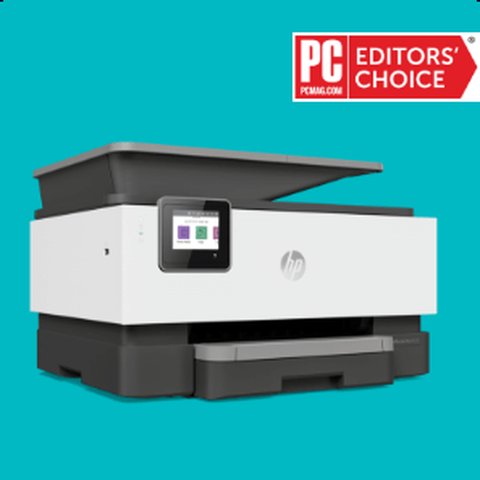
Publisher: HP Inc.
Update Method: Over-the-air via HP Smart, control panel, or embedded web server (EWS)
File Size: Not user-downloaded – delivered directly to the printer
Requirements: Printer connected to Wi-Fi or Ethernet, stable power throughout the update
Method 1 – HP Smart App (Recommended)
- Install the HP Smart app on Windows, Mac, or your phone if it is not already installed.
- Open the app and make sure your OfficeJet Pro is selected as the active printer.
- Click the printer’s icon or tile to open its details screen.
- Go to Printer Settings, then look for Printer Maintenance or Advanced → Firmware Update.
- If an update is available, click Update Now and leave the printer powered on and connected until it finishes.
The printer usually restarts on its own partway through – this is normal and part of the process, not a failure.
Method 2 – Printer Control Panel

- On the printer’s touchscreen, open the Settings or gear icon.
- Go to Tools or Printer Maintenance, then Update the Printer or Firmware Update.
- Choose Check Now – if connected to the internet, the printer downloads and installs any available update automatically.
- For models with a USB port for updates, you can instead download the firmware file to a USB drive from HP’s support site and select Update from USB on the panel.
Do not turn off the printer or remove a USB drive mid-update on this method – HP is explicit that interrupting it here can damage the printer permanently, more so than with the app-based method.
Method 3 – Embedded Web Server (EWS)
If you prefer a browser-based approach or the app will not detect the printer:
- Find the printer’s IP address – print a network configuration page from the control panel’s Wireless or Network settings menu.
- Type that IP address into a browser on a computer on the same network to open the EWS page.
- Click the Tools tab, then Printer/Firmware Updates → Firmware Updates.
- Click Check for updates now, and if one is found, follow the on-screen prompt to install it.
This method is useful on a shared office printer where you do not want to install the HP Smart app on every computer.
Per Anthony K., who is a Small Business Owner using an OfficeJet Pro 9015e, “Once I found the firmware update option buried in Printer Maintenance, my scan-to-email problem that support couldn’t explain just went away.”
Fixing a Stuck or Failed Firmware Update

The screen shows “Updating” with no progress for several minutes
Wait at least 10 minutes before assuming it is frozen – some OfficeJet Pro firmware packages are large and the progress bar can pause during internal verification steps. If it genuinely has not moved after 15 minutes, hold the power button for 10 seconds to force a restart, then check Tools → Update the Printer again once it boots back up.
HP Smart says “No updates available” but you know one exists
- Confirm the printer is on the same Wi-Fi network as the phone or computer running the app – a printer on a guest network will not see updates properly.
- Restart the printer and re-check, since the app sometimes caches an outdated status.
- Try Method 3 (the EWS page) instead – it queries HP’s servers independently of the app’s cache.
The printer will not turn on after a failed update
Unplug the printer from the wall for a full 60 seconds, then plug it back in without pressing any buttons. Most OfficeJet Pro units have a recovery process that automatically re-attempts the firmware write on the next power-up. If it still will not start after this, contact HP Support directly, since this specific failure mode sometimes needs a service-level recovery tool.
Frequently Asked Questions
Do I need to update firmware every time HP releases one?
Not strictly, but it is worth checking every few months, since HP regularly patches scan, print-quality, and Instant Ink connectivity bugs through firmware rather than driver updates.
Will a firmware update fix a paper jam error that won’t clear?
Sometimes – a small number of “phantom jam” errors (the printer reports a jam with no paper actually stuck) are sensor-firmware bugs that HP has fixed in updates. If a physical check finds no paper, try the firmware update before assuming a hardware fault.
Can I downgrade the firmware if a new version causes problems?
HP does not officially support downgrading OfficeJet Pro firmware through normal channels. If a specific update causes a regression, contact HP support rather than attempting an unofficial downgrade tool.
Does the printer need internet access to update, or just a local network?
Internet access is required for all three methods above, since the firmware itself is downloaded from HP’s servers even when you trigger the update from the local control panel.
Is it normal for the printer to print a page after updating?
Yes, many OfficeJet Pro models print a short confirmation or configuration page automatically once a firmware update finishes – this is expected and not an error.
Conclusion
The HP Smart app is the most reliable way to keep an OfficeJet Pro’s firmware current, but the control panel and embedded web server methods are solid fallbacks when the app will not cooperate. Give a stuck update more time than feels comfortable before force-restarting the printer – most “frozen” updates are just slow, not actually broken. Checking every few months is enough; you do not need to chase every release the day it comes out.
Ryan is a Computer Science graduate and a long-time hands-on troubleshooter, and is the author behind softwaredriverdownload.com, where he helps everyday users fix driver and firmware issues quickly and accurately. Ryan has personally tested most of the fixes on this site across a range of Windows 10 and Windows 11 machines.