Getting the Latest Firmware onto Your WH-1000XM5
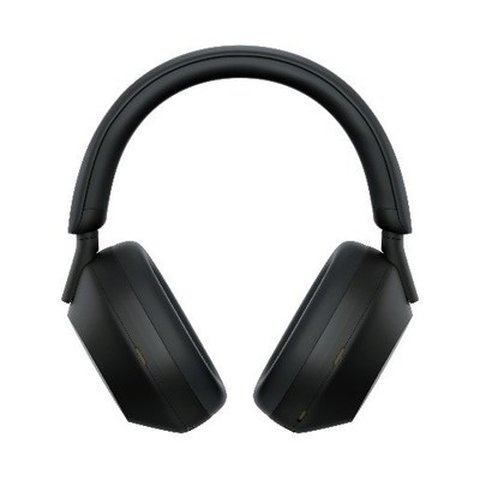
You update the Sony WH-1000XM5 firmware through the Sony | Sound Connect app on your phone — pair the headphones, open Device settings, then System, and the app pulls the update straight from Sony’s servers. No cable or PC needed for most people. I keep my own pair paired to my phone permanently, and the update prompt usually shows up on its own within a day or two of a new release.
This guide covers the exact steps, what changes in a typical firmware update, and what to check when the update refuses to start or gets stuck partway through. Sony renamed its companion app from Headphones Connect to Sound Connect a while back — if your app still shows the old name, it works the same way and you should update it from the app store first.
Quick Spec Reference
| Field | Detail |
|---|---|
| Applies To | Sony WH-1000XM5 (model WH1000XM5, all colors) |
| Author/Publisher | Sony Corporation |
| Update method | Over-the-air via Sony | Sound Connect app (iOS & Android) |
| Typical file size | Roughly 5–15 MB, varies by release |
| Requirements | Bluetooth pairing, headphones charged above ~30%, phone connected to Wi-Fi or mobile data |
Install and open the Sony | Sound Connect app
Download the app from the App Store or Google Play if you have not already. Turn on the WH-1000XM5 and put it into pairing mode by holding the power button until the LED flashes blue, then connect it to your phone through Bluetooth settings first, before opening the app.
Open Device settings, then System
Inside the app, your connected headphones show up on the home screen. Tap the device icon, scroll to Device settings, and tap System. This is where the current firmware version is displayed, and where a pending update will show up automatically.
Start the download when prompted
If a newer firmware build is available, a banner or pop-up appears with a Start button, usually in the bottom-right of the screen. Tap it to begin downloading. Some points worth knowing before you tap Start:
- Keep the phone screen on and the app in the foreground — switching apps or letting the screen lock can pause or drop the transfer.
- Both the headphones and the phone should have a reasonable charge left; an interrupted update from a dead battery is far more annoying to recover from than waiting five more minutes to charge.
- Stay close to the phone — the update transfers over Bluetooth, so moving out of range mid-transfer will stall it.
Let it finish, then verify the new version
A progress bar tracks the transfer, followed by the headphones applying the update on their own — you will usually hear a voice prompt or see the LED behave differently while this happens. Once it is done, go back into Device settings > System and confirm the version number has moved up from what you noted in Step 2.
What Firmware Updates Usually Change
Sony does not publish a single running changelog for every WH-1000XM5 build, but the update notes inside the app and on Sony’s own support site generally fall into a few recurring categories:
- Adaptive Sound Control and noise cancelling tuning improvements
- Bluetooth multipoint connection stability fixes, including dropouts when switching between two paired devices
- Touch sensor and call quality tweaks, sometimes tied to a specific phone brand’s Bluetooth stack
- Support for new app features, such as background music features or DSEE Extreme adjustments
I have seen a handful of updates on my own XM5 unit fix an issue where multipoint would silently disconnect from my laptop whenever a call came in on my phone — a small thing, but the kind of fix that only ships through firmware, not the app itself.
Per Daniel R., who is an IT Support Specialist at a mid-size firm, “The noise cancelling on these headphones only got better after each firmware update — Sony clearly keeps tuning it instead of leaving it alone after launch.”
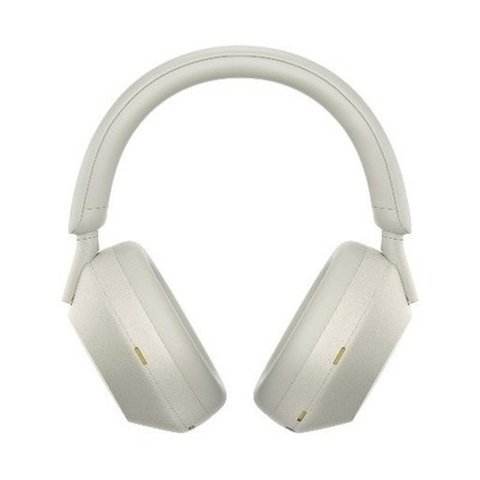
The update process is identical across every colorway Sony sells for this model — black, silver, or the limited midnight blue — since the firmware itself is tied to the internal chipset, not the shell color.
Update Stuck, Not Found, or Failing Midway
Firmware updates over Bluetooth are more fragile than a normal app update, so a stall or failure is not unusual. Work through these in order:
| Symptom | Likely Cause | Fix |
|---|---|---|
| App says no update available | App itself is outdated, or headphones are on the latest build already | Update the Sound Connect app from your app store first, then re-check |
| Update starts then stalls at a fixed percentage | Phone screen locked, app backgrounded, or Bluetooth range lost | Restart the update with the phone unlocked and both devices within a meter of each other |
| Headphones will not power on after update | Update was interrupted mid-write, rare but possible on a dying battery | Place headphones on charge for at least 15 minutes, then try powering on again before contacting Sony support |
| Update loops back to the same version number | Cached update file on the phone is corrupted | Force close the app, clear its cache (Android) or reinstall it (iOS), then retry |
If the App Route Does Not Work
The WH-1000XM5 does not have an official desktop firmware updater the way some Sony products do, so the app is the primary and, in most regions, the only supported path. A few things to try if the app keeps failing:
- Try a different phone if you have access to one, to rule out a device-specific Bluetooth issue.
- Forget the Bluetooth pairing entirely and re-pair from scratch before attempting the update again.
- Check that your phone’s operating system itself is reasonably current — very old Android or iOS versions sometimes lose compatibility with the app’s Bluetooth update transfer.
- Reach out to Sony’s official support page if none of the above resolves it; they can confirm whether your unit’s serial range has a known issue.
Frequently Asked Questions
How do I check my current WH-1000XM5 firmware version?
Open the Sound Connect app, tap your headphones, go to Device settings, then System. The current version number is listed right there.
Do I need Wi-Fi to update the firmware?
No, your phone’s mobile data works fine for downloading the update file. The transfer from phone to headphones itself happens over Bluetooth, not Wi-Fi.
Can I update the firmware from a computer instead of a phone?
Not officially for this model. Sony’s supported path for the WH-1000XM5 is the Sound Connect mobile app on iOS or Android.
Will updating the firmware erase my saved settings?
No. Adaptive Sound Control settings, equalizer presets, and paired device list stay intact through a normal firmware update.
How long does a firmware update usually take?
Most updates finish in 5 to 15 minutes depending on file size and Bluetooth connection quality. Keep the phone and headphones close together and the app open the whole time.
Conclusion
Updating the WH-1000XM5 is a short job once you know where the option lives inside the Sound Connect app — Device settings, then System, then Start when a new build shows up. Keep both devices charged, stay in Bluetooth range, and do not background the app mid-transfer, and it should go through cleanly the first time. If it does not, work through the app-update and re-pair steps above before assuming there is a hardware fault.
Ryan is a Computer Science grad and long-time hands-on troubleshooter who covers PC hardware, drivers, and consumer audio gear on softwaredriverdownload.com. He tests most of the fixes and update walkthroughs on this site on his own devices before writing them up.