A dead microphone is the single most common complaint I hear about budget gaming headsets, and Onikuma models are no exception — not because the mics themselves are unreliable, but because there are five or six different places the signal can get lost between the headset and whatever app you are using. I have chased this exact problem down on my own review units more than once, so this guide is organized as a set of independent fix cards. Work through them in order; you do not need to try all of them.
Fix Card 1: Check the Physical Mute Switch and Boom Position
Symptom: No mic pickup at all, even though the headset otherwise works fine.
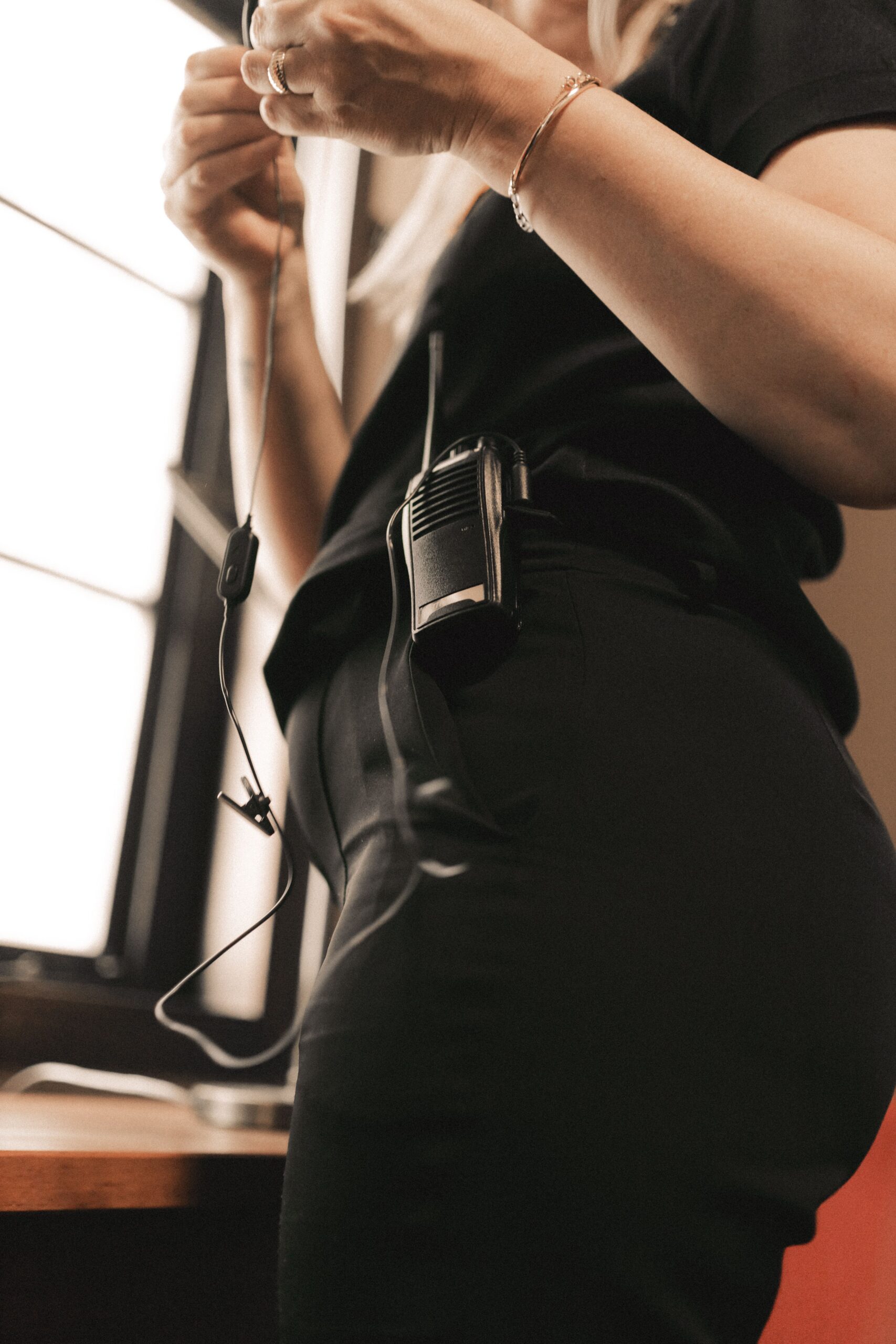
- Most Onikuma headsets have an inline mute button on the cable, or a small switch on the earcup itself — check both.
- On models with a flip-to-mute boom microphone, flipping the boom fully upward automatically mutes it. Lower the boom until it is roughly level with your mouth.
- A red or lit-up LED near the mic is usually the mute indicator on Onikuma models, not a power light, so do not ignore it.
Fix Card 2: Confirm Windows Is Using the Right Input Device
Symptom: Headset audio plays fine, but nobody can hear you in Discord, games, or Zoom.
- Right-click the speaker icon in the taskbar and open Sound settings.
- Under Input, click the dropdown and manually select the Onikuma headset — Windows sometimes silently switches back to a laptop’s built-in mic after a reboot or update.
- Speak normally and watch the input level meter. If it does not move at all, the wrong device is still selected somewhere, or the hardware mute is engaged.
- Open the app you are using (Discord, Zoom, your game’s voice settings) and separately confirm the correct input device is chosen there too, since apps do not always inherit the Windows-wide default.
Fix Card 3: Raise Microphone Volume and Boost
Symptom: Mic technically works, but you sound extremely quiet or muffled.
- In Sound settings, click the Onikuma headset under Input, then Device properties.
- Drag the input volume slider up — Onikuma mics tend to record fairly quietly by default compared to premium headsets.
- On the Levels tab (accessible from the classic Sound Control Panel), enable Microphone Boost and set it to +10dB or +20dB if your voice is still faint.
- Test again with the Windows Voice Recorder app, since some game voice chat systems apply their own extra normalization that can mask a low input level.
Fix Card 4: Reset or Reinstall the Audio Driver
Symptom: Mic worked before, stopped working after a Windows update, or cuts out randomly.
- Open Device Manager and expand Audio inputs and outputs (and, for USB headsets, Sound, video and game controllers).
- Right-click the Onikuma headset entry and choose Uninstall device, then unplug the headset.
- Reboot, then plug the headset back in so Windows reinstalls the generic USB audio driver fresh.
- If you see a yellow warning triangle on the device, right-click and choose Update driver, then Search automatically for drivers.
Fix Card 5: Rule Out Exclusive Mode and App-Level Permissions
Symptom: Mic works in one app but not another.
- In Device properties for the microphone, open the Advanced tab and uncheck “Allow applications to take exclusive control of this device,” which can otherwise let one app hog the mic.
- Go to Settings > Privacy & security > Microphone and confirm both “Microphone access” and “Let apps access your microphone” are turned on, and that the specific app (Discord, browser, game) is allowed in the list.
- Restart the affected app after changing permissions — most apps only re-check microphone access on launch.
Quick Diagnostic Checklist
If you only have a few minutes, run through this shortlist before going deeper:
- Is the physical mute switch or inline button off?
- Is the Onikuma headset selected as the input device in both Windows and the app?
- Is the input volume slider above 50 percent?
- Has the headset been unplugged and replugged, or the Bluetooth connection re-paired, since the last reboot?
- Does the mic work in Windows Voice Recorder but not in the game or app specifically? That points to an app-level setting, not a hardware fault.
If none of these steps help, it is worth testing the headset’s microphone on a second PC or phone (for models with a 3.5mm jack) to confirm whether the issue is the headset hardware itself or something local to your Windows install. Onikuma’s official support page lists warranty terms if the mic turns out to be a genuine hardware fault, and Microsoft’s own microphone troubleshooting guide covers additional Windows-side settings worth checking.
Frequently Asked Questions
Why does my Onikuma mic work in Discord but not in-game?
Most games manage their own separate voice chat device list. Open the audio or voice settings inside the game itself and manually select the Onikuma headset there, even if it is already set correctly in Windows.
My Onikuma headset has no mute light. How do I know if the mic is muted?
Check for a small switch on the earcup or an inline control on the cable. If neither is present, mute is usually toggled entirely through the LED-lit button pattern or through your PC’s own mute hotkey rather than the headset hardware.
Does a wireless Onikuma headset need to be re-paired after the microphone stops working?
Sometimes. If audio still plays but the mic drops, try turning the headset off and back on, or unplugging and replugging the 2.4GHz dongle, before assuming it needs a full re-pair.
Can a Windows update break a working Onikuma microphone?
Yes, this happens fairly often. Windows updates occasionally reset the default input device or microphone privacy permissions, both of which are covered in Fix Cards 2 and 5 above.
Conclusion
Nine times out of ten, an Onikuma mic that “does not work” turns out to be a wrong default device, a muted switch, or a low input volume rather than a dead microphone. Working through the fix cards above in order should get you talking again within a few minutes, and if it does not, that is a strong sign the mic hardware itself needs replacing under warranty.
Written by Priya Anand, a software support writer based in Austin who has spent years documenting Windows audio troubleshooting for budget PC peripherals.