You can download the Dymo label printer driver by installing DYMO Connect, which bundles the printer driver with the label design software, directly from Dymo’s support site for your exact LabelWriter model.
I set up a LabelWriter 450 for a small home office last month, and the whole process from download to first printed label took under ten minutes once I had the right installer. This guide covers downloading DYMO Connect, installing the driver, and fixing the print queue and “printer offline” issues that show up most often with these thermal label printers.
| Field | Detail |
|---|---|
| Applies To | Dymo LabelWriter 450, 450 Turbo, 4XL, 550, 5XL series printers |
| Author/Publisher | DYMO (a Newell Brands company) |
| Software Name | DYMO Connect for Desktop (includes printer driver) |
| File Size | Approximately 150–200 MB |
| Requirements | Windows 10 or 11, or macOS; USB connection for most LabelWriter models |
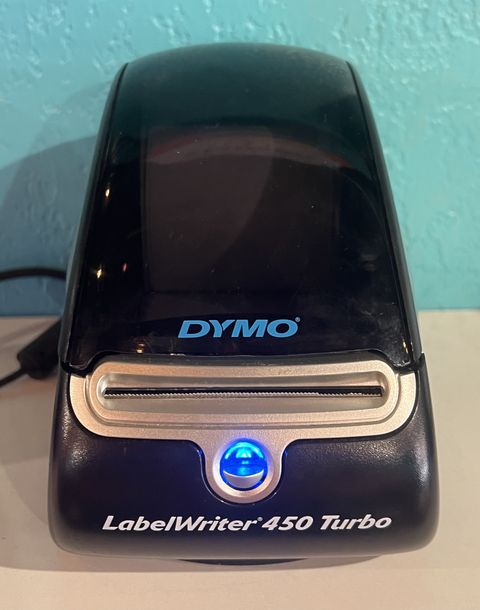
Follow the cards below in order – each one covers a specific stage of getting your LabelWriter fully working in Windows.
Download DYMO Connect
Go to the official DYMO support page, search for your printer model, and download DYMO Connect for Desktop for Windows. This single installer includes the print driver, so you do not need to hunt for a separate driver file.
Install with the printer unplugged
Run the installer as administrator and keep the LabelWriter’s USB cable unplugged until the setup wizard actually asks you to connect it. Installing driver files before plugging in the hardware avoids Windows grabbing a generic driver first.
Connect and let Windows finish setup
Plug the USB cable in when prompted. Windows will finish registering the printer, and it should appear in Settings > Printers & scanners within a few seconds. Print a test label from DYMO Connect to confirm everything works.
Set label size and print preferences
Open the printer’s properties in Windows and set the default label size to match what you loaded (e.g. Address Labels 30252, or Shipping Labels 4XL). Wrong label size selection is the most common cause of skewed or partial prints.
Which Driver Package Matches Your Printer
Dymo uses the same DYMO Connect installer across most of the LabelWriter range, but the exact print driver files differ slightly by model generation:
- LabelWriter 450 / 450 Turbo / 4XL: older USB-only models, driver included in any recent DYMO Connect release
- LabelWriter 550 / 5XL: newer models with added connectivity options, require a current DYMO Connect version – an outdated installer will not detect them properly
- LabelManager series: these are standalone handheld label makers and generally do not need a PC driver at all unless you are using the companion desktop app
Per Angela W., who is an Office Manager at a logistics company, “We run six LabelWriter 450s across two shipping stations, and reinstalling DYMO Connect fresh instead of trying to patch an old driver has fixed every ‘offline printer’ complaint we have had.”
Troubleshooting Failed Installs and Offline Errors
Installer finishes but the printer shows “Offline” in Windows
- Open Settings > Printers & scanners, click the LabelWriter, and turn off “Use Printer Offline” if it is enabled
- Unplug the USB cable, wait ten seconds, and reconnect it to a different USB port – some front-panel USB hubs do not supply stable power for thermal printers
- Restart the Print Spooler service through Microsoft’s printer troubleshooting guide if the printer still refuses to show as ready
Labels print blank or with faded text
- Confirm the label roll is loaded thermal-side up – Dymo labels only print on one side and look identical from the back
- Clean the print head gently with isopropyl alcohol on a lint-free cloth if labels have printed thousands of times without cleaning
- Check the label size setting matches the roll, since a mismatch can shift the printable area off the label entirely
DYMO Connect will not detect the printer during setup
Uninstall any older DYMO software completely first through Settings > Apps, restart the PC, then reinstall DYMO Connect fresh. Mixed old and new DYMO driver files are the most common cause of detection failing during a first-time setup.
Manual Driver Install as a Fallback
If DYMO Connect’s installer will not complete, Windows can sometimes install the printer driver on its own once the printer is plugged in and turned on:
- Go to Settings > Bluetooth & devices > Printers & scanners > Add device
- Let Windows scan for the connected LabelWriter and select it if it appears
- Once added, still install DYMO Connect separately afterward for label design features, since the barebones Windows driver alone will not let you design custom label layouts

Setting Up on a Second Computer or After a Reinstall
If you are moving DYMO Connect to a new PC or reinstalling Windows, you do not need any activation code or license transfer – the software is free per install. Just repeat the same download-and-connect steps above on the new machine.
- Any custom label templates you saved are stored locally, so back up the DYMO Connect label files folder before wiping the old PC if you want to keep them
- Network-connected LabelWriter models (550 series) can be shared across multiple computers on the same network without reinstalling the driver on each one
- USB-only models need DYMO Connect installed separately on every computer that will print to them directly
Keeping the Printer Running Smoothly Long-Term
Thermal label printers do not use ink, but the print head and roller still need occasional care to keep output sharp.
- Wipe the print head every few hundred labels with a cotton swab and isopropyl alcohol
- Keep label rolls stored away from direct sunlight, since thermal paper can fade or discolor with heat exposure
- Update DYMO Connect when prompted – updates occasionally include print quality and detection fixes alongside new label templates
Frequently Asked Questions
Do I need DYMO Connect or just a driver?
DYMO Connect is the recommended path since it bundles the driver with the label design tools. A driver-only install is possible through Windows’ Add Printer wizard but limits what you can design and print.
Is DYMO Connect free?
Yes, DYMO Connect for Desktop is a free download from Dymo’s own support site.
Why does my LabelWriter print skewed labels?
Check that the label roll guide is snug against the roll edge, not loose. A roll that can shift side to side while feeding is the most common cause of skewed prints.
Can I use a LabelWriter with a Chromebook or tablet?
DYMO offers a web-based label design tool that works with Chromebooks over USB on supported models, though the full desktop app requires Windows or macOS.
My printer worked before but stopped after a Windows update, what changed?
Windows updates occasionally reset default printer drivers or disable print spooler services. Reinstalling DYMO Connect after a major Windows update usually restores normal function.
Conclusion
Installing the Dymo label printer driver is really just installing DYMO Connect, since the driver comes bundled with it. Keep the printer unplugged until the installer asks for it, and if you ever hit an “offline” or detection error, a clean reinstall over an old DYMO software version clears up the vast majority of cases. Once set up, these printers are refreshingly low-maintenance for day-to-day label printing.
Ryan is a self-taught driver and hardware specialist with 15 years of experience helping everyday users get their devices working. He writes for softwaredriverdownload.com, testing fixes personally before publishing them.