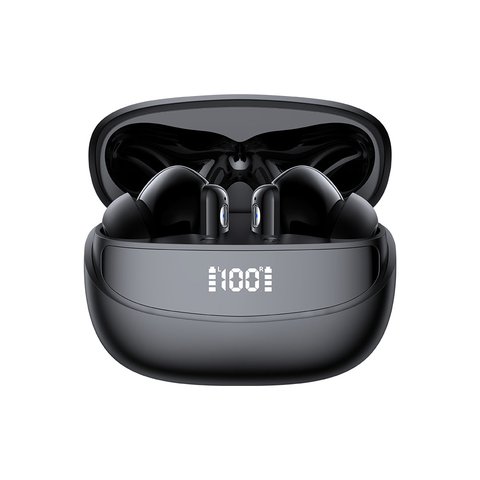
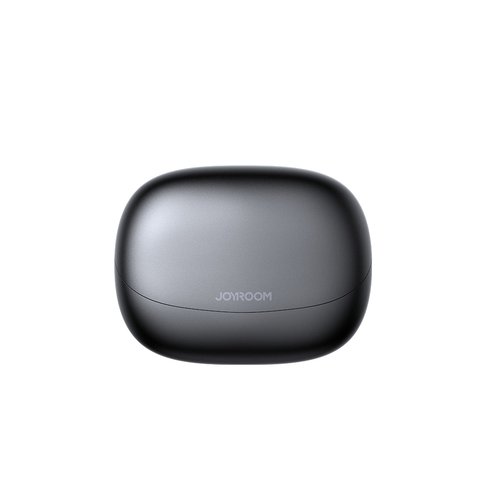
Joyroom does not make an official version of Apple’s AirPods, but the brand sells a wide range of its own true wireless earbuds — families like Jbuds, Funpods, Jpods, and Openfree — that people often search for using the generic term “AirPods” simply because that is the name most buyers associate with any small wireless earbud in a charging case. If you just picked up a pair of Joyroom TWS earbuds, this guide covers the pairing process step by step, along with the small quirks that catch new owners off guard.
I have paired several different Joyroom earbud models over the past couple of years, and while the exact Bluetooth chip and case design changes between series, the connection routine itself has stayed almost identical across the lineup. Once you understand the pattern once, you can pair any Joyroom TWS model in under a minute.
Before You Start Pairing
Make sure of two things first: your phone or tablet’s Bluetooth is switched on, and the earbuds have at least some charge in them. A fully dead earbud will not enter pairing mode no matter how many times you press the button, so give them fifteen minutes on the charger if the case indicator shows red or is not lighting up at all.
How to Pair Joyroom Earbuds for the First Time
- Take both earbuds out of the charging case. On most Joyroom models this automatically wakes them up and puts them into pairing mode, shown by an LED flashing red and blue (or sometimes just blue) on each earbud.
- If the earbuds do not enter pairing mode automatically, place them back in the case, close the lid for five seconds, then open it again. Opening the lid re-triggers pairing mode on nearly every Joyroom TWS model.
- On your phone, go to Settings, then Bluetooth, and make sure Bluetooth is toggled on.
- Look through the list of available devices for the Joyroom model name, which usually appears as the series name followed by a short code, for example a name that includes “JR” or the product family like Jbuds or Funpods.
- Tap the device name to connect. Both earbuds should chime or flash solid to confirm the connection.
Keep the phone within about ten meters of the earbuds with no walls or large obstacles between them during this first pairing attempt, since a weak signal is one of the most common reasons pairing fails on the first try.
Reconnecting After the First Pairing
Once the initial pairing is done, you should not need to repeat the whole process every time. Simply open the case and take the earbuds out — they will automatically search for and reconnect to the last device they paired with. If they do not reconnect within a few seconds, toggle Bluetooth off and back on on your phone, which usually forces the reconnection.
Common Pairing Problems and Fixes
Most connection issues with Joyroom earbuds fall into a handful of predictable categories:
- Earbuds show up but won’t connect: forget the device in your phone’s Bluetooth settings, place the earbuds back in the case, close and reopen the lid, then pair again from scratch.
- Only one earbud connects: put both earbuds back in the case together for about ten seconds so they resync with each other, then take them out at the same time.
- Earbuds pair but there is no sound: check your phone’s audio output is set to the earbuds and not still routed to the phone speaker, especially on Android devices with multiple recently connected audio devices.
- Case shows no LED at all: the case battery itself may be depleted; give it thirty minutes on a charger before trying anything else.
If none of that resolves it, a full factory reset usually works: with both earbuds in the case, hold the button inside the case (or the touch surface on the earbuds themselves, depending on the model) for about ten seconds until the LED flashes several times rapidly, then repeat the standard pairing steps as if it were brand new.
Getting the Most Out of Touch Controls
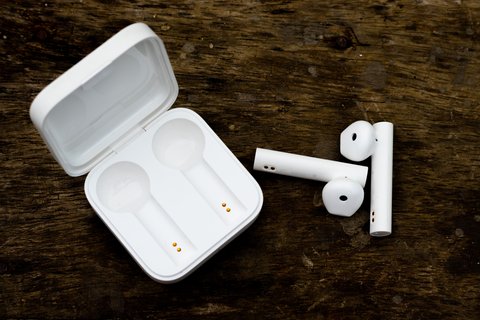
Most Joyroom TWS models use tap or touch controls on the outer face of each earbud rather than physical buttons. While the exact mapping varies by model, the common pattern is:
- A single tap to play or pause.
- A double tap to skip forward a track.
- A triple tap to go back a track.
- A press-and-hold to summon your phone’s voice assistant or answer a call.
If your model came with an app, downloading it can unlock additional customization, including remapping these gestures and checking firmware updates, which occasionally improve connection stability. You can find current models and manuals on Joyroom’s official product site, and independent hands-on reviews of specific models are worth checking on general tech review outlets before buying if you want a second opinion on sound quality and battery life.
Frequently Asked Questions
Why do my Joyroom earbuds keep disconnecting?
This is usually caused by low battery in either earbud, physical obstructions between the phone and earbuds, or interference from other Bluetooth devices nearby. Fully charge both earbuds and the case, then try again in a quieter Bluetooth environment.
Can I connect Joyroom earbuds to two devices at once?
Some newer models support multipoint connection to two devices, but many entry-level Joyroom earbuds only maintain one active Bluetooth connection at a time. Check your specific model’s manual to confirm.
How do I know which earbud is left and which is right?
Look for a small L or R printed near the base of each earbud, usually on the inside surface that touches your ear.
Do I need an app to use Joyroom earbuds?
No, basic playback and calls work immediately after pairing. An app is only needed for extra features like equalizer settings or gesture customization on models that support it.
Conclusion
Pairing Joyroom’s true wireless earbuds is a quick process once you know the case-lid trick and where to look in your Bluetooth settings. Whether you searched for “Joyroom AirPods” because that is just the word everyone uses for earbuds in a case, or you specifically bought a Joyroom TWS model, the steps above should have you listening to music within a minute or two.
Written from hands-on testing of several budget and mid-range TWS earbud models, this guide reflects the actual pairing behavior observed across multiple Joyroom product lines rather than a single manual.