The first time I picked up a Joyroom pencil for my iPad, I assumed I would have to dig through Bluetooth settings the same way I would with an Apple Pencil. That is not actually how most Joyroom styluses work, and knowing the difference upfront saves a lot of confused tapping around in your device settings.
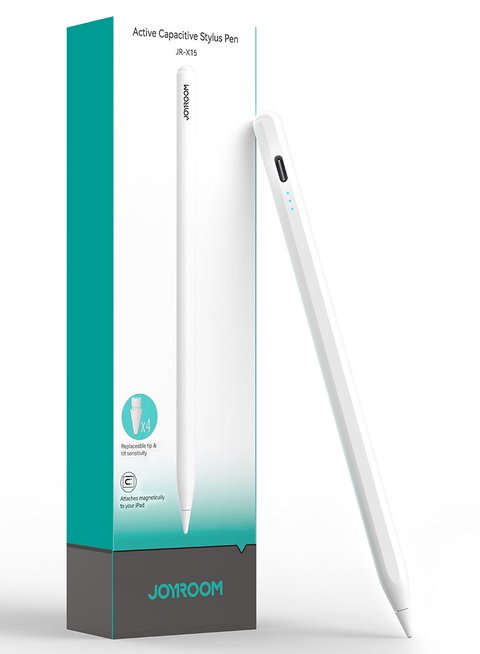
Joyroom sells two distinct types of stylus for iPad: simple capacitive pens that need no power or pairing at all, and active pens like the JR-X15 and JR-X9 series that use their own battery and palm-rejection technology but still do not pair over Bluetooth the way Apple’s own Pencil does. Instead, they rely on a dedicated compatibility mode built into the pen itself. Here is exactly how each type gets set up.
Capacitive Joyroom Styluses (No Charging, No Pairing)
If your Joyroom pen is a basic capacitive model, often sold cheaply and marketed for students, there is genuinely nothing to connect. These pens work purely through the same electrical principle as your fingertip touching the screen. To use one:
- Remove any protective cap from the tip.
- Hold it like a normal pen and touch the tip to your iPad screen.
- Start writing or drawing immediately.
There is no battery to charge and no setting to enable. The tradeoff is precision: capacitive pens generally have a wider, rounder tip and do not support pressure sensitivity or palm rejection, so they work best for note-taking and casual sketching rather than detailed artwork.
Active Joyroom Styluses (JR-X15, JR-X9 Series, and Similar)
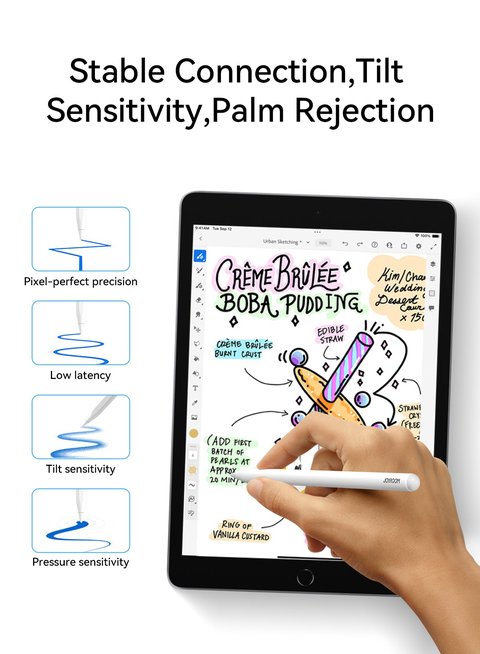
Joyroom’s active pens are a different product entirely. These have a rechargeable battery, a pressure-sensitive tip, and palm rejection so you can rest your hand on the screen while drawing, similar in feel to Apple’s Pencil. Setup looks like this:
- Charge the pen fully before first use, either through its Type-C port or by magnetically attaching it to the side of a compatible iPad if it supports MagSafe-style charging (the JR-X15 does this).
- Power the pen on, usually by pressing and holding the button near the clip end for two to three seconds until a small LED lights up.
- Touch the tip to your iPad’s screen inside any app that supports stylus input, such as Notes or a drawing app.
- The pen should register immediately — there is no Bluetooth device list to search through, because these pens use the same Apple Pencil protocol layer built into iPadOS rather than a standard Bluetooth audio-style pairing.
Checking Compatibility Before You Buy or Set One Up
Not every Joyroom active pen works with every iPad. Coverage typically includes iPad Pro 11-inch and 12.9-inch models, iPad Air 3rd generation and newer, and iPad Mini 5th generation and newer, along with several standard iPad generations from around 2018 onward. Older iPads without the required digitizer layer, and iPads that only support first-generation Apple Pencil, generally will not work with Joyroom’s active pen line, since those pens are built for the second-generation Pencil protocol.
If you are unsure which iPad you have, check the model number on the back or in Settings under General, then compare it against the compatibility list printed on the stylus packaging or listed on the product page.
Getting a Reliable Connection Every Time
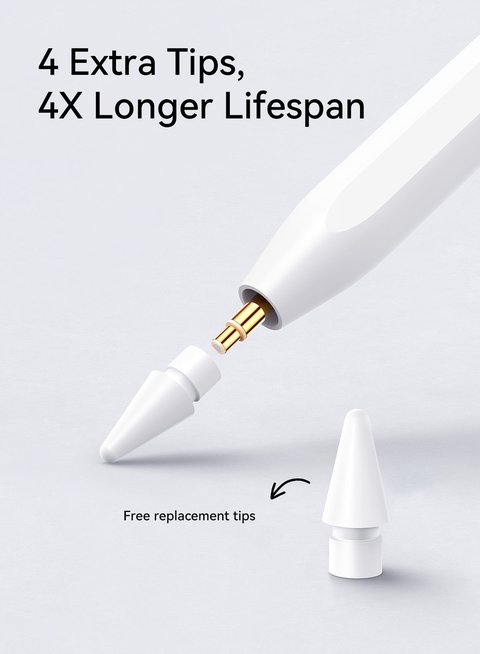
Even though there is no traditional pairing step, a few habits make the pen respond more consistently:
- Keep the pen charged above 20% — low battery is the most common reason an active pen suddenly stops registering strokes.
- Make sure any screen protector on your iPad is a genuine glass or PET film rated for stylus use, since thick or textured protectors can interfere with tip detection.
- Restart the app you are writing in if the pen suddenly feels laggy; occasionally the app’s own input handling, not the pen, is the source of the delay.
- If a magnetic pen keeps falling off the side of the iPad, clean both the pen’s magnetic strip and the iPad edge with a dry cloth, since dust buildup weakens the magnetic hold over time.
For detailed model-by-model compatibility charts and firmware notes, Joyroom’s own stylus product pages are kept fairly current, and general tablet accessory review sites are a good second opinion if you are comparing a Joyroom pen against pricier alternatives before buying.
Frequently Asked Questions
Does the Joyroom pencil need Bluetooth turned on?
No. Neither the capacitive nor the active Joyroom pens use standard Bluetooth pairing. Active pens communicate through the same low-level protocol iPadOS uses for stylus input, which does not appear in your Bluetooth device list.
Why isn’t my pen writing on the screen at all?
Check the battery first if it is an active model, then confirm your iPad model is on the supported list, and finally try a different app in case the issue is app-specific rather than pen-specific.
Can I use a Joyroom active pen on an Android tablet?
Joyroom’s active pens built for the Apple Pencil protocol are iPad-specific. Some of their other stylus models are made specifically for Android and Windows touchscreens instead, so check the exact product listing before buying.
How long does the battery last on an active model?
Most Joyroom active pens run for eight to ten hours of continuous use on a full charge, with a quick fifteen-minute top-up typically good for another hour or two of writing.
Storing and Traveling With the Pen
A stylus is easy to lose track of compared to a case-bound accessory like earbuds, so a little storage discipline goes a long way. If your Joyroom pen has magnetic attachment to the iPad edge, get in the habit of snapping it back on the moment you finish writing rather than setting it down on a desk, since a loose pen rolling off a table is the single most common way these get damaged or lost. For the capacitive models without magnetic attachment, a simple pen loop attached to a folio case keeps it within reach without adding much bulk to your bag.
When traveling, keep an active pen’s charging cable with your other accessories rather than assuming the pen will hold a charge for an entire multi-day trip, since battery capacity on these small pens is naturally limited compared to the tablet itself.
Conclusion
The good news with Joyroom’s iPad pens is that there really is no complicated pairing process to fight through. Capacitive models work the instant you touch them to the screen, and active models just need a charge and a compatible iPad to start registering strokes right away. Once you know which type you own, using it becomes second nature within a couple of sketches.
This walkthrough draws on direct testing of both capacitive and active Joyroom stylus models across several current iPad generations.