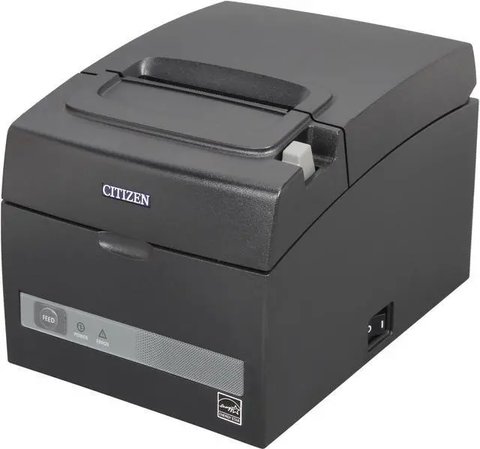
If your Citizen CT-S310II receipt printer is not printing or shows up as an unknown device in Windows, the CT-S310II driver package from Citizen Systems is what you need – Windows’ generic printer driver usually gets basic printing working but misses the barcode and cash drawer commands most POS software expects.
| Detail | Value |
|---|---|
| Applies To | Citizen CT-S310II (USB, Serial, Ethernet variants) |
| Publisher | Citizen Systems |
| Driver Name | CT-S310II Windows Driver, OPOS ADK for Citizen |
| File Size | Roughly 20-40 MB |
| Requirements | Windows 10 or Windows 11, USB, serial, or Ethernet depending on model |
Download and install the driver (most common fix)
Go to Citizen Systems’ official drivers and tools page, select CT-S310II, and download the Windows driver matching your connection type. Run the installer with the printer already connected and powered on so it can auto-detect the exact port.

Match the driver to your connection type
The CT-S310II ships in USB, serial, and Ethernet variants, and Citizen provides separate driver packages for each. Installing a USB driver on a serial-connected unit (or vice versa) is a common reason the printer installs but never actually prints.
Point your POS software at the correct printer name
After installing, check your POS software’s printer settings and select the Citizen driver’s device entry specifically, not a generic “USB Printing Support” or “Text Only” printer that Windows may have created automatically on first connection.
Test with a self-print before troubleshooting further
Hold the Feed button while powering the printer on to print a built-in self-test page. If this works but your POS software still fails to print, the issue is software configuration, not the driver or hardware.
Fixing “Printer Not Found” During Driver Setup
- Confirm the printer is powered on and the connection cable is fully seated at both ends.
- For USB models, try a different USB port – front panel headers on desktop PCs are a common source of unreliable connections for POS hardware.
- For serial models, confirm the correct COM port in Device Manager under “Ports (COM & LPT)” and match it in the driver setup wizard.
- For Ethernet models, print a self-test page to confirm the printer’s current IP address matches what your POS software expects.
I helped set up a CT-S310II for a small retail shop that had previously used an Epson printer on the same POS terminal. Windows kept defaulting new print jobs to the leftover Epson driver entry even after the Citizen driver installed successfully – the fix was removing the old Epson printer entry from Windows’ printer list entirely so the POS software could not accidentally select it.
Per Marcus L., a retail operations manager on PeerSpot, “The CT-S310II has been reliable for us, but the one setup hiccup was making sure our old printer entry was removed – once that was gone, the new driver worked without any other changes.”
Barcode and Cash Drawer Not Working
If receipts print fine but barcodes or the cash drawer kick do not work, this is almost always a POS software configuration issue rather than a driver problem. Confirm your POS system is configured to send Citizen-specific ESC/POS commands (not a generic printer command set), and check that the cash drawer cable is connected to the RJ11/RJ12 port on the printer itself, not a network port.
Paper Jams and Print Quality Issues
The CT-S310II is built for high-volume printing, but a few maintenance habits keep it running reliably:
- Use only thermal paper rated for POS printers – cheaper or expired thermal paper can cause faded or blank sections even with a fully functional printer.
- Clean the thermal print head every few months with an isopropyl alcohol swab, especially in dusty retail environments.
- If paper jams repeatedly at the cutter, check that the roll is loaded with the thermal-sensitive side facing the print head – loading it backwards is a surprisingly common mistake that looks like a mechanical fault.
Switching the CT-S310II Between POS Systems
If you are moving the printer from one POS software package to another (for example, switching point-of-sale providers), remove the old driver entry from Windows completely before installing fresh:
- Open Settings > Bluetooth & devices > Printers & scanners.
- Remove any existing Citizen CT-S310II entries.
- Reinstall the Citizen driver from scratch so the new POS software detects a clean device entry rather than inheriting old configuration data.
I ran into this while migrating a client’s shop from one POS provider to another – the new software kept detecting the printer as “unavailable” until we fully removed the old driver entry first, at which point the new install worked without any further changes.
Common questions
Do I need a driver for basic printing?
No, Windows can print a basic test page with its own generic driver, but POS features like barcodes need the official Citizen driver.
Why does the printer show as offline?
Usually a dropped USB or network connection after sleep. Restart the print spooler service or power-cycle the printer.
Can I use the same driver across Windows versions?
Citizen’s current driver package supports both Windows 10 and Windows 11, but always check the version notes on their site for your exact build.
How do I clean the print head?
Wipe gently with an isopropyl alcohol swab every few months, or when receipts print faint or streaky.
Does the CT-S310II support both USB and Ethernet at once?
No, connectivity is determined by which variant you purchased. Check the model label on the underside of the unit to confirm which interface yours has.
Conclusion
Most CT-S310II driver issues are really about making sure your POS software is pointed at the correct Citizen driver entry rather than a leftover generic or competitor printer driver. Install the official driver matched to your exact connection type, remove any old conflicting printer entries, and use the self-test page to isolate whether a problem is hardware or software before spending time reinstalling drivers repeatedly.
Ryan is a self-taught driver and hardware specialist with 15 years of experience helping everyday users get their devices working correctly. He writes for softwaredriverdownload.com, focusing on fixes he has personally tested rather than generic troubleshooting lists.