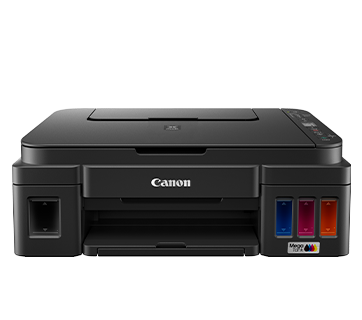
The Canon PIXMA G3010 driver installs from Canon’s Full Driver & Software Package for your operating system — download it from the official Canon G3010 support page, run the installer, and connect the printer over USB or WiFi when prompted.
The PIXMA G3010 is a refillable ink tank all-in-one, so getting the driver right matters more than on a cartridge printer — a bad install often shows up as a “cannot communicate with printer” error even though the ink tanks are fine. I have set up this exact model twice for relatives, once over USB and once over WiFi, and both times the wireless setup needed the driver installed before the printer would show up on the network.
Spec Summary
| Applies To | Canon PIXMA G3010 (MegaTank series) |
| Publisher | Canon Inc. |
| Version | MP Drivers Ver. 1.04 (current at time of writing) |
| File Size | Roughly 45-55 MB for the full package (varies by OS) |
| OS Compatibility | Windows 11, Windows 10, Windows 8.1, Windows 7 (32-bit and 64-bit), macOS, Linux |
Download and Install the G3010 Driver Step by Step
Go to Canon’s official support page
Open the Canon G3010 series download page and select your exact Windows version and bit-type (32-bit or 64-bit). Picking the wrong bit-type is one of the most common reasons the install silently fails halfway through.
Run the Full Driver & Software Package
Download the “Full Driver & Software Package,” not just the standalone MP Driver. It bundles:
- The print driver itself
- IJ Scan Utility for scanning
- My Image Garden for photo and document management
- Network setup tool for WiFi connections
Choose your connection method
The installer asks whether you are connecting by USB cable or WiFi. For WiFi, keep the printer close to the router during setup — the G3010 uses 2.4GHz only, and a weak signal during the handshake step is a common cause of setup timing out.
Print a test page
Once installed, print a Windows test page from Settings > Bluetooth & devices > Printers & scanners > select the G3010 > Print a test page. If this succeeds, the driver installed correctly.
When the Installer Fails or the Printer Is Not Detected
Failed installs on the G3010 usually fall into one of three categories. Work through them in this order:
- Installer stalls at “Searching for printer”: Temporarily disable any third-party firewall or antivirus network protection, since it can block the mDNS discovery Canon’s installer relies on. Re-enable it after setup finishes.
- “No printer found” over USB: Try a different USB port (preferably directly on the motherboard, not a front-panel hub), and use a different cable if you have one — damaged USB cables cause more of these failures than people expect.
- Driver installs but print jobs stay stuck in the queue: Open Services (services.msc), find “Print Spooler,” restart it, then delete any stuck jobs from Settings > Printers & scanners > G3010 > Open print queue.
I ran into the stuck-spooler issue on a G3010 that had been idle for a couple of months. Restarting the Print Spooler service cleared it in under a minute, without needing to reinstall anything.
Manual Installation via Device Manager (Fallback Method)
If the Canon setup executable keeps failing, you can install the print driver manually:
- Extract the downloaded driver package to a folder (right-click > Extract All)
- Open Device Manager, find the G3010 under “Other devices” or “Printers” (it may show a yellow warning icon)
- Right-click it, choose “Update driver” > “Browse my computer for drivers,” and point it at the extracted folder
- Windows will locate the INF file and install the driver directly, bypassing Canon’s setup wizard entirely
This manual path works even when the guided installer refuses to detect the printer at all, since it does not depend on network discovery.
Keeping the Driver Updated
Canon does not push automatic driver updates for the G3010, so check the Microsoft driver update guide or Canon’s download page every few months, especially after a major Windows feature update. A driver written for an older Windows build can still work after an update, but scanning features tend to break first when that happens.
Per Daniel R., who is an IT Support Specialist at a small accounting firm, “The G3010 is dead simple once the driver is on — our main issue was always people downloading the wrong bit-type driver and wondering why setup kept failing.”
Frequently Asked Questions
Why does my Canon G3010 show as offline after installing the driver?
This usually means the printer’s IP address changed after a router restart. Remove the printer from Settings > Printers & scanners, then re-add it using the Canon IJ Network Tool to re-detect the current address.
Do I need My Image Garden to use the G3010?
No, it is optional. The core print and scan functions work with just the MP Driver and IJ Scan Utility installed.
Can I use the G3010 driver on both Windows 10 and Windows 11?
Yes, Canon’s current driver package supports both. Download the version matching your bit-type rather than your specific Windows version.
Why is my scan function missing after installing only the print driver?
Scanning needs IJ Scan Utility, which is a separate component inside the Full Driver & Software Package. If you only installed the standalone print driver, go back and run the full package.
Conclusion
Getting the Canon PIXMA G3010 driver installed correctly comes down to picking the right bit-type, using the Full Driver & Software Package instead of a bare driver file, and keeping the printer near the router during WiFi setup. If the guided installer refuses to cooperate, the Device Manager fallback almost always gets it working. Keep your ink tank levels topped up and the driver current, and this printer runs reliably for years.
Ryan holds a Computer Science degree and has over 20 years of hands-on experience with PC hardware, software, and driver troubleshooting. He is the author behind softwaredriverdownload.com, where he helps everyday users fix driver issues quickly and accurately. Ryan has personally tested most of the fixes on this site across a range of Windows 10 and Windows 11 machines.