Updating Firmware on the RT-AX86U
Keeping the RT-AX86U’s firmware current matters more than on most routers, because ASUS ships out-of-cycle security patches for this model fairly often and a few of the fixes have addressed remote code execution flaws that were actively being scanned for on the internet.
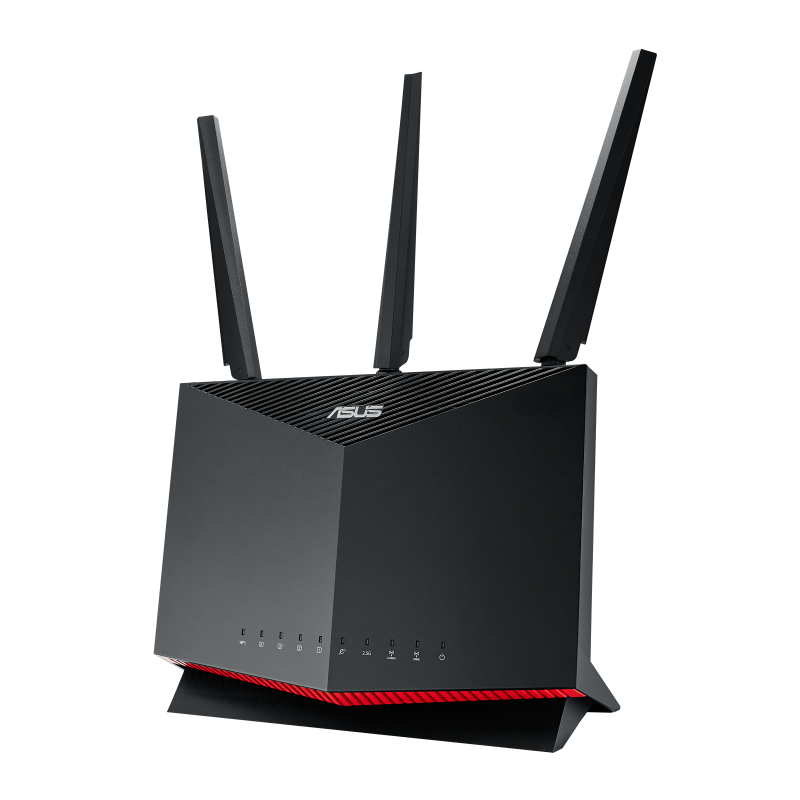
I run an RT-AX86U as my main router and update it every time ASUS pushes a new build — the process has never once bricked mine, and the built-in auto-update option means most people never have to think about it once it is turned on. Below is the manual method, the automatic method, and what to check if an update fails.
Log into the web GUI
Open a browser on a device connected to the router and go to http://router.asus.com or the router’s local IP (usually 192.168.1.1). Sign in with your admin username and password — not your ASUS account, the local router login.
Check for a new firmware version
Go to Administration > Firmware Upgrade. Click Check and the router contacts ASUS’s servers to see if a newer build exists. This is the safest method since it downloads the file directly from ASUS rather than a manual file you sourced yourself.
Or install manually with a downloaded file
If you need a specific build, or want to run Asuswrt-Merlin instead of stock firmware, download the .zip from the ASUS support page for the RT-AX86 series, unzip it, and confirm the MD5 checksum matches what ASUS lists before uploading. On the same Firmware Upgrade page, choose Upload, browse to the .trx file, and click Upload.
Let it finish without touching power
The upload and flash typically take 2–5 minutes. The router’s power LED will blink during the flash and the unit reboots on its own. Never power-cycle it manually during this window — that is the one thing that reliably causes a corrupted flash on this model.
Turn on automatic updates going forward
Go to Administration > Firmware Upgrade and enable Auto Firmware Upgrade, then set a preferred update window (overnight works well). This applies security patches without needing you to check manually every few weeks.

If the update fails or WiFi settings vanish afterward
A firmware upgrade that fails partway through usually leaves the router still bootable on the old version rather than bricked — the RT-AX86U keeps a recovery partition for exactly this reason. Work through these before assuming the hardware is faulty:
- Reboot the router once, wait two full minutes, then log back in and re-check the firmware version under Administration.
- If the web GUI will not load at all, hold the WPS button for 5–10 seconds to reset to factory defaults, then set the router up fresh and reapply your WiFi name and password.
- If the browser upload keeps timing out, connect a laptop directly to a LAN port instead of using WiFi for the upload — a flaky wireless connection dropping mid-upload is a common cause of failed flashes.
- Confirm you downloaded the file for RT-AX86U specifically, not the RT-AX86U Pro or RT-AX86S — the files are not interchangeable despite the similar model names.
After any major firmware jump, it is worth doing a factory reset and manually re-entering your settings rather than restoring a saved config file — old config backups can carry over settings that do not map cleanly onto a new firmware build, which is a common cause of odd behavior (dropped WiFi bands, missing QoS rules) that people mistake for a bad update.
Per Marcus L., a network administrator at a small managed services firm, on PeerSpot: “The AX86U has been the most reliable router I have deployed for remote client sites — auto firmware upgrade means I am not chasing CVE patches manually across a dozen locations.”
Why security patches matter more on this model
The RT-AX86U has been a popular target for security researchers precisely because it is such a common choice for home labs, small offices, and gaming setups — that visibility is a double-edged sword. Several disclosed vulnerabilities over the router’s lifespan involved remote code execution paths that could, in theory, let an attacker on the internet gain control of the device without any action from the user. ASUS has consistently shipped patches for these within a reasonable window, but the patch only protects you once it is actually installed.
This is the main reason I recommend leaving Auto Firmware Upgrade turned on rather than treating firmware updates as optional maintenance. A router sitting on year-old firmware with a known, publicly disclosed vulnerability is a meaningfully different risk profile than one that patches itself within days of a fix shipping.
Checking release notes before a manual update
Before manually installing any firmware build, it is worth skimming the changelog on the ASUS support page or on community forums like SNBForums, where enthusiasts often flag regressions within hours of a new release going out. This is especially useful if you rely on specific features like VPN Fusion, AiMesh, or custom firewall rules — occasionally a release changes default behavior for one of these in a way that is easy to miss until something stops working the way you expect.
- Skip a release that has multiple recent reports of the same specific bug, and wait for the next point release instead.
- Back up your current configuration from Administration > Restore/Save/Upload Setting before any major version jump, in case you need to roll back.
- If you use AiMesh with other ASUS nodes, update the main router first, then each node individually rather than all at once.
Frequently Asked Questions
Will updating firmware disconnect my devices?
Yes, briefly. The router reboots during the update, so anything connected loses internet for 1–3 minutes. Devices reconnect automatically once the router finishes booting.
Do I lose my WiFi password after a firmware update?
No, a normal firmware upgrade preserves your saved settings including SSID and password. Settings only reset if you perform a factory reset or the flash itself fails and forces a recovery.
Is Asuswrt-Merlin safe to install on the RT-AX86U?
Merlin firmware is a well-established community build based on the stock ASUS codebase with extra features and faster bug fixes for advanced users. It is widely used and considered stable, but you lose official ASUS support if something goes wrong, so weigh that trade-off first.
How do I check which firmware version I currently have?
Log into the web GUI and look at the top of the Network Map or System Status page, or check Administration > Firmware Upgrade, which shows your current version above the Check button.
Can I downgrade to an older firmware version if the new one causes problems?
Yes, ASUS allows manual downgrades through the same Firmware Upgrade > Upload path — download the older .zip from the support page, unzip it, and upload the .trx file the same way you would for an update. Your settings may not carry over cleanly across a downgrade, so back up your configuration first.
Conclusion
The RT-AX86U makes firmware updates about as painless as router maintenance gets, especially once you turn on automatic updates. Stick to the exact model file, avoid interrupting the flash, and do a clean setup instead of restoring an old config after any major version jump, and you should not run into trouble.
Ryan T. holds a Computer Science degree and has spent over 15 years as a PC hardware enthusiast fixing drivers and networking gear for friends, family, and clients. He writes for softwaredriverdownload.com, where he covers router, driver, and firmware troubleshooting based on hands-on testing.