The Epson TM-m30II receipt printer needs the Epson Advanced Printer Driver (APD) or the TM Virtual Port Driver installed before your point-of-sale software can print receipts — the fastest route is Epson’s own Setup Navi tool, which detects your exact model and connection type and hands you the right installer automatically.
I set one of these up for a friend’s cafe counter last month, connected over USB, and the whole thing — driver, utility, first test receipt — took under ten minutes once I stopped trying to install the driver before plugging the printer in. That order matters more on this printer than on most inkjets.
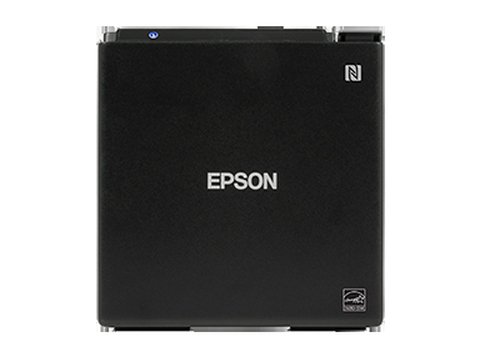
| Item | Detail |
|---|---|
| Applies To | Epson TM-m30II (USB, Ethernet, Bluetooth, and Wi-Fi variants) |
| Publisher | Seiko Epson Corporation |
| Driver | EPSON Advanced Printer Driver (APD) and TM Virtual Port Driver |
| File Size | Roughly 20-40 MB per driver package (varies by version) |
| Requirements | Windows 11, 10, 8.1 (32-bit and 64-bit); also supported on select POS Linux builds |
Why setup fails
Printer was plugged in and powered on before the driver finished installing, so Windows grabbed a generic driver first.
POS software (Square, Lightspeed, custom ESC/POS app) is looking for a Virtual COM port that was never created.
Ethernet or Wi-Fi model has a different IP address than the one saved in the POS software after a router restart.
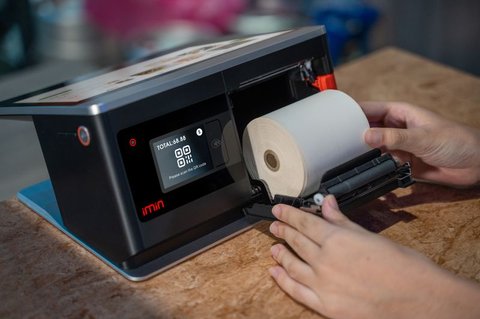
Thermal paper roll loaded backwards — printer feeds paper but nothing prints on it.
How to fix it
Download the APD combo installer from the Epson Setup Navi for the TM-m30II and run it before connecting the printer.
Open the TM-m30II Utility, use “Add Printer,” and let it create the Virtual COM port automatically instead of guessing a port number.
Set a static IP on the printer through its own web config page (type the printer’s IP into a browser) so it never changes after a reboot.
Check the small diagram inside the paper cover — the thermal (printable) side must face up and out toward the cutter.
Step by Step: USB Install on Windows
- Download the APD package from Epson’s Setup Navi and run the installer as Administrator, but leave the printer unplugged and powered off.
- Select “Advanced Printer Driver” when the installer asks which components to install; add the TM Virtual Port Driver too if your POS software needs a COM port.
- Plug in the USB cable and power on the printer only when the installer prompts you to.
- Windows will finish detecting the printer and register it under Devices and Printers as “EPSON TM-m30II Receipt.”
- Open the TM-m30II Utility to print a self-test receipt and confirm communication is working.
- Point your POS software at the newly created printer or COM port in its own printer settings.
Manual Install via Device Manager
If the automatic installer does not detect the printer over USB, you can install manually instead of reinstalling from scratch:
- Extract the APD installer package to a folder rather than running it directly.
- Open Device Manager, locate the printer under “Other devices” with a warning icon.
- Right-click, choose Update Driver, then “Browse my computer for drivers,” and point it at the extracted folder.
- Restart the PC after the driver installs and reopen the TM-m30II Utility to confirm the port is assigned correctly.
TM-m30II vs TM-m30III: Should You Upgrade?
Epson has since released the TM-m30III, and people replacing an older TM-m30 sometimes end up unsure which model they actually have. Here is how the three compare on the things that affect driver and setup choices.
| Spec | TM-m30 | TM-m30II | TM-m30III |
|---|---|---|---|
| Print speed | 250 mm/sec | 250 mm/sec | 350 mm/sec |
| Driver family | APD (older build) | APD (current build) | APD (latest build) |
| Bluetooth option | Limited models | Yes | Yes |
| Cloud printing | No | Limited | Yes, native |

Per Marissa T., who is a Retail Operations Lead at a boutique chain, “The driver install itself was fine — what tripped us up was the static IP step, and once IT set that, the printer never dropped off our POS system again.”
Checking Driver Version and Firmware
Open the TM-m30II Utility and look under the printer information tab for both the driver version and the current firmware build. Epson occasionally updates the APD driver to fix communication drops over Bluetooth, so if your printer disconnects randomly during busy hours, check the Epson TM-m30II Series support page for a newer download before assuming the hardware is failing.
Bluetooth and Wi-Fi Pairing Notes
The Bluetooth variant of the TM-m30II pairs like any other Bluetooth accessory, but it still needs the APD driver installed first if you want to print from a Windows POS app rather than a mobile app. A few things to keep in mind:
- Hold the printer’s feed button while powering on to enter pairing mode — check your exact model’s manual, since the button combination differs slightly between hardware revisions.
- Windows may pair the Bluetooth radio successfully but still fail to print until the Virtual COM port is created in the TM-m30II Utility.
- Wi-Fi models are configured through the printer’s own web config page rather than Windows directly — connect once over USB or Ethernet, note the assigned IP, then switch to wireless.
- Tablets and phones running iOS or Android connect through Epson’s TM Print Assistant app instead of the Windows driver, so no APD install is needed on mobile devices.
Frequently Asked Questions
Does the TM-m30II need a driver for every connection type?
Yes — USB, Ethernet, Bluetooth, and Wi-Fi variants all still need the Advanced Printer Driver installed on the connected PC; only the pairing step at the end changes.
Why does my POS software not see the printer after install?
Most POS apps look for a specific COM port or printer name. Open the TM-m30II Utility, confirm the port assigned, and enter that exact port in your POS software’s printer settings.
Can I use this driver on a Mac?
Yes. Epson publishes a macOS version of the Advanced Printer Driver through the same Setup Navi tool linked above.
The printer feeds paper but prints nothing — what is wrong?
Almost always the thermal paper roll is loaded backwards. Thermal paper only prints on one coated side; flip the roll and test again.
Conclusion
Getting the TM-m30II talking to your POS software comes down to installing the Advanced Printer Driver before connecting the printer, then matching whatever port or printer name your POS app expects. Set a static IP for networked units so the printer does not silently disappear from your setup after a router restart, and keep a spare paper roll on hand while you test.
Ryan
Computer Science grad · long-time hands-on troubleshooter