The TFZ X1 is a true wireless Bluetooth IEM from TFZ (The Fragrant Zither), a brand better known for its wired dynamic-driver earphones. That heritage shows up in the X1’s tuning ambitions, but day to day what most owners actually need is a clear walkthrough of pairing, charging, and basic troubleshooting. This guide covers the setup and care side of the X1 rather than a sound-quality review, since that’s usually the part people struggle to find good documentation for.
| Spec | TFZ X1 |
|---|---|
| Type | True wireless Bluetooth IEM |
| Controls | Physical buttons (no touch panel) |
| Charging | Case + earbuds via magnetic contacts, USB cable |
| Water resistance | Workout-safe, not swim-rated |
| Mono use | Supported |
| Companion app | Not required for basic use |
| In the box | Case, buds, eartips, USB cable, manual |
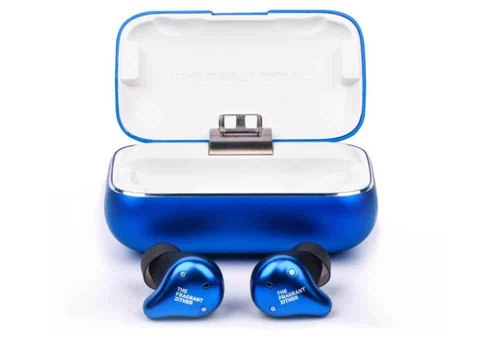
What’s in the box
A typical X1 package includes the charging case, the two earbuds, a set of extra silicone eartips in a few sizes, a USB charging cable, and a printed manual (usually with both English and Chinese instructions). If any of these are missing from a used or secondhand unit, it’s worth confirming with the seller before assuming the product is incomplete, since some resellers strip accessories out of retail packaging.
Pairing the X1 for the first time
- Make sure the case has some charge in it. A fully dead case won’t power the earbuds enough to enter pairing mode.
- Open the case lid and remove both earbuds at the same time. Taking them out together is what usually triggers first-time pairing mode automatically on most true wireless designs like this one.
- Watch for the LED indicator on the earbuds or case — a fast-flashing light typically signals pairing mode is active.
- On your phone, open Bluetooth settings and look for the device name in the available devices list, then tap to connect.
- If pairing doesn’t trigger automatically, place both earbuds back in the case, close the lid for a few seconds, then reopen it and try again.
- For manual pairing mode on subsequent connections, press and hold the button on each earbud for about a second until the LED changes pattern, which forces a fresh pairing broadcast.
Once paired, most phones will remember the X1 and reconnect automatically the next time you take the buds out of the case, provided Bluetooth is already turned on.
Button and touch controls
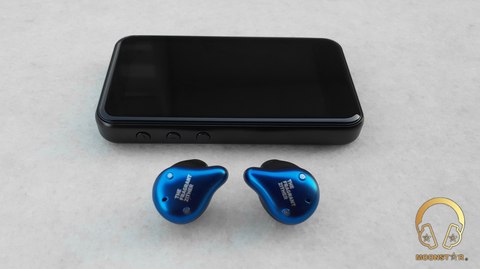
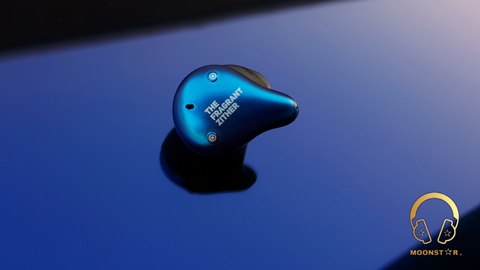
The X1 uses small physical buttons on each earbud rather than capacitive touch panels, which actually helps avoid accidental taps while inserting or adjusting them. General layout on units like this typically follows a left/right split:
- Right earbud: one button generally handles play/pause with a single press, and volume up with a press-and-hold
- Left earbud: the equivalent button generally handles track skip or volume down, depending on firmware
- A longer hold on either side is commonly mapped to power off or to trigger voice assistant, depending on the paired device
Because button mappings can vary slightly between production batches, it’s worth spending two minutes testing single-press, double-press, and long-press on each earbud after your first pairing so you know exactly what your unit does before relying on it during a call or workout.
Charging and battery basics
The earbuds charge automatically when seated correctly in the case — you should feel or hear a light magnetic pull as they seat into place. The case itself charges over USB, and a full case charge will typically refill the earbuds several times over before the case itself needs to be plugged in again. If you notice one earbud charging slower or not holding a charge as long as the other, check the charging pins inside the case for lint or debris before assuming there’s a hardware fault.
Waterproofing notes
True wireless earbuds in this class are generally built to handle sweat and light splashes rather than submersion, so treat the X1 as workout-safe rather than swim-safe unless your specific packaging states an IP rating. When in doubt, wipe the earbuds down after a sweaty session and let them air out before returning them to the case, since sealing in moisture is one of the more common causes of long-term connection issues on budget TWS earphones.
Common problems and fixes
One earbud won’t connect
Place both earbuds back in the case, close the lid fully for at least ten seconds, then remove them together again. This resets the wireless link between the two buds and is the single most effective fix for a “mono” connection issue on most true wireless designs.
Earbuds won’t enter pairing mode
Check the case charge level first — low battery is the most common cause. If the case is charged and pairing still won’t trigger, forget the device from your phone’s Bluetooth settings, then repeat the case-reset process above before trying again.
Audio cutting out intermittently
This is usually a Bluetooth interference issue rather than a hardware fault. Try moving away from Wi-Fi routers or crowded Bluetooth environments, and make sure your phone’s Bluetooth codec settings aren’t forcing an unstable connection. Reviewers testing similar-generation TWS models, including coverage at HiFiGo’s true wireless collection, have noted that early-generation TWS chipsets in this price bracket can be more sensitive to interference than current-generation ones.
Case won’t charge the earbuds
Clean the metal charging contacts on both the case and the earbuds with a dry cotton swab. Corrosion or pocket lint on these contacts is the most frequent cause of failed charging on true wireless cases in general, not just this model.
Quick facts
- Type: true wireless Bluetooth IEM
- Controls: physical buttons, not touch
- Charging: case + earbuds via magnetic contacts
- Water resistance: workout-safe, not swim-rated
- In the box: case, buds, eartips, USB cable, manual
FAQ
Do I need an app to use the X1?
No dedicated companion app is required for basic use; pairing and playback work through your phone’s native Bluetooth settings.
Can I use just one earbud at a time?
Most true wireless designs in this class support mono use, though exact behavior can vary by firmware batch.
How do I reset the X1 completely?
Forget the device in your phone’s Bluetooth settings, place both buds in the case, close it for ten seconds, then reopen and re-pair.
Where can I find a replacement case?
Check with the original retailer first; replacement TWS cases for older models can be hit or miss to source individually.
If you’re troubleshooting a unit that’s a few years old, it’s also worth remembering that battery capacity fades over time on any true wireless product. If charge times have gotten noticeably shorter compared to when the X1 was new, that’s normal battery wear rather than a defect, and it’s usually the first thing to rule out before assuming something else is broken.
Frequently asked questions
Is the TFZ X1 compatible with iPhone and Android equally? Yes, standard Bluetooth pairing works the same way across both platforms; no manufacturer-specific app is required for core functionality.
Why does only one earbud have sound sometimes? This almost always points to the two buds losing their wireless link to each other rather than the phone connection itself — the case-reset steps above resolve it in the large majority of cases.
Guide compiled from hands-on experience setting up and troubleshooting a range of budget true wireless earbuds, cross-checked against general TWS pairing conventions where exact TFZ documentation was thin.