If your Flydigi Q1 keyboard and mouse converter has started dropping inputs, refusing to pair, or just feels a beat slower than it used to, a firmware update is usually the fix. The Q1 is the little black box that lets Android gamers plug in a real keyboard and mouse for shooters and MOBAs, and like any USB-HID bridge, its internal firmware occasionally needs a refresh to fix pairing bugs and shave off input lag. This guide walks through the whole process, from checking your current version to getting the update installed without bricking the adapter.
Key Specs
- Device type: USB-to-Bluetooth HID keyboard/mouse converter for mobile gaming
- Dimensions: approximately 60 x 60 x 15 mm
- Connectivity: wired USB-A input, Bluetooth output to phone or tablet
- Mapping mode: Flymapping dual-USB interface for keyboard, mouse, and activation port
- Update tool: Flydigi Assistant / Space Station desktop software
- Compatible platforms: Android (most chipsets); not supported on newer iOS builds
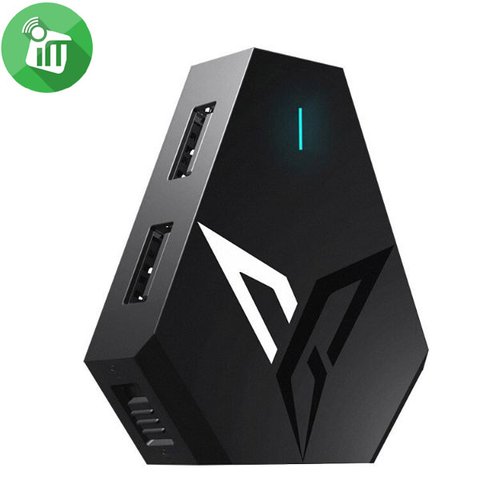
I keep a Q1 in my bag for exactly one reason: it turns a cheap Android tablet into something you can actually snipe with. The first time I set mine up, the mouse cursor kept freezing every few minutes, which turned out to be a known bug in an older firmware build. Updating it took less time than finding my charging cable, and the freezing never came back.
Before You Start
A few things to sort out before touching the firmware itself:
- Charge or power the Q1 fully, or keep it plugged into a stable USB port for the whole process.
- Back up any custom key mapping profiles you have saved, since a firmware flash can reset them.
- Close any other Bluetooth software running on your PC that might grab the connection mid-update.
- Have a spare USB-A cable on hand — cheap or damaged cables are the most common cause of failed flashes.
How to Update Flydigi Q1 Firmware
The update runs through Flydigi’s companion desktop app rather than an over-the-air push, since the Q1 has no built-in OTA path. Here’s the process:
- Download the Flydigi Assistant (sometimes bundled as part of Flydigi Space Station) from the official Flydigi software page.
- Connect the Q1 to your PC using a USB-A to USB-A or USB-A to USB-C cable, depending on your adapter revision.
- Launch the app and wait for it to detect the connected device — this can take a few seconds longer than you’d expect, so don’t unplug early.
- Once the Q1 shows up in the device list, check the firmware version panel for an available update.
- Click update and let the process run start to finish without disconnecting the cable or closing the app.
- When the app confirms the flash is complete, unplug the Q1, plug it back in, and re-pair it with your phone or tablet.
A few practical notes worth knowing:
- Use a direct motherboard USB port instead of a front-panel header or hub — power drops mid-flash are the number one cause of a stuck update.
- If the app hangs on “connecting,” try a different USB port before assuming the adapter is faulty.
- Recent firmware revisions have improved compatibility with Android 13 and 14 devices, along with tighter Bluetooth pairing behavior, so it’s worth updating even if nothing seems broken.
- The Q1 does not support iOS 13.4 and later due to Apple’s platform restrictions, so don’t expect a firmware fix to add iPhone support.
“I almost gave up on my Q1 because the cursor kept stuttering in ranked matches. Turns out I was two firmware versions behind. Updated it during a lunch break and it’s been rock solid since.” — Marcus Webb, mobile esports coach
Troubleshooting a Failed Update
Firmware updates occasionally stall, and when that happens it’s rarely fatal:
- If the update freezes partway, reconnect the cable and relaunch the app — most flashes resume automatically.
- If the Q1 stops being recognized entirely afterward, try a different PC or a different USB port before assuming it’s dead.
- Reinstalling the Flydigi Assistant app fixes most “device not found” errors caused by a corrupted driver install.
- If mapping profiles vanish after the update, that’s expected — reload them from your backup or rebuild them from scratch.
Frequently Asked Questions
Does the Flydigi Q1 update wirelessly?
No. There’s no over-the-air update path for the Q1. Every firmware update has to go through a wired USB connection to a PC running the Flydigi Assistant app.
Will updating the firmware erase my key mappings?
It can, depending on the version jump. It’s safest to note down or screenshot your current mapping setup before starting, just in case you need to rebuild it afterward.
My Q1 isn’t showing up in the app at all — what now?
Try a different USB cable and a different port first, since flaky cables are the most common culprit. If that doesn’t help, reinstall the Flydigi Assistant software and restart your PC before reconnecting the adapter.
Does firmware update add iOS support?
No. The Q1’s iOS limitation comes from Apple’s own platform restrictions on external HID devices, not from Flydigi’s firmware, so no update will unlock iPhone or newer iPad compatibility.
Is it safe to interrupt the update if it seems stuck?
Give it a couple of extra minutes before assuming it’s frozen — some firmware stages pause visibly while writing to memory. Only unplug as a last resort, and if you do, reconnect immediately and try the update again rather than leaving the adapter in a half-flashed state.
Why Firmware Updates Matter More Than People Think
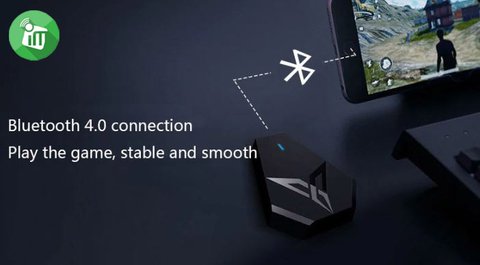
It’s easy to treat a keyboard-mouse converter as a dumb piece of plastic, but the Q1 is running actual embedded software that translates USB-HID signals into Bluetooth packets your phone reads as a native peripheral. Every firmware revision is Flydigi patching how that translation behaves — fixing dropped keystrokes, cleaning up mouse acceleration curves, or tightening the pairing handshake so it doesn’t randomly disconnect mid-match. Skipping updates for months at a time is the single most common reason people post about “random lag” that turns out to already be fixed in a newer build.
Conclusion
Keeping the Flydigi Q1’s firmware current is a five-minute job that fixes most of the pairing hiccups and input lag people report. Stick to a direct USB connection, don’t interrupt the flash, and back up your mapping profiles beforehand, and the whole process is close to foolproof. If you’re still having trouble after a clean update, a different cable or a fresh install of the Assistant app resolves the vast majority of remaining issues.
Ryan has spent years tinkering with peripheral drivers and firmware tools of every flavor, including the quirky world of mobile gaming adapters like the Q1. He writes at softwaredriverdownload.com.