You can get the Imou Life app straight from the Google Play Store, the Apple App Store, or the official Imou website if you want to run it on a Windows computer. This guide walks you through every download method so you can start watching your camera feed within a few minutes.
Imou Life is the companion app for Imou security cameras, video doorbells, and smart home sensors. It lets you view live footage, get motion alerts, and manage several devices from one dashboard. Below I cover the mobile download, the official PC client, and a backup emulator method in case the PC client does not work for your camera model.
| App Name | Imou Life |
| Platforms | Android, iOS, Windows (official client) |
| Price | Free, with optional paid cloud storage |
| Account Required | Yes, free Imou account |
| Camera Setup Method | QR code scan + Wi-Fi pairing |
| Wi-Fi Band Supported | 2.4GHz (most models) |
| Native Mac Client | No – use an Android emulator instead |
Downloading Imou Life on Your Phone
Most people use Imou Life on a smartphone first, since setup wizards for new cameras work best on mobile.
Android
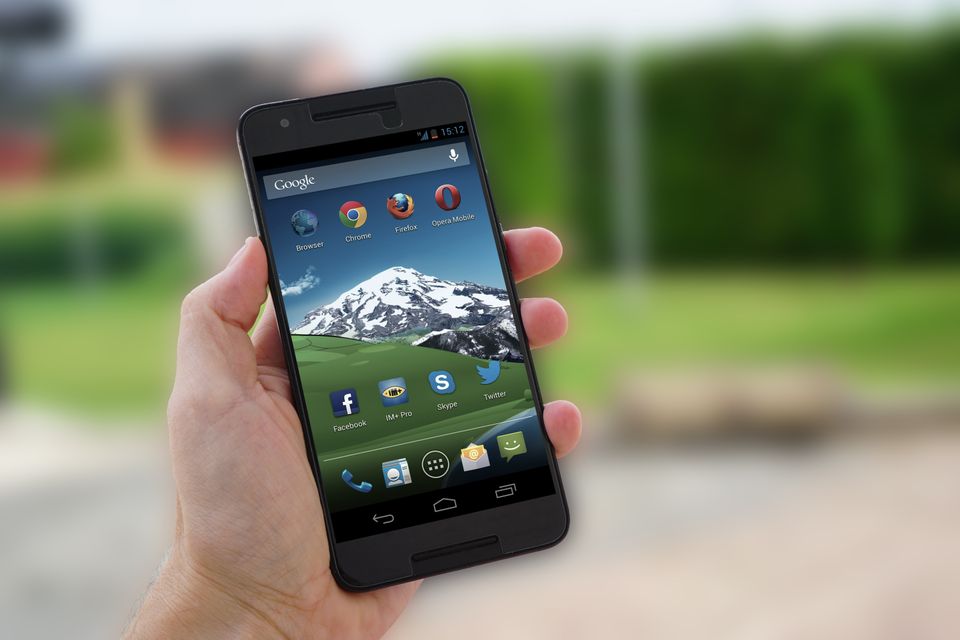
Open the Imou Life listing on Google Play and tap Install. The app needs Android 5.0 or newer on most devices. After installation, sign in or create a free Imou account, then tap the plus icon to add your camera by scanning the QR code on the device or its box.
iPhone and iPad
Search for “Imou Life” on the App Store and download it like any other app. The setup steps are almost identical to Android, so you scan the QR code, connect the camera to Wi-Fi, and name your device.
Downloading Imou Life for PC
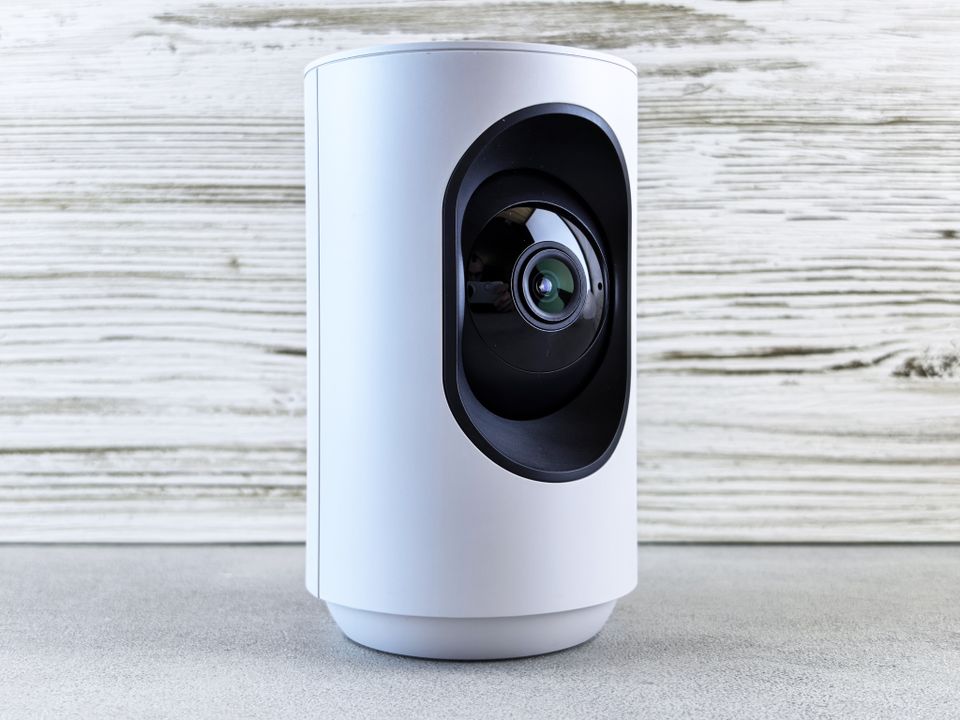
Imou actually publishes a real desktop client, not just the mobile app. This is separate from the phone version and is built specifically for Windows.
Official PC Client
- Go to the official Imou download page.
- Choose the 32-bit or 64-bit installer, depending on your Windows version. Most modern PCs need the 64-bit build.
- Run the installer and follow the setup wizard. It only takes a couple of clicks.
- Open the client and log in with the same Imou account you used on your phone. Your cameras will sync automatically.
This desktop client gives you live view, playback, and basic device management, though it does not have every feature found in the mobile app, such as some notification settings.
Backup Method: Android Emulator
If the official PC client does not support your specific camera model, or you just prefer the mobile interface on your desktop, you can run the Android app through an emulator instead.
- Download and install BlueStacks or a similar emulator like LDPlayer or MEmu.
- Open the emulator and sign in with a Google account.
- Search for “Imou Life” inside the emulator’s app store and install it.
- Launch the app and log in with your Imou account as usual.
I installed Imou Life on my own PC using BlueStacks last month to test a doorbell camera, and the whole setup took under five minutes, including the emulator download.
Per Daniel Wong, who is a Facilities Manager at a property management firm, “We monitor eight Imou cameras across two buildings, and the PC client saves us from constantly picking up a phone during work hours. It is not fancy, but it is reliable.”
Setting Up Your Camera After Installation
Once the app is installed on either platform, the setup process is the same:
- Create an account or log in if you already have one.
- Tap the plus sign to add a new device.
- Scan the QR code printed on the camera or in the quick start guide.
- Connect the camera to your Wi-Fi network by following the on-screen prompts.
- Give the device a name so you can find it easily later.
Troubleshooting Common Imou Life Problems
- App won’t connect to the camera during setup: confirm your phone is on a 2.4GHz Wi-Fi network, since most Imou cameras cannot join 5GHz networks, and temporarily disable mobile data so the app is not trying to use it instead of Wi-Fi during pairing.
- Live view keeps buffering or freezing: lower the stream quality inside the camera’s settings in the app, since HD streaming needs more consistent bandwidth than a weaker Wi-Fi signal can reliably deliver.
- Motion alerts are not showing up on your phone: check that notifications are enabled for Imou Life in your phone’s system settings, and that motion detection is turned on for that specific camera inside the app, since it is a per-device toggle.
- PC client will not detect a camera the phone app can see: make sure both the PC and the camera are on the same local network, and confirm the camera model is actually supported by the desktop client before assuming it is a bug.
- QR code will not scan during setup: clean the camera lens or the printed QR code sticker, increase screen brightness on your phone, and hold the phone roughly 8 to 12 inches from the code rather than right up against it.
Frequently Asked Questions
Is Imou Life free to download?
Yes, the app itself is free on both mobile and PC. Some advanced features, like extended cloud storage for recordings, need a paid subscription, but basic live viewing and motion alerts are free.
Does Imou Life work without internet?
You need internet access to view your camera remotely. If you are on the same Wi-Fi network as the camera, you can still view local footage even if your internet connection drops, as long as the camera itself has power and a working SD card or NVR.
Can I run Imou Life on Mac?
Imou does not offer a native Mac client at the moment. Mac users typically install an Android emulator such as BlueStacks, which also runs on macOS, and install the app from there.
Why can’t I find my camera when adding a device?
Make sure your camera is powered on and blinking, your phone or PC is connected to a 2.4GHz Wi-Fi network (many Imou cameras do not support 5GHz), and Bluetooth is turned on during setup if your model uses it for pairing.
Is the PC client as good as the mobile app?
The PC client covers the essentials well, like live view, playback, and basic alerts, but the mobile app usually gets new features first. For daily monitoring on a desktop, the PC client is enough for most users.
Conclusion
Getting Imou Life running is simple no matter which device you use. Phone users can grab it from Google Play or the App Store in a couple of taps, and PC users have a real choice between the official desktop client and an Android emulator as backup. Pick whichever method fits how you plan to use your cameras day to day.
Ryan holds a degree in Computer Science and has spent more than 20 years testing PC hardware, software, and smart home gadgets. He shares practical setup guides and troubleshooting tips at softwaredriverdownload.com.