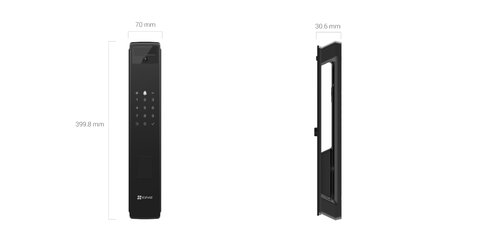
The EZVIZ Y3000FVP Plus is EZVIZ’s flagship smart lock, combining 3D face recognition and palm vein scanning with fingerprint, passcode, card, and app unlock in one unit. Setup is more involved than a basic fingerprint lock because of the biometric enrollment steps, so this guide walks through installation, registering each biometric method, and the issues people run into most.
| Spec | Detail |
| Unlock Methods | 3D face, palm vein, fingerprint, passcode, card, mechanical key, app |
| Battery | Built-in 5,000mAh rechargeable, USB-C charging port |
| Built-In Camera | 1080p, doubles as a video doorbell view |
| Connectivity | Wi-Fi and Bluetooth, EZVIZ app required for remote access |
| Face Recognition Range | Users roughly 1.2m to 2m tall |
| Backup Access | Physical mechanical key included |
| Installation | Replaces existing deadbolt, standard door prep required |
Installation and First Charge
Confirm your door thickness matches the Y3000FVP Plus’s mounting template before installing, since it’s a larger, more feature-dense unit than EZVIZ’s basic locks. Charge the built-in 5,000mAh battery fully before first use — the lock includes a rechargeable battery rather than relying purely on disposable AA cells.
- Mount both the interior and exterior panels using the included screws and template
- Fully charge the lock via its port before registering any biometric data
- Keep the mechanical key backup somewhere accessible in case the battery runs out unexpectedly
Registering Face and Palm Vein Recognition
The Y3000FVP Plus uses localized 3D data processing for face recognition, checking for a live face rather than a photo, and works for people between roughly 1.2m and 2m tall regardless of glasses, beards, or hairstyle changes. Palm vein recognition is a good alternative for household members who may not want to use face scanning.
- Stand at a natural distance from the camera in even, front-facing light during face enrollment
- Register the palm vein scan by holding your palm flat and steady over the sensor as prompted
- Add a fingerprint and passcode as backup unlock methods for each household member
I set up a Y3000FVP Plus for a family with elderly parents who struggled with small fingerprint sensors on older locks. Face recognition ended up being the most reliable method for them day to day, while the palm vein option worked well as backup for anyone wearing a face covering.
Per Isabelle K., who installed a Y3000FVP Plus at her front door, “Face unlock recognizes me even with sunglasses on most days, and the built-in 1080p camera doubles as a doorbell view without needing a separate device.”
Connecting to the EZVIZ App and Remote Features
Pairing the Y3000FVP Plus with the EZVIZ app unlocks remote features that a purely local lock can’t offer, including remote unlock, live view from the built-in camera, and unlock notifications sent to your phone. Download the EZVIZ app, create an account, and add the lock as a new device by scanning the QR code found inside the battery compartment or included paperwork.
- Connect the lock to your home Wi-Fi network during initial app setup for remote access
- Enable push notifications so you’re alerted every time someone unlocks the door
- Use the app’s live view to check the entryway camera feed from anywhere with an internet connection
- Grant temporary or scheduled access codes to guests directly from the app without handing out a physical key
If you’d rather not expose the lock to the internet at all, it still works entirely offline using face, palm vein, fingerprint, passcode, or card unlock — Wi-Fi is only required for remote features and firmware updates, not for daily use.
Managing Multiple Users and Access Logs
A household lock is only as convenient as its multi-user support, and the Y3000FVP Plus handles this well. Each family member can register their own face, palm vein, fingerprint, and passcode combination, and the app keeps a searchable log of who unlocked the door and when, which is useful for tracking deliveries, cleaners, or kids getting home from school.
- Open the user management section of the app to add, rename, or remove household members
- Assign each person their own biometric and passcode credentials rather than sharing one passcode
- Review the access log periodically to confirm unlock activity matches your expectations
- Remove a departed housemate’s or ex-tenant’s credentials immediately from the app, not just physically
Common Y3000FVP Plus Problems and Fixes
- Face recognition inconsistent: re-enroll in better, more even lighting rather than backlit conditions
- Palm vein scan fails repeatedly: hold your palm flatter and steadier, closer to how it was positioned during enrollment
- Lock triggers its tamper alarm unexpectedly: check the sensitivity setting in the app if false alarms happen often from normal door use
- Battery draining faster than expected: disable Wi-Fi and rely on Bluetooth-only mode if remote access is not a daily need
- Lock won’t connect to the EZVIZ app: confirm the phone is on the same Wi-Fi band the lock supports and restart the router if pairing keeps timing out
For full specs and setup videos, check EZVIZ’s official Y3000FVP Plus product page. EZVIZ’s support page covers firmware updates and troubleshooting by region.
Frequently Asked Questions
Can the Y3000FVP Plus be fooled by a photo?
No, its 3D face recognition checks for a live face and rejects flat photos or video playback.
Does it work without internet?
Yes, local unlock methods including face, palm vein, fingerprint, and passcode all work without Wi-Fi. Remote app access needs internet.
How long does the battery last?
Battery life varies with usage and whether Wi-Fi is enabled; disabling Wi-Fi and relying on Bluetooth extends it noticeably.
Is the built-in camera always recording?
No, it typically records on motion or unlock events rather than continuously, based on your configured settings.
Can I give a guest temporary access?
Yes, the app supports scheduled or one-time access codes so you don’t need to hand out a permanent passcode or physical key.
Conclusion
The EZVIZ Y3000FVP Plus is worth the extra setup time if biometric variety matters to your household, especially for members who struggle with small fingerprint sensors. Enroll faces and palms in good lighting, keep the mechanical key backup handy, and most day-to-day issues resolve themselves.
Ryan
CS degree · 15 years hardware troubleshooting