RTSP lets you pull a raw video stream from an EZVIZ camera into third-party software like VLC, Blue Iris, Home Assistant, or a NAS’s surveillance station, bypassing the EZVIZ app entirely. It is disabled by default on most models and needs to be turned on locally, and the login it uses is different from your EZVIZ cloud account password — that mismatch is the single most common reason people get stuck.
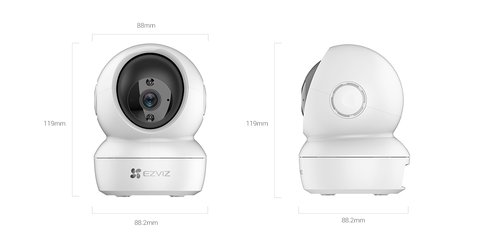
Enabling RTSP on the Camera
- Open the EZVIZ app and select your camera
- Go to Settings > Local Network (sometimes listed as LAN Live View or Third-party Access)
- Enable RTSP or ONVIF, depending on which your model exposes
- Note the 6-character verification code printed on the camera’s label — you will need it as the RTSP password
Some older models only expose this through the camera’s local web interface instead of the app: visit http://[camera-ip], sign in as admin, then go to Configuration > Network > Advanced Settings > Integration Protocol and enable ONVIF there.
Why RTSP fails
Using your EZVIZ cloud account password instead of the camera’s verification code
Trying to connect from outside the local network — RTSP only works on the same LAN as the camera
RTSP toggle reverting to off after a firmware update, which EZVIZ has done on some models
Wrong stream path in the URL for your specific camera generation
How to fix it
Use the verification code from the camera’s physical label as the password, not your app login
Connect your RTSP client from a device on the same Wi-Fi or LAN as the camera
Recheck the RTSP toggle after any firmware update before assuming your setup broke
Try both the EZVIZ-style and Hikvision-style stream paths if the first format returns nothing
The RTSP Stream URL Format
The standard EZVIZ RTSP URL follows this pattern:
rtsp://admin:VERIFICATION_CODE@CAMERA_IP:554/h264/ch1/main/av_stream
- Replace VERIFICATION_CODE with the 6-character code on the camera’s label (all uppercase)
- Replace CAMERA_IP with the camera’s local IP address, found in your router’s connected devices list or the EZVIZ app’s device info screen
- If the standard path returns no video, try the Hikvision-style path instead:
/Streaming/Channels/101
Per Owen K., who is a Home Automation Hobbyist running Home Assistant, “Once I realized the RTSP password was the printed verification code and not my EZVIZ account password, the camera showed up in Home Assistant within a minute.”

I connected an older EZVIZ camera to a Blue Iris install last year and lost about twenty minutes to exactly this password mix-up before checking the label on the back of the unit. Once the verification code went in as the password, the stream connected on the first try with the standard URL format.
For a full list of stream paths by camera model, this community-maintained EZVIZ camera URL list covers most generations. EZVIZ’s own official RTSP configuration guide is worth checking too, since instructions vary slightly by firmware version.
Frequently Asked Questions
Can I access the RTSP stream remotely, outside my home network?
Not directly — RTSP only works on the local network by default. Remote access would need a VPN back into your home network or port forwarding, which carries its own security risks.
Why does my EZVIZ app password not work for RTSP?
RTSP authentication uses the camera’s own local verification code printed on its label, completely separate from your EZVIZ cloud account credentials.
Do all EZVIZ cameras support RTSP?
Most do, but some newer or region-locked firmware versions have disabled it entirely. Check your specific model’s support page if the option is missing from settings.
Will enabling RTSP break the EZVIZ app?
No, RTSP and the EZVIZ app can run at the same time. Enabling RTSP just opens an additional local access method alongside normal app use.
What software works with EZVIZ’s RTSP stream?
VLC, Blue Iris, Home Assistant, Synology Surveillance Station, and most ONVIF-compatible NVR software can all pull the stream once RTSP is enabled and the URL is correct.
Conclusion
RTSP setup on EZVIZ cameras is usually a five-minute job once you know the password is the camera’s verification code, not your app login, and that the connection has to happen on the same local network. If the standard stream URL does not work, try the Hikvision-style path before assuming the camera does not support RTSP at all. It is worth checking the toggle again after any firmware update too, since EZVIZ has disabled it by default on some models in the past.
Ryan holds a Computer Science degree and has over 20 years of hands-on experience with PC hardware, software, and driver troubleshooting. He is the author behind softwaredriverdownload.com, where he helps everyday users fix driver issues quickly and accurately.