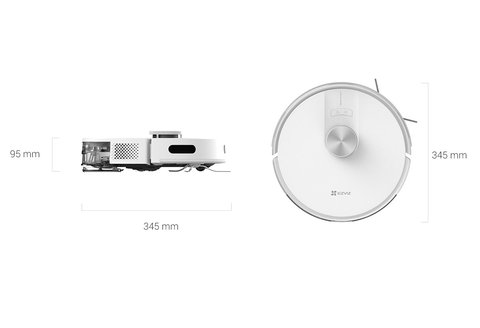
The EZVIZ RE4 is a robot vacuum and mop combo with 4000Pa suction and LiDAR-based room mapping, and setting it up mainly comes down to getting the app paired correctly and letting it complete one full mapping run before you start customizing cleaning zones. This guide covers the setup steps most people skip, plus the common connection and mapping problems that show up in the first week of use.
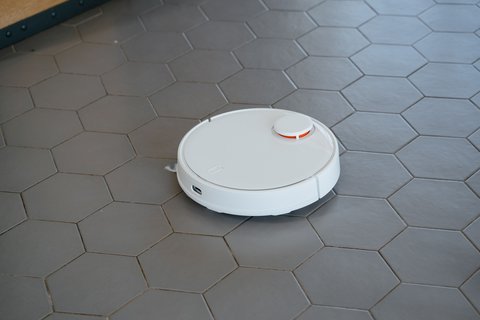
Charging and First Pairing
Let the RE4 sit on its charging dock until the indicator light turns solid (usually 4-5 hours from empty) before running it for the first time. Download the EZVIZ app, create an account, and add the RE4 as a new device by scanning the QR code on the base or in the printed manual.
- Keep the dock against a flat wall with at least half a meter of clear space on either side
- Connect on 2.4GHz Wi-Fi — the RE4 does not support 5GHz-only networks
- Run the first cleaning cycle in mapping mode with doors open throughout the home
Setting Up Rooms and No-Go Zones
Once the first map is complete, the app lets you split it into named rooms, draw no-go zones around pet bowls or cables, and set no-mop zones for carpeted areas. The RE4’s carpet detection boosts suction automatically, but it still cannot tell a rug from a mop-safe floor by itself in the no-mop zone.
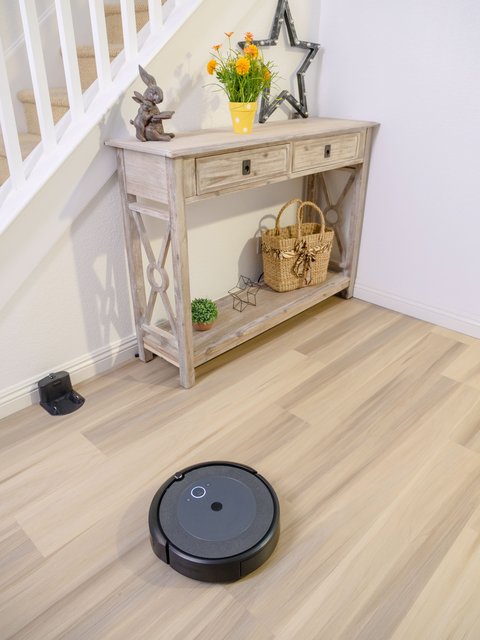
I set up an RE4 for a relative with a mixed hardwood and rug living room, and the biggest early mistake was letting it run its first map with the rugs still bunched up near the sofa. Once the rugs were laid flat and it remapped, the no-mop zones lined up correctly and it stopped occasionally soaking rug edges.
Per Nadia H., who is a Homeowner using the RE4 daily, “The room mapping took one clean run to get right, and after that scheduling specific rooms through the app has been completely reliable for me.”
Common RE4 Problems and Fixes
- Map looks scrambled or incomplete: delete the saved map and remap with all doors open and no furniture moved mid-cycle
- Robot gets stuck under furniture repeatedly: add a no-go zone around low-clearance furniture rather than relying on the bump sensors alone
- App shows offline even though the robot is charging: confirm the home Wi-Fi is on 2.4GHz and the robot is within normal router range
- Mop pad leaves streaks on hardwood: reduce the water level setting in the app and check the mop pad is not overly worn
For firmware updates and full troubleshooting steps, EZVIZ’s official RE4 support page is the most current source. If you are comparing the RE4 to the RE4 Plus (which adds auto-emptying), EZVIZ’s RE4 product page has the full spec comparison.
Frequently Asked Questions
Does the RE4 need Wi-Fi to clean?
No, scheduled and manual cleaning still work locally, but remote start, mapping edits, and voice assistant control need an active Wi-Fi connection.
Can the RE4 clean multiple floors?
Yes, but it saves one map per floor level, so you will need to remap each time you move it between floors unless you keep a separate mapping profile.
How much water does the mop tank hold?
The RE4 has a 300ml clean water tank, enough for a full-home mop on most apartment or house layouts before needing a refill.
Is the RE4 safe to use with pets at home?
Yes, though it is worth setting a no-go zone around food and water bowls, and checking for pet waste before cleaning cycles since the RE4 cannot detect it reliably.
Does the RE4 work with Alexa or Google Assistant?
Yes, it supports both for basic voice commands like starting or stopping a clean, once linked through the EZVIZ app’s smart home integration settings.
Conclusion
The EZVIZ RE4 is straightforward once the first full-house map is done correctly, and most complaints people have trace back to an interrupted or premature first mapping run. Take the extra ten minutes to clear floors and let it map uninterrupted, and room zones, no-mop areas, and scheduling all work as expected afterward. It is a solid all-rounder for mixed hardwood and rug homes as long as you set no-mop zones deliberately.
Ryan
Self-taught driver/hardware specialist · 15 years experience