EZVIZ · BC2 · Battery Camera
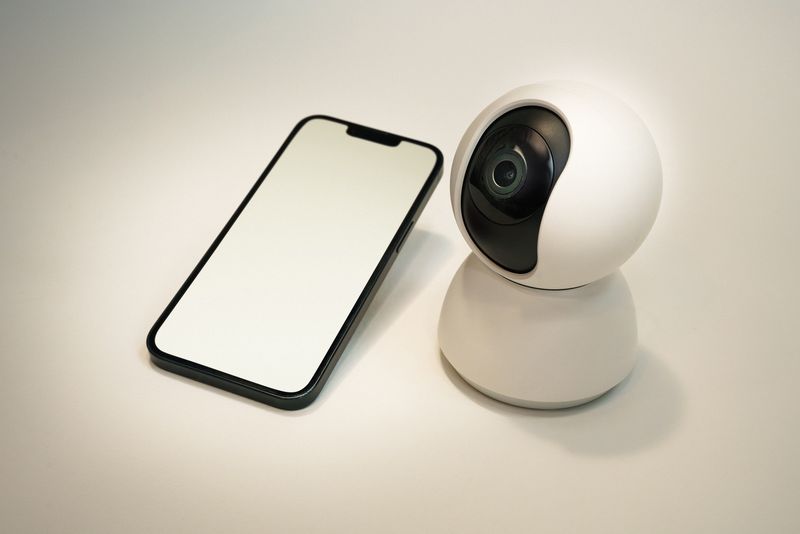
The EZVIZ BC2 is a battery-powered, weatherproof outdoor camera with color night vision and motion tracking, aimed at home security. Like the rest of the EZVIZ lineup, it skips a traditional Windows driver entirely — setup and daily use happen through the EZVIZ mobile app, with a web client available for viewing from a PC. Here is the setup walkthrough along with the most common fixes.
Setting Up the Camera
- Download the EZVIZ app from the official EZVIZ Download page or your phone’s app store, then create or sign in to your EZVIZ account.
- Press and hold the power button on the BC2 until the status light starts blinking blue, indicating pairing mode.
- In the app, tap “Add Device,” scan the QR code on the camera or its box, and follow the prompts to join your Wi-Fi network.
- Wait for the setup to finish, confirm the live view loads, then mount the camera in its final outdoor position.
Common Problems and Fixes
- QR code will not scan — hold the phone about 20cm from the code in good lighting, and make sure the camera’s status light is actively blinking before scanning.
- Camera cannot join Wi-Fi — the BC2 only supports 2.4GHz networks, so temporarily connect to your router’s 2.4GHz band if it broadcasts a combined SSID.
- No push notifications for motion — check that notifications are allowed for the EZVIZ app in your phone’s settings, and that motion alerts are enabled for the camera inside the app.
- Battery draining too fast — reduce motion sensitivity or recording length in the app’s device settings, since frequent triggers use noticeably more power.
- Cannot view feed on a computer — sign in with the same EZVIZ account on the official EZVIZ web client to view the camera from a browser.
Frequently Asked Questions
Does the EZVIZ BC2 need a Windows driver?
No, it is managed entirely through the EZVIZ mobile app or web client, not a traditional Windows driver.
Is a subscription required to use the BC2?
No, live viewing and basic motion alerts work without a paid plan; a CloudPlay subscription only adds extended cloud video storage.
Does the BC2 support color night vision?
Yes, that is one of its main features, using a built-in spotlight to keep footage in color even in low light.
Conclusion
Setting up the EZVIZ BC2 mostly comes down to charging it fully, installing the EZVIZ app, and pairing it over a 2.4GHz Wi-Fi connection. Wi-Fi band mismatches and notification settings account for nearly every issue that comes up afterward, both covered above.
Ryan
CS degree · 15 years hardware troubleshooting