Windows · Mac · EZVIZ App · EZVIZ BC1C
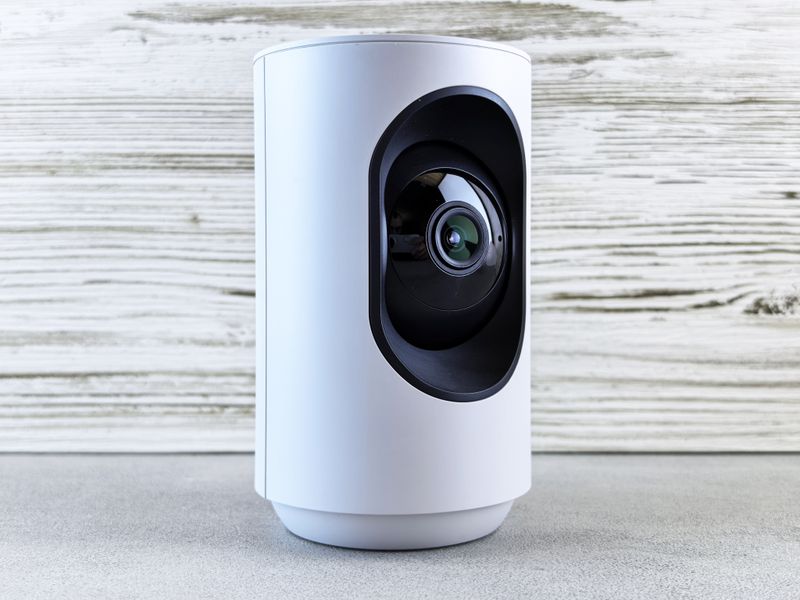
The EZVIZ BC1C is a battery-powered, weatherproof Wi-Fi camera meant for both indoor and outdoor home monitoring, with motion detection and two-way audio built in. Like other EZVIZ models, it does not use a Windows driver — it connects to your Wi-Fi network directly and is set up and controlled through the EZVIZ mobile app, with an optional PC web client for viewing on a computer. Here is the setup process along with the fixes for the issues people run into most.
Install the EZVIZ app
Download the EZVIZ app from the official EZVIZ Download page or your phone’s app store, then create a free EZVIZ account.
Charge and power on
Fully charge the BC1C before first use, then press and hold the power button until the status light starts blinking.
Scan the QR code
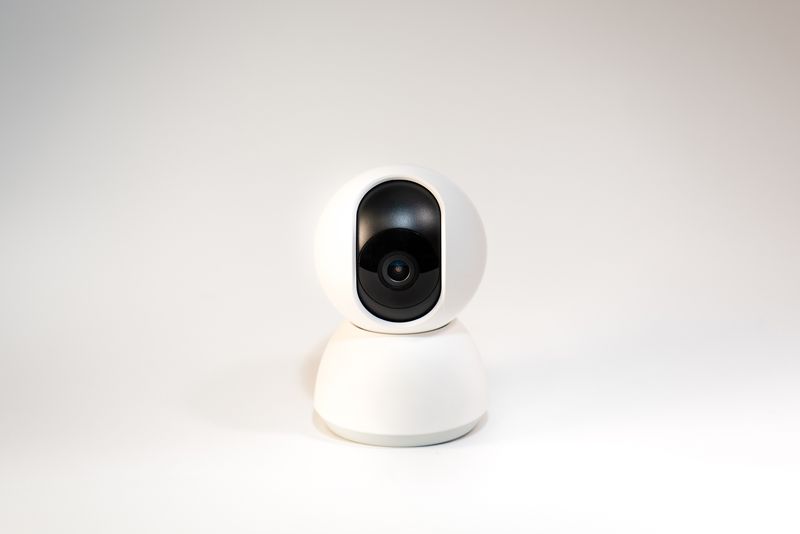
In the app, tap “Add Device” and scan the QR code on the camera or its box to pair it, then follow the on-screen Wi-Fi setup steps.
Mount and confirm
Once connected, check the live view in the app, then mount the camera in its final spot using the included bracket.
Common EZVIZ BC1C Problems and Fixes
- Camera will not pair during QR code scan — make sure the camera’s status light is blinking blue (pairing mode) and hold the phone’s camera about 20cm from the QR code in good lighting.
- Camera only connects to 2.4GHz Wi-Fi — this is normal for most EZVIZ battery cameras; if your router broadcasts a combined 2.4GHz/5GHz network, temporarily split them or connect to the 2.4GHz band specifically during setup.
- No motion alerts on phone — check that notifications are enabled for the EZVIZ app in your phone’s system settings, and that motion detection is turned on for that camera inside the app.
- Battery drains quickly — lower the motion detection sensitivity or recording frequency in the app’s device settings, since frequent triggers use significantly more battery.
- Cannot view the camera on a PC — use the EZVIZ web client at the official EZVIZ site and sign in with the same account used in the mobile app.
Frequently Asked Questions
Does the EZVIZ BC1C need a Windows driver?
No, it connects over Wi-Fi and is managed through the EZVIZ mobile app or web client, not a traditional Windows driver.
Can I use the BC1C without a subscription?
Yes, live viewing and basic motion alerts work without a paid plan; a CloudPlay subscription is only needed for extended cloud video storage.
Is the BC1C weatherproof for outdoor use?
Yes, it is designed to handle outdoor conditions, though checking its official IP rating on EZVIZ’s product page is worth doing before mounting it somewhere very exposed.
Conclusion
Setting up the EZVIZ BC1C mainly comes down to installing the EZVIZ app, scanning the QR code to pair it, and connecting it to a 2.4GHz Wi-Fi network. Most problems afterward relate to Wi-Fi band or notification settings, both of which are quick fixes with the steps above.
Ryan
CS degree · 15 years hardware troubleshooting