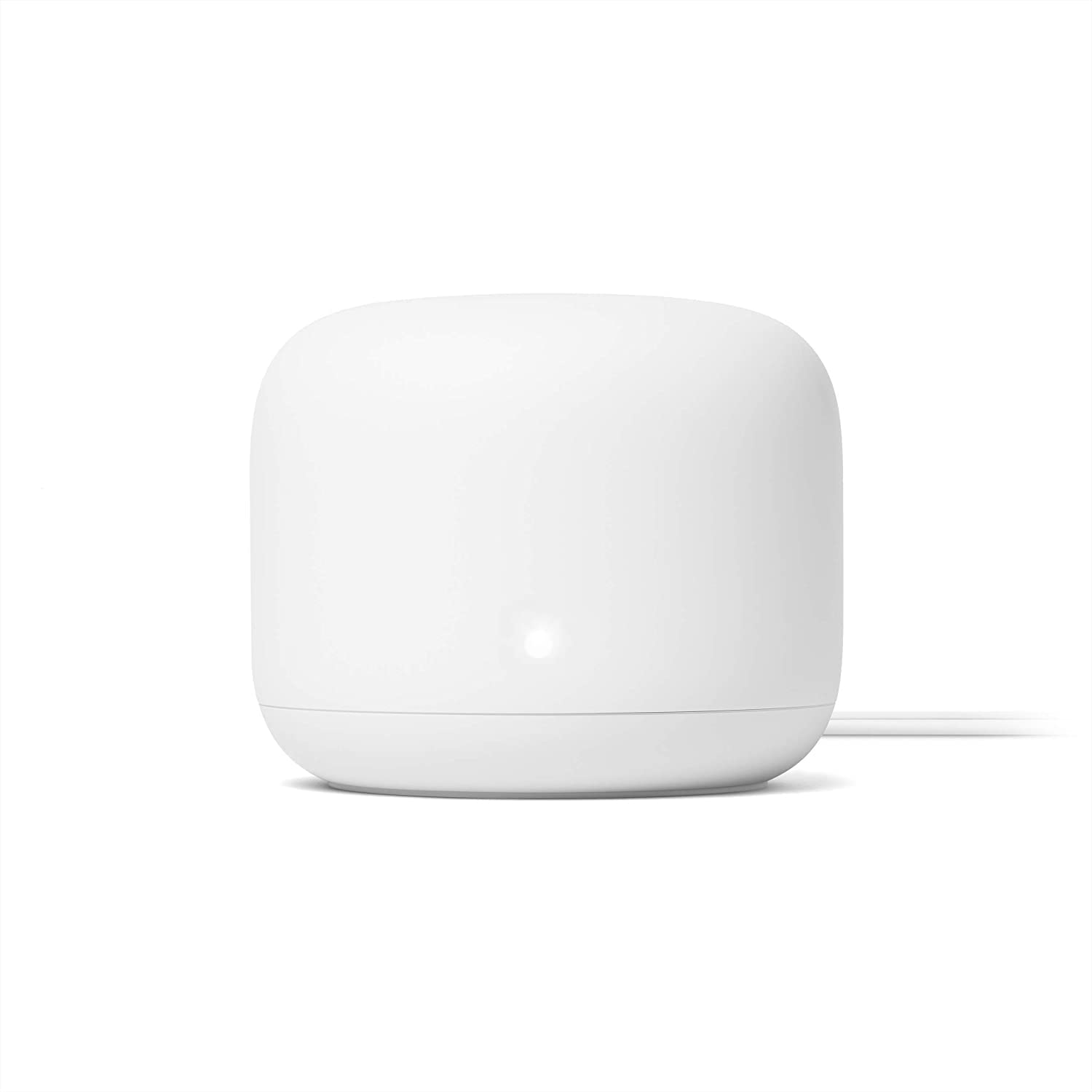
Check Your Current Firmware Version
Open the Google Home app, tap the Devices tab, then select your Nest Wifi router. Tap the settings gear icon in the top corner, and look under Wi-Fi information > Software information. You will see a build number here for the router, and a separate one for each Nest Wifi point in your mesh.
There is no separate “Nest Wifi Pro” app – it uses the same Google Home app as the standard Nest Wifi, just with its own Wi-Fi 6E firmware branch.
How Automatic Firmware Updates Work
Unlike a traditional router, Nest Wifi has no admin page where you click “check for updates.” Google pushes firmware in stages to devices in the background, generally overnight, and the router installs it automatically once downloaded.
- Google publishes a new build and rolls it out gradually to connected devices, not all at once
- Your router checks in periodically and downloads the update when it becomes available to your unit
- Installation happens automatically, usually causing a brief 1–2 minute internet interruption while the router reboots
- Points in the mesh update on a similar but slightly offset schedule from the main router
I’ve had a Nest Wifi router running in my own home for a while now, and in my experience updates land almost always overnight between about 1am and 4am local time – I’ve never seen one interrupt an active daytime connection.
Fix a Stuck or Delayed Update
Because there is no manual trigger, a “stuck” Nest Wifi update almost always means the router simply has not received its rollout wave yet, or something is preventing it from checking in. Work through these in order:
- Restart the router: unplug it for about 10 seconds and plug it back in. This forces a fresh check-in with Google’s update servers
- Check your internet connection: Nest Wifi cannot download anything if your modem or ISP connection is down; verify other devices can reach the internet
- Avoid unplugging overnight: since most updates roll out between midnight and early morning, a router that is powered off during that window may keep missing its update window
- Give it a few days: staged rollouts can take a week or more to reach every device, so a build number that lags slightly behind release notes is often just a timing issue, not a fault
- Factory reset as a last resort: if a build seems permanently stuck for weeks, a factory reset and re-setup through the Google Home app usually clears it, though you will need to re-add your Wi-Fi network name and password
Keep Your Mesh Network Updating Smoothly
A few habits go a long way toward avoiding update problems on Nest Wifi:
- Keep the router and all points plugged into always-on outlets, not ones controlled by a switch or smart plug schedule
- Leave the router connected to a stable modem rather than relying on a flaky ISP connection during known rollout windows
- Check the Wifi software versions and release notes page from Google occasionally to see what recent builds actually changed
- If you run a guest network or Nest Wifi alongside smart home routines, review your automations after a major update, since reboots can occasionally interrupt scheduled routines mid-cycle
Per Marcus T., who is a Home Network Consultant at a small IT services firm on PeerSpot, “the hands-off update model on Nest Wifi is honestly one of its best features for non-technical clients – I almost never get a support call about outdated firmware on these.”
Frequently Asked Questions
Can I manually force a Nest Wifi firmware update?
Not directly. There is no manual “check for update” button; restarting the router is the closest thing to forcing a check-in, and Google controls the actual rollout timing.
Will updating disconnect my devices?
Briefly. Expect roughly 1 to 2 minutes of dropped internet while the router reboots after installing new firmware, similar to a normal power cycle.
How do I know if my Nest Wifi is on the latest version?
Compare the build number under Software information in the Google Home app against the current release listed on Google’s official Wifi software versions and release notes page.
Does Nest Wifi Pro get the same updates as the original Nest Wifi?
No, they run separate firmware branches since Nest Wifi Pro uses Wi-Fi 6E hardware. Both update automatically through the same Google Home app, just on independent release schedules.
What if my router still shows an old build after weeks?
Restart it, confirm your internet connection is stable, and if the version still hasn’t changed after a couple of weeks, try a factory reset and full re-setup through the app.
Conclusion
Nest Wifi’s automatic update system means most users never have to think about firmware at all – the router quietly updates itself overnight. If a build seems stuck, a restart and a little patience usually fixes it, since staged rollouts rarely reach every device on day one. Keep your router plugged in around the clock and it will stay current on its own.