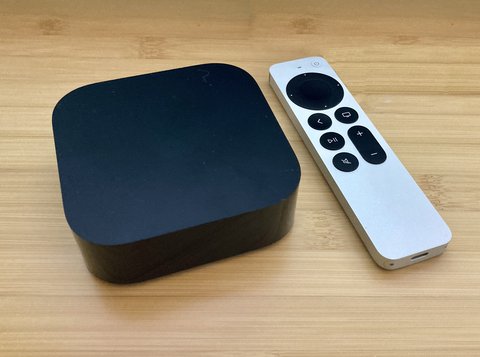
On the Apple TV 4K there is no separate “firmware” download. The firmware is tvOS, and you update it from Settings → System → Software Updates → Update Software. If an update is available, you choose Download and Install, leave the box plugged in, and it restarts itself when done. That is the whole process, but there are a few details worth knowing.
| Field | Detail |
|---|---|
| Applies To | Apple TV 4K (all generations) and Apple TV HD |
| Publisher | Apple |
| Firmware name | tvOS |
| Delivery | Over the air, direct from Apple servers |
| Update size | Typically 1–5 GB per major release |
| Time | 5–20 minutes including restart |
| Requirements | Working internet connection, box left on power during the update |
Check which tvOS version you have
Go to Settings → General → About (older menus) or Settings → System → About. Look at the tvOS Version line. Compare it against Apple’s Apple TV software updates page, which lists the current build for each model.
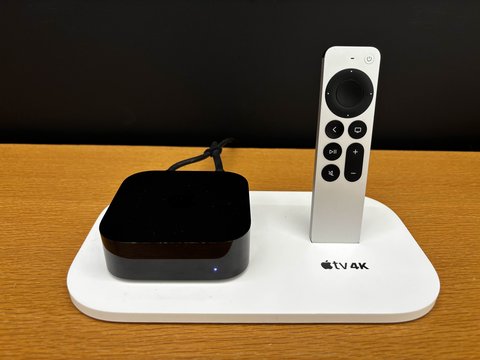
Install an update manually
- Open Settings from the Home screen.
- Go to System, then Software Updates.
- Select Update Software.
- If a new version is found, choose Download and Install.
- Wait. The status light may blink during install. Do not unplug the Apple TV.
- The box restarts on its own, prepares the update, installs it, and restarts again. When the Home screen returns, you are on the new firmware.
Apple’s own walkthrough is on the Update Apple TV 4K software support guide.
Turn on automatic updates
- Go to Settings → System → Software Updates.
- Select Automatically Update so it shows On.
- The Apple TV then checks nightly and installs tvOS updates while it is idle, as long as it stays plugged in.
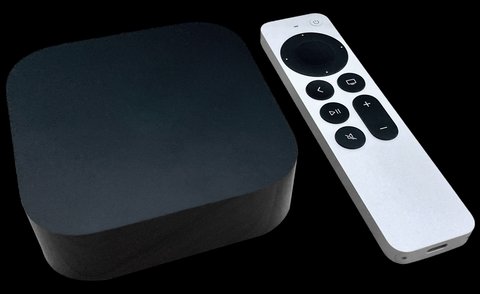
Update the Siri Remote firmware
The Siri Remote also carries firmware, and it updates on its own in the background while it is paired and the Apple TV has internet. To help it along:
- Keep the remote within Bluetooth range of the Apple TV for a few hours after a tvOS update.
- Put the remote on its charging cable overnight. Firmware pushes often apply during charging.
- Check Settings → Remotes and Devices → Remote for the current version.
- If the remote acts erratically, unpair and re-pair it by holding the Back and Volume Up buttons together near the Apple TV.
Beta and developer builds
Apple offers public beta versions of tvOS. Only enrol a spare Apple TV, not your main one. Beta firmware can break AirPlay, HDR output, or specific apps, and rolling back means a full restore through a Mac because Apple stops signing the previous build quickly. For a device you rely on every day, stay on the public release.
Why keep tvOS current
- Security patches for the WebKit engine used by many streaming apps
- Fixes for HDMI handshake and audio-return-channel problems with newer TVs and receivers
- Support for new features like updated Siri Remote gestures and FaceTime camera accessories
- App compatibility — some apps eventually require a minimum tvOS version
Per Priya S., who is an IT Support Lead at a media company, “Nine times out of ten, an Apple TV that keeps dropping Dolby Atmos or losing the TV’s CEC control is just behind on tvOS. One update clears it.”
If the update will not install
- “Unable to check for update” — the internet connection is down or DNS is blocked. Test with Settings → Network, then restart your router.
- Update stuck on the Apple logo for more than 30 minutes — unplug the Apple TV for 10 seconds and plug it back in. It usually resumes or rolls back cleanly.
- Download crawls or fails partway — switch from Wi-Fi to a wired Ethernet cable for the update, then switch back.
- No update offered but you know one exists — Apple staggers releases over several days. Wait 24 to 48 hours and check again.
- Box reboots randomly after updating — go to Settings → System → Reset and choose Reset and Update to lay down a clean copy of the firmware.
For a stuck restore, connect the Apple TV 4K to a Mac with a USB-C cable and use the Finder to restore it. Apple documents this recovery path in its update your Apple TV article.
First-hand notes
My Apple TV 4K stopped passing through Dolby Atmos to a new soundbar. About tvOS said it was two point releases behind. I ran the manual update over Wi-Fi, it took roughly 12 minutes with one restart, and Atmos came back without touching any audio settings. I switched Automatically Update on afterwards so it does not fall behind again.
Frequently Asked Questions
Is there a firmware file I can download on a computer?
Not for normal use. tvOS installs over the air. IPSW restore files exist for recovery only and are flashed through a Mac.
How long does an Apple TV 4K update take?
Usually 5 to 20 minutes. A major yearly release on a slow connection can take longer because the download is several gigabytes.
Will updating delete my apps or logins?
No. A normal software update keeps all apps, accounts, and settings. Only a full reset removes them.
Can I downgrade tvOS if the new version has a bug?
Generally no. Apple stops signing older builds shortly after a release, which blocks downgrades.
Does the Apple TV update itself if it is on standby?
Yes, if Automatically Update is on. The Apple TV never fully powers off unless unplugged. It wakes at night, checks Apple servers, and installs tvOS while idle.
Why does my Apple TV say it is up to date when a new tvOS is in the news?
Apple rolls releases out in waves and by region and model. Your unit may be a day or two behind the headlines. Force a check again later, and make sure the date and time on the box are correct.
Do I need the newest Apple TV 4K to get updates?
No. Apple supports several past generations with each tvOS release, though the oldest models eventually stop receiving new major versions.
Conclusion
Updating the Apple TV 4K firmware is just a tvOS software update: Settings, System, Software Updates, Update Software. Keep the box on power, let it restart itself, and turn on automatic updates so you never have to think about it again. Most streaming and audio glitches on this device trace back to old firmware, and the fix is this quick.
Ryan
Computer Science grad · long-time hands-on troubleshooter
Ryan holds a Computer Science degree and has over 20 years of hands-on experience with PC hardware, software, and firmware troubleshooting. He is the author behind softwaredriverdownload.com, where he helps everyday users fix device issues quickly and accurately.