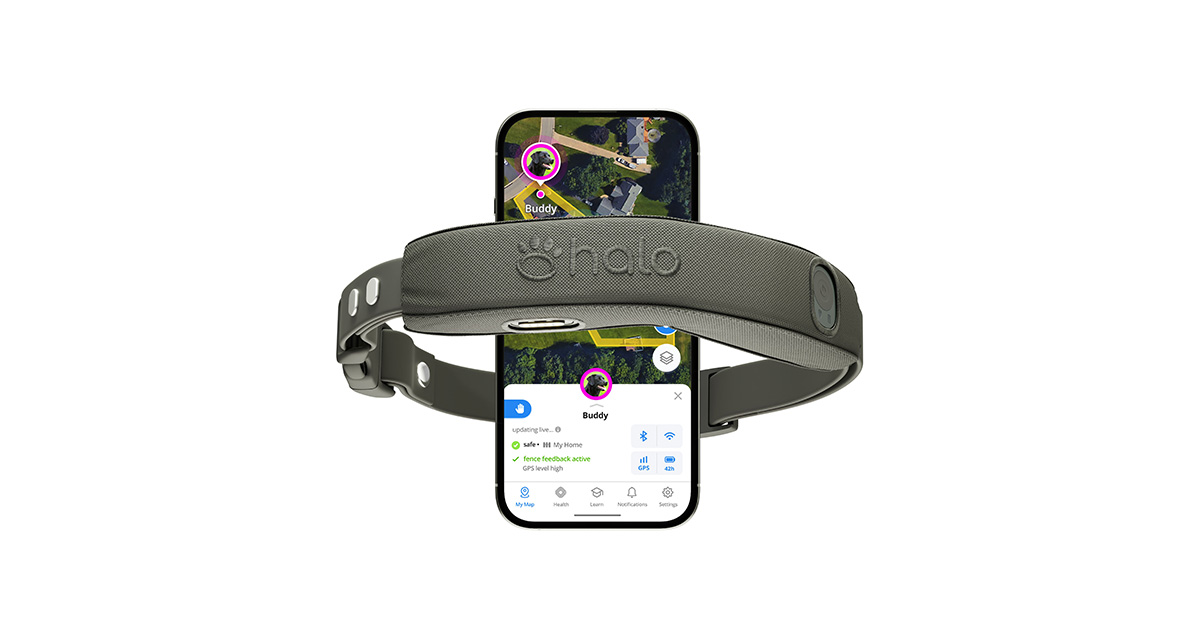
Your Halo Collar updates its firmware automatically while it is charging and connected to Wi-Fi, so most owners never need to do anything manually. If the collar cannot reach Wi-Fi — a common issue for rural properties or homes with weak signal near the charging spot — a wired update through the Halo app and the USB-C charging cable covers the gap.
I set up a Halo Collar for a friend’s dog on a large rural property where the router barely reached the porch, and the collar sat on an old firmware build for weeks without either of us noticing until a fence-boundary glitch showed up. Running the wired update fixed it in about ten minutes once we had the collar plugged directly into a laptop.
| Detail | Value |
|---|---|
| Applies To | Halo Collar (GPS + wireless fence dog collar) |
| Publisher | Halo Collar LLC |
| Update Methods | Automatic over Wi-Fi while charging, or wired via USB-C and computer |
| Requirements | Halo app, Wi-Fi network, or a computer with a USB-C cable for wired updates |

Checking Your Firmware Version
Open the Halo App, tap Settings, then My Collars, select your collar, and scroll to the Collar Update section — the current firmware version is listed there alongside whether an update is pending.
How the Automatic Update Works
- Place the collar on its charger and make sure it is within Wi-Fi range.
- The Battery LED will blink red while a firmware update is actively downloading and installing.
- If the collar loses Wi-Fi or is taken off the charger, the update pauses and resumes automatically once reconnected.
- No action is needed in the app — just leave the collar charging until the light stops blinking red.
Applying a Wired Update
Use this when the collar cannot reliably reach Wi-Fi near its charging spot:
- Open the Halo App and go to Settings > My Collars > your collar.
- Select the wired update option and follow the in-app prompts.
- Connect the Halo Collar’s USB-C charging cable to a computer with an active internet connection.
- Wait for the transfer to complete — do not disconnect the cable during the process.
- Confirm the new version appears under Collar Update once finished.

Per Sarah M., who is a Dog Owner and Halo Collar user, “The wired update saved me when my Wi-Fi kept dropping out near the kennel — way less frustrating than waiting on a signal that wasn’t going to hold.”
Troubleshooting a Stuck Update
A few checks before assuming the collar is broken:
- Confirm the charging contacts are clean and making solid contact — dirt or fur buildup on the pins is a common cause of interrupted charging and stalled updates.
- Restart the router if the collar has been stuck at the same progress point for over an hour.
- Update the Halo App itself from your phone’s app store — an outdated app can misreport update status.
- If the wired method fails repeatedly, try a different USB-C cable, since a worn cable can cause dropped transfers.
Why Halo Handles Updates Differently Than Other GPS Collars
Most GPS fence collars either require a manual app-triggered update every time or offer no automatic update path at all. Halo Collar’s always-on background update, tied directly to the charging cycle, means the collar’s firmware, fence-detection logic, and GPS accuracy improvements roll out with essentially no owner effort under normal conditions — the only real gap is homes where the charging dock sits outside reliable Wi-Fi range.
Reading the Firmware Release Notes
Halo publishes what each firmware version changes on its Firmware Update Release Notes page. Checking this after an update is a good habit — it tells you exactly what improved, whether it is GPS accuracy, fence responsiveness, or battery life, rather than guessing from the collar’s behavior alone.
Improving Wi-Fi Reliability Near the Charging Dock
Since automatic updates depend entirely on the collar reaching Wi-Fi while charging, a few small changes go a long way for collars charged in a garage, mudroom, or kennel far from the main router:
- Move the charging dock closer to an existing Wi-Fi access point if possible.
- Add a mesh Wi-Fi extender near the charging spot rather than relying on a single distant router.
- Confirm the collar is actually joined to the 2.4GHz network, since some routers split 2.4GHz and 5GHz bands and the collar may need the slower, longer-range band specifically.
- Fall back to the wired update method described above whenever Wi-Fi at the charging spot is simply not reliable enough to fix.
Frequently Asked Questions
Do I have to manually trigger Halo Collar updates?
No, updates apply automatically while the collar charges on Wi-Fi. Manual/wired updates are only needed as a fallback.
Why is my Battery LED blinking red?
A blinking red Battery LED means a firmware update is actively in progress — leave the collar on the charger until it stops.
Will an update reset my fence boundaries?
No, your saved fences and training settings are preserved through normal firmware updates.
How long does a wired update take?
Most wired updates finish within ten to twenty minutes depending on connection speed.
What Recent Firmware Versions Have Improved
Halo’s firmware release history shows a pattern of GPS accuracy refinements, faster fence-boundary response, and battery life tuning across recent versions. These are not cosmetic app changes — they run on the collar itself, which is why staying current genuinely affects how tightly the collar respects a fence line and how quickly it recovers GPS lock after going indoors and back out.
When to Contact Support Instead of Retrying
Most stuck updates resolve with the steps above, but a few signs mean it is time to reach out to Halo support rather than keep retrying on your own:
- The collar has been stuck on the same firmware version despite multiple successful-looking wired update attempts.
- The Battery LED shows an unusual color pattern not described in the app or support articles.
- The collar becomes unresponsive to the app entirely after an update, even after a full charge cycle.
The Halo Collar Help Center has dedicated firmware troubleshooting articles beyond what’s covered here, and their support team can push a targeted fix for collars that seem genuinely stuck rather than just slow to update.
Ryan
Self-taught driver/hardware specialist · long-time troubleshooter