You update Ubiquiti UniFi firmware by logging into your UniFi Network application (self-hosted controller, Cloud Gateway, or UniFi OS Console), opening the Devices list, and clicking Upgrade next to any device showing an available update. The device downloads the new firmware and reboots on its own, usually within two to five minutes per device.
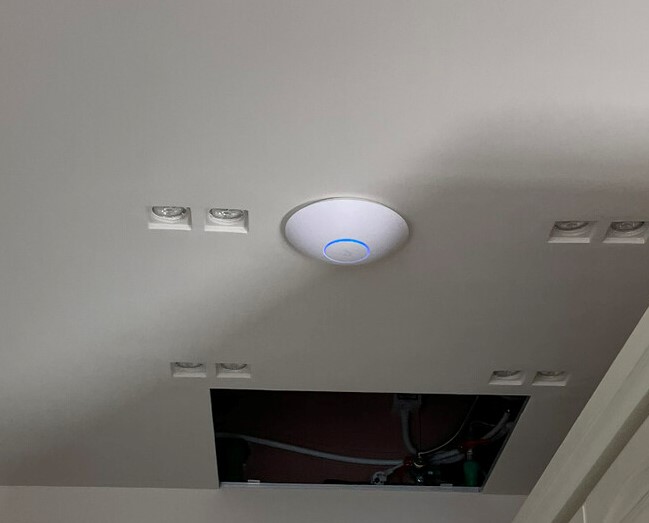
I manage UniFi gear for a small office – a Cloud Gateway, two switches, and four access points – and firmware update day used to make me nervous after one AP got stuck mid-flash during a power blip. Since then I have a routine that avoids most of the common failure points. This guide walks through updating both the controller software and individual device firmware, plus what to do when an update hangs.
| Applies To | UniFi switches, access points, Cloud Gateways, UDM/UDR/UXG consoles |
| Publisher | Ubiquiti Inc. |
| Update Tool | UniFi Network application / UniFi OS web console |
| File Size | Varies, roughly 15 MB to 400 MB depending on device |
| Requirements | Controller reachable on network, internet access for auto-download, stable PoE/power |
Ubiquiti ships firmware updates for security patches, new features, and stability fixes fairly frequently, sometimes multiple times a month across different device families. Falling behind by many versions can eventually cause the controller to complain about unsupported adoption, so it is worth checking every month or so.
Follow each step below in order until your devices show “Up to date.”
Update the Controller First (do this before device firmware)
If self-hosting, log into your controller, go to Settings then System, and check for a UniFi Network application update. On a Cloud Gateway or UDM, updates appear directly on the console’s dashboard.
Back Up Your Configuration
Go to Settings, then System, then Backups, and download a fresh config backup before touching device firmware. This takes thirty seconds and saves hours if something goes sideways.
Open the Devices List
In the UniFi Network app, click Devices in the left sidebar. Any device with a pending firmware update shows an orange dot or an “Upgrade Available” label next to its name.
Upgrade One Device at a Time
Click the device, then click Upgrade in the panel that opens. Avoid mass-upgrading every switch and access point simultaneously on your first pass – if one device has a bad flash, you want to isolate it quickly.
Wait for the Reboot
The device disappears from the topology map, flashes new firmware internally, then reboots. Switches typically take two to three minutes; access points can take up to five. Do not power-cycle it manually during this window.
Automating Future Updates
Once you are comfortable with manual updates, UniFi lets you automate the process so you are not doing this every month by hand.
- Go to Settings, then System, then Maintenance to find auto-update options for the controller software itself.
- Under Settings, then Devices, you can set device firmware to update automatically on a schedule, usually overnight during low-traffic hours.
- Keep “Release Channel” set to Stable unless you specifically want to test Early Access or Beta firmware, which can have more bugs.
- Review the Ubiquiti Help Center release notes before enabling auto-updates on a production network, since a rare update has shipped with a known regression.
Per Marcus T., a Network Administrator on G2, “UniFi’s firmware rollout is smooth for 95 percent of updates, but I always stagger access point upgrades one at a time on a production floor instead of doing them all at once.”
Troubleshooting Common Update Problems
Device Stuck “Adopting” or “Upgrading” for a Long Time
Give it a full ten minutes. If it is still stuck, SSH into the device and check the current firmware version manually, or power-cycle it once as a last resort – most UniFi devices have a fallback partition and will boot into the last known good firmware if a flash fails.
Controller Cannot See a Device After Update
The device’s IP may have changed if it briefly lost adoption. Check your DHCP leases or look for the device on the local network directly, then re-adopt it from the controller if needed.
“Incompatible Firmware” Error
This usually means your controller software is older than what the device firmware expects. Update the UniFi Network application itself first, then retry the device firmware update.
Manual Firmware Upload as a Fallback
If the automatic download fails because your network has no direct internet path to Ubiquiti’s servers, you can download the firmware file manually from the official UniFi download page and upload it directly to the device through the controller’s device detail panel using the “Upload Firmware” option, or via SSH for advanced cases.
Frequently Asked Questions
Will updating firmware disconnect my WiFi clients?
Yes, briefly. Devices connected to an access point being updated will drop and reconnect once the AP finishes rebooting, usually within a few minutes.
Do I need to update the controller and devices at the same time?
Update the controller software first, then device firmware. Running device firmware newer than the controller can cause compatibility warnings.
Can I roll back a firmware update?
Yes, you can manually upload an older firmware file to most UniFi devices if a new version causes problems, though this is not exposed as a simple one-click rollback in the UI.
Is it safe to enable automatic firmware updates?
For most home and small office networks, yes. For mission-critical production networks, many admins prefer to review release notes and update manually during a maintenance window instead.
Conclusion
Updating UniFi firmware is straightforward once you build a habit around it: back up your config, update the controller before devices, and upgrade one device at a time rather than everything at once. Most stuck updates resolve themselves within ten minutes, and Ubiquiti’s fallback partition design means a bricked device from a firmware update is rare. Stay on the Stable release channel unless you have a specific reason not to, and check release notes before enabling full automation.
Ryan T. is a PC hardware enthusiast with 15+ years of experience fixing drivers, network gear, and everything in between. He writes for softwaredriverdownload.com, sharing practical fixes based on hands-on testing rather than guesswork.