Before You Start the Update
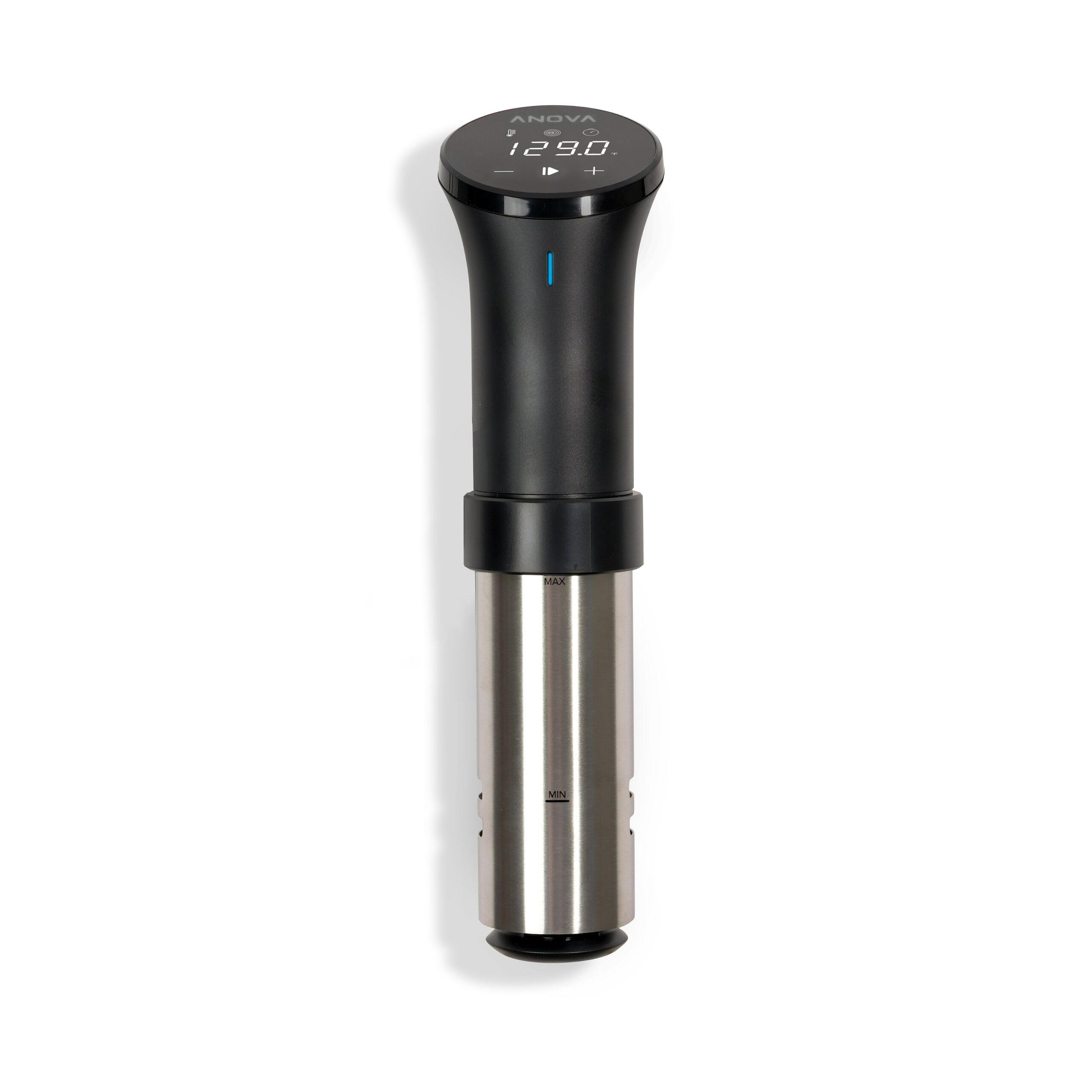
A few quick checks save you from a failed update mid-transfer:
- Make sure the cooker is clipped into a container with water and plugged into a working outlet — it needs to stay powered on for the whole update.
- Keep your phone close by if using Bluetooth, since range issues are the most common cause of a stuck update.
- Update the Anova app itself from your app store first if it has not auto-updated recently.
- Avoid starting a cook cycle at the same time as a firmware update — let the update finish first.
Running the Firmware Update
Follow this order in the app:
- Open the Anova app and make sure your cooker shows as connected (green status, not grey).
- Go to the device settings screen for your cooker, usually accessed by tapping the device name or its settings gear icon.
- Look for a Firmware Update or Device Update option — if a new version is available, the app will show a banner or button to start it.
- Tap Update and keep the app open and your phone nearby until it confirms completion.
- The cooker’s display may flash or briefly go dark during the flash process — this is expected behavior, not a fault.
Per Melissa K., who is a home cooking enthusiast and product reviewer on PeerSpot, “The Anova app has gotten a lot smoother about pushing firmware updates — I barely notice them happening anymore unless I check the version number myself.”
If the Update Fails or the Cooker Disconnects
Most failed updates are recoverable without contacting support. Try these fixes in order:
- Cooker shows as disconnected mid-update: unplug the cooker for 10 seconds, plug it back in, then reopen the app and retry.
- App says update failed repeatedly: force-close the Anova app completely, restart your phone’s Bluetooth, and try again from a closer distance.
- Cooker display frozen after an update: unplug it for a full minute, then plug back in — this forces a clean restart of the internal controller.
- Wi-Fi models losing connection during update: switch temporarily to your phone’s Bluetooth connection instead of relying on Wi-Fi, since Bluetooth transfers are generally more forgiving of weak signal.
If none of these work, Anova’s official support page has a chat option, and their team can often confirm whether a specific firmware version has a known issue.
Frequently Asked Questions
How do I check my Anova Precision Cooker’s current firmware version?
Open the app, select your cooker, and go to its device details or settings screen. The firmware version is listed there along with the serial number.
Do I need Wi-Fi to update firmware, or does Bluetooth work too?
Bluetooth is enough for firmware updates on most models. Wi-Fi is only required for remote features like starting a cook from outside your home network.
Is it safe to update while the cooker is actively heating water?
It is better to wait until a cook cycle finishes. Updating mid-cook is usually fine but can occasionally pause the heating element temporarily, which affects your cook timing.
Why does my cooker keep asking me to update but the update never finishes?
This usually points to a Bluetooth range or interference issue. Move your phone closer to the cooker, remove other Bluetooth devices nearby, and try again.
Will a firmware update change my saved cook presets?
No, your saved presets and cook history stay in your Anova account and are not affected by a cooker firmware update.
How often does Anova release new firmware for the Precision Cooker?
There is no fixed schedule. Anova pushes updates whenever they have meaningful fixes ready, which can be a few times a year. The app checks automatically each time you connect, so you rarely need to check manually.
Can I roll back to an older firmware version if I don’t like the new one?
There is no built-in rollback option in the consumer app. If a specific update causes a real problem, contact Anova support directly, since they can sometimes push a corrective build rather than reverting.
A related point worth knowing: unlike a driver update on a Windows PC, the cooker’s firmware has no visible file to download and inspect yourself — everything happens inside the closed Anova app ecosystem. This is normal for kitchen IoT devices and is not something to troubleshoot the way you would a printer or webcam driver on your computer. If your cook results still feel inconsistent after confirming the firmware is current, the more likely culprit is water displacement (not enough water covering the food) or an undersized container letting heat escape faster than the circulator can compensate.
Conclusion
Firmware updates on the Anova Precision Cooker are usually quick and painless through the app, and they genuinely improve temperature accuracy and connection stability over time. Keep your phone nearby during the update and avoid unplugging the cooker until it confirms completion, and most issues resolve with a simple power cycle if something does go wrong.