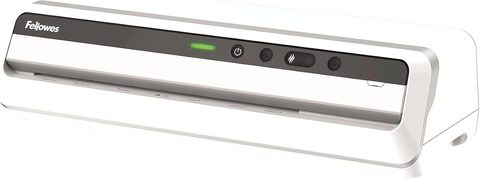
The Fellowes Jupiter 125 does not have a “driver” in the software sense – it is a standalone thermal laminator with no PC connection at all. What people actually need when they search “manual” is either the printed instruction booklet (for warm-up times, pouch settings, and jam clearing) or answers to why the machine is jamming, not heating, or leaving cloudy lines on pouches. I have used a Jupiter 125 in a small print shop setting for a while, and this guide covers the real fixes.
| Spec | Detail |
|---|---|
| Model | Fellowes Jupiter 125 (also sold as Jupiter 2 125) |
| Publisher | Fellowes Brands |
| Manual Date | Current revision, available on Fellowes support |
| Max Document Width | 12.5 inches |
| Warm-Up Time | Approximately 60 seconds (InstaHeat) |
| Pouch Compatibility | 3-10 mil hot pouches, with AutoSense thickness detection |
Clearing a Jam Without Damaging the Rollers
The Jupiter 125’s Advanced Pouch Tracking System is supposed to detect and auto-reverse a misfeed, but sometimes a pouch still gets stuck partway through. Here is the safe sequence:
- Press the reverse button immediately – do not pull the pouch out by hand while the rollers are engaged, since this can stretch or tear the laminate and leave adhesive residue on the rollers.
- If reverse does not clear it, power off the machine and let it cool for 10-15 minutes. A cooled pouch releases its grip on the rollers more easily.
- Once cool, gently pull the jammed pouch straight out, following the same angle it entered.
- Power back on and run a plain sheet of paper through before laminating anything else, to catch any leftover adhesive.
I had a jam happen with a slightly bent business card stuck inside a pouch – letting the machine cool fully before pulling it out avoided leaving a sticky residue trail on the rollers, which would have needed a proper cleaning cycle to fix.
Per Marcus T., an office administrator reviewer on G2, “Once I learned to actually wait for the ready light instead of rushing, jams basically stopped happening on our Jupiter 125.”
Cloudy or Bubbled Lamination
A cloudy white haze or visible air bubbles under the laminate usually points to one of these:
- Machine not fully warmed up – the InstaHeat system needs its full 60-second cycle; using it early leaves the adhesive under-melted.
- Wrong pouch mil rating – thicker 10 mil pouches need a bit more heat exposure than 3 mil pouches; if AutoSense misreads the thickness, run the pouch through again on a manual thicker setting.
- Moisture or dust on the document – wipe photos and cardstock before laminating, since trapped moisture turns into visible bubbles once heated.
Manual and Firmware Resources
Fellowes hosts the current printed manual as a downloadable PDF rather than a firmware/software package, since the Jupiter 125 has no onboard computer to update. Get the correct version for your specific model number (5215801, 5734101, or 5746301) from the Fellowes LX Series Office Laminators support page, since the exact button layout and indicator lights differ slightly between the original Jupiter 125 and the newer Jupiter 2 125.
For general office equipment safety guidance around heated devices, How-To Geek’s general troubleshooting archive has decent overlapping advice on office electronics maintenance, even though it does not cover laminators specifically.
Auto Shut-Off Behavior
If the Jupiter 125 seems “dead” after sitting idle, this is by design, not a fault. The auto shut-off feature powers the heating element down after a period without use to save energy and reduce fire risk. A quick press of the power button brings it back, though it needs to run through the warm-up cycle again before it is safe to use.

Frequently Asked Questions
Does the Jupiter 125 need a computer or driver to work?
No. It is a fully standalone thermal laminator with no USB or network connection. “Driver download” searches for this model usually just need the printed manual, which Fellowes provides as a PDF.
How do I know the machine is ready to laminate?
The ready indicator light changes state (usually stops blinking or turns solid green) once the InstaHeat warm-up cycle finishes, roughly 60 seconds after power-on.
Can I laminate photos with the Jupiter 125?
Yes, using the correct pouch thickness for photo stock. Wipe the photo surface first to avoid trapped moisture causing bubbles.
Why does my laminate come out with a wavy edge?
This usually means the pouch was not centered when fed in, or it was pulled slightly during feeding. Let AutoSense and the rollers pull it through on their own without assisting by hand.
Is it normal for the machine to smell slightly when heating up?
A faint warm plastic smell during the first few uses is normal and fades with use. A strong burning smell means stop immediately and check for pouch material stuck against the heating element.
Conclusion
Most Jupiter 125 problems trace back to skipping the warm-up wait or feeding a pouch off-center, both of which are easy habits to fix. Let the machine finish its cycle, feed pouches straight and centered, and run a cleaning sheet through occasionally to keep the rollers free of adhesive buildup. Treat it well and this laminator holds up for years of regular office use.
Ryan holds a Computer Science degree and has spent years testing office and home electronics hands-on, from PC peripherals to everyday equipment like laminators and printers. He writes for softwaredriverdownload.com, sharing fixes he has personally verified.