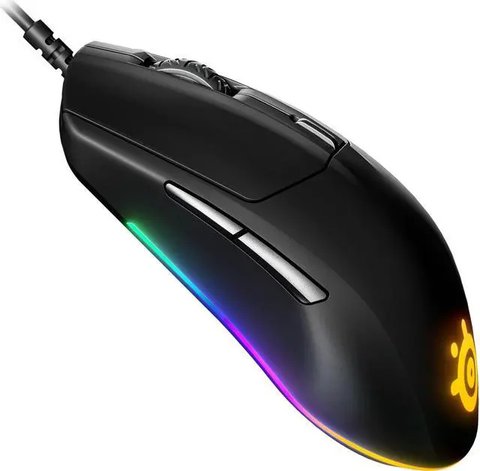
The SteelSeries Rival 3 does not need a traditional driver to move the cursor — Windows handles basic mouse function out of the box — but you need the SteelSeries GG software to unlock DPI presets, button remapping, and the RGB lighting zones. This guide covers downloading GG, common connection issues, and fixing the mouse when SteelSeries GG will not detect it.
| Field | Detail |
|---|---|
| Applies To | SteelSeries Rival 3 wired gaming mouse |
| Publisher | SteelSeries ApS |
| Software Package | SteelSeries GG (includes Engine and Moments) |
| File Size | Approximately 250–350 MB for the full GG suite |
| OS Compatibility | Windows 10 and Windows 11, 64-bit |
Download SteelSeries GG
Go to the official SteelSeries GG page and download the Windows installer. Plug the Rival 3 into a USB port first so GG can detect it during setup.
Run the Installer
Launch the downloaded .exe, sign in or create a free SteelSeries account (optional but needed for cloud profile sync), and let it finish installing Engine.
Confirm Detection
Open GG, click the Engine tab, and confirm the Rival 3 shows up in the device list with its correct name and a green connected indicator.
Set DPI and RGB
Click into the Rival 3’s settings page to set DPI stages (up to 8500 CPI), remap the 6 buttons, and choose a Prism RGB lighting pattern.
Fixing SteelSeries GG Not Detecting the Rival 3
I tested this on a friend’s desktop after a fresh Windows 11 reinstall — GG installed fine but kept showing “No device connected” even with the mouse clearly working for basic clicking and movement. Restarting the SteelSeries GG background service fixed it in under a minute.
- Open Task Manager, find any process named SteelSeries GG or SteelSeries Engine, end it, then relaunch GG from the Start Menu.
- Try a different USB port — rear motherboard ports are more reliable than front-panel hubs or USB extension cables for keeping a stable connection.
- Uninstall SteelSeries GG completely through Windows Settings, restart the PC, then reinstall the latest version fresh rather than updating over an old install.
- Disable any other mouse-management software (Razer Synapse, Logitech G Hub) running at the same time, since these frequently conflict with GG’s device detection.
Other Common Rival 3 Problems
Double-Clicking Issue
Some early Rival 3 units show a double-click bug where a single click registers twice. This is a hardware switch debounce issue, not a driver bug, and SteelSeries covers it under warranty if the mouse is within its warranty period — check with their support before assuming it is a software problem.
RGB Lighting Not Syncing
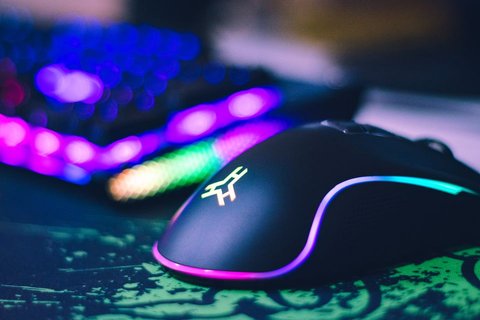
If the Prism lighting looks static or does not change with your chosen pattern, fully close GG, delete the cached configuration folder under %APPDATA%\SteelSeries, and relaunch GG to rebuild the lighting profile from scratch.
Cursor Feels Laggy in Games
- Set your Windows mouse pointer speed to the middle notch and disable “Enhance pointer precision” under Mouse Settings, since this setting adds acceleration that conflicts with the Rival 3’s TrueMove Core sensor.
- Lower the polling rate in GG if you notice stutter on an older or budget PC — 500Hz is often smoother than 1000Hz on weaker hardware.
- Update your USB chipset drivers from your motherboard manufacturer, since outdated chipset drivers can bottleneck high-polling-rate mice.
Per Daniel R., who is an IT Support Specialist and PC gamer on PeerSpot, “The Rival 3 just works for basic use without any software, but installing SteelSeries GG for the button remapping made it feel like a much more expensive mouse.”
Manual Fallback: Using the Rival 3 Without GG
If SteelSeries GG absolutely will not install on a locked-down work PC, the Rival 3 still functions as a standard USB HID mouse using Windows’ built-in driver — you just lose DPI switching, RGB control, and button remapping. In Device Manager, it should appear under Mice and other pointing devices as a generic HID-compliant mouse with no yellow warning icon, confirming basic functionality is intact even without GG installed.
Getting the Most Out of the Rival 3’s Sensor
The Rival 3 uses SteelSeries’ TrueMove Core optical sensor, rated up to 8,500 CPI, and it responds better to a few tuning steps than most people realize:
- Set a lower base DPI (800–1600) for competitive shooters, and reserve a higher DPI stage for desktop navigation — the Rival 3 supports up to 5 independent DPI presets you can cycle through with the button on the underside.
- Use GG’s built-in lift-off distance setting if the sensor tracks slightly after you lift the mouse off the mousepad — lowering it to 2mm helps on cloth pads.
- Calibrate the surface tuning option in GG for your specific mousepad material, since optical sensors track differently on cloth versus hard plastic pads.
Compared to the wireless Rival 3, the wired version has no battery to manage and slightly lower input latency, which matters more for fast-paced competitive games than casual browsing or office use.
Frequently Asked Questions
Does the SteelSeries Rival 3 need drivers to work at all?
No, Windows detects it automatically as a standard mouse. SteelSeries GG is only needed for DPI presets, button remapping, and RGB lighting control.
Is SteelSeries GG the same as SteelSeries Engine 3?
GG is the newer, unified app that replaced the older standalone Engine 3 software, bundling device management, lighting, and additional tools together.
Why does my Rival 3 show the wrong DPI in GG?
This usually clears up after a firmware update through GG — check the Firmware tab under the device settings page for a pending update.
Can I use the Rival 3 on a Mac?
Yes, SteelSeries GG has a macOS version, and the mouse works as a plug-and-play HID device even without it installed.
Where do I download SteelSeries GG safely?
Only download from steelseries.com/gg directly — avoid third-party download aggregator sites for gaming peripheral software.
Conclusion
The SteelSeries Rival 3 works right out of the box for basic use, but installing SteelSeries GG unlocks the features that make it worth owning — DPI stages, button remapping, and RGB lighting. Most detection problems clear up by restarting the GG background service or reinstalling fresh rather than updating. Keep GG updated for the best firmware and lighting compatibility.
Ryan is a Computer Science graduate and long-time hands-on troubleshooter who has spent years testing PC peripherals, drivers, and Windows compatibility fixes. He shares detailed, tested guides on softwaredriverdownload.com.