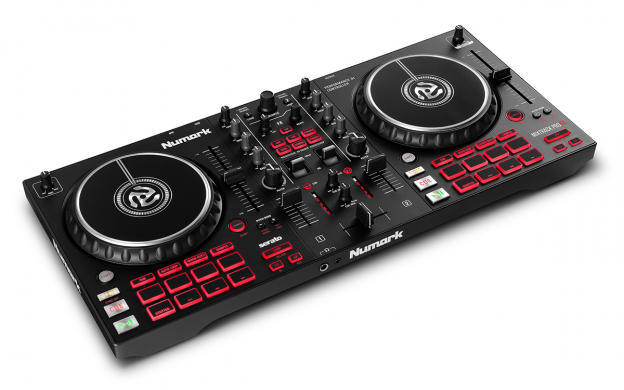
The Numark Mixtrack Pro FX is a USB class-compliant DJ controller, so Windows installs the driver automatically the moment you plug it in – but if it is not showing up in Serato DJ Lite or another app, the fix usually involves reinstalling the class-compliant driver package from Numark’s support page. This guide covers setup, software mapping, and the most common connection problems.
| Spec | Detail |
|---|---|
| Applies To | Numark Mixtrack Pro FX DJ controller |
| Driver Type | USB class-compliant audio/MIDI (no manual install typically needed) |
| Publisher | Numark (inMusic Brands) |
| Bundled Software | Serato DJ Lite |
| Requirements | Windows 10 and Windows 11, 64-bit recommended |
I set up a Mixtrack Pro FX for a friend’s home party rig, and it really was plug-and-play on a fresh Windows 11 laptop – the one snag came from an old, unrelated audio driver conflicting with Serato until we removed it.
Getting Windows to Recognize the Controller
Since the Mixtrack Pro FX is class-compliant, Windows should detect it without a manual driver download. If it is not appearing:
- Unplug the USB cable and try a different port, ideally directly on the motherboard rather than a front panel hub.
- Open Device Manager and check under “Sound, video and game controllers” for a “Numark Mixtrack Pro FX” entry with a warning icon.
- If it shows as unrecognized, right-click it and choose “Update driver,” then “Search automatically.”
- Restart your computer and reconnect the controller.

Setting Up Serato DJ Lite
- Download and install Serato DJ Lite from the official Serato site.
- Connect the Mixtrack Pro FX before opening Serato.
- Launch Serato DJ Lite – it should detect the controller automatically and load the correct hardware mapping.
- Go to Setup > Audio and confirm the Mixtrack Pro FX is selected as the audio output device.
- Import your music library and start mixing.
If Serato does not detect the controller even though Windows shows it connected, try running Serato as administrator once, which sometimes resolves permission-related detection issues.
Using the Mixtrack Pro FX with Other DJ Software
- VirtualDJ – supports the Mixtrack Pro FX with a built-in mapping; check the official VirtualDJ setup guide for connection steps.
- DEX 3 – the Mixtrack Pro FX and Mixtrack Platinum FX are officially supported controllers in recent DEX 3 versions.
- rekordbox – not natively supported; a custom mapping or third-party plugin is required if you want to use it here.
Fixing No Sound or Audio Dropouts
- In Serato’s Audio setup panel, increase the buffer size slightly if you hear crackling or dropouts.
- Make sure no other application (like Zoom or Discord) is also trying to use the controller as its default audio device.
- Set the Mixtrack Pro FX as the default Windows playback and recording device in Sound settings if you use it outside of DJ software too.
- Check that both headphone and master volume knobs on the hardware are turned up before assuming the software is broken.
Per Kevin O., who is a Mobile DJ and part-time producer, “The Mixtrack Pro FX just works the moment you plug it in on a clean Windows install. Most of the ‘no sound’ complaints I have seen from other DJs come down to a muted channel fader, not the driver.”
Troubleshooting a Failed or Stuck Install
Occasionally Windows Update or a conflicting driver interferes with detection:
- Uninstall the device entry from Device Manager, then unplug and reconnect the controller to force a fresh detection.
- Remove any old, unused audio interface drivers that might be conflicting in the background.
- Temporarily disable antivirus software during Serato installation, since some suites flag driver-adjacent installers.
- Try the controller on a different computer to confirm whether the issue is hardware or software related.
Understanding the Controller’s Built-In FX Section
What sets the Mixtrack Pro FX apart from the base Mixtrack model is the dedicated FX paddle and knob section. This runs through Serato’s software effects, not a hardware driver, so a few things to know:
- The FX unit needs Serato DJ Lite (or a compatible mapping in other software) to actually apply effects – the hardware paddles are just controllers, not standalone effect processors.
- Effect selection and intensity are shown on Serato’s on-screen FX panel, which mirrors what the hardware knobs are currently set to.
- If the FX paddles seem unresponsive, check that the correct FX bank is selected on the software side, since the controller can map to more than one deck’s effects.
Updating Controller Firmware
Numark occasionally releases firmware updates that improve compatibility or fix bugs, separate from the USB driver itself:
- Check your current firmware version, usually visible in Serato’s Setup > Hardware panel.
- Visit Numark’s official support page for the Mixtrack Pro FX and download the latest firmware updater if a newer version is available.
- Follow the on-screen instructions exactly, and do not disconnect the controller mid-update.
- Restart both the controller and your computer after the update completes.
I only needed to update firmware once, after a friend’s unit started showing occasional jog wheel lag during scratching. The update resolved it completely, and it took less time than reinstalling Serato would have.
Frequently Asked Questions
Does the Numark Mixtrack Pro FX need a driver on Windows 11?
No manual driver install is normally needed – it is USB class-compliant, so Windows loads the correct driver automatically.
What software comes bundled with the Mixtrack Pro FX?
It ships with Serato DJ Lite, which includes a pre-mapped layout for the controller out of the box.
Can I use the Mixtrack Pro FX with rekordbox?
Not natively. You would need a third-party mapping or plugin, since Pioneer’s rekordbox does not officially support this controller.
Why is my controller not detected in Serato?
Try a different USB port, restart Serato as administrator, and confirm Windows shows the device correctly in Device Manager first.
Is the Mixtrack Pro FX compatible with VirtualDJ?
Yes, VirtualDJ has an official mapping for this controller. See the VirtualDJ setup page for details.
Do the FX paddles need a separate driver?
No, they work through Serato’s software effects engine once the controller itself is connected and recognized normally.
How do I check my controller’s firmware version?
Open Serato DJ Lite’s Setup > Hardware panel, which displays the connected controller’s current firmware version.
Conclusion
The Numark Mixtrack Pro FX is designed to work without any manual driver download on Windows, so most connection problems trace back to a USB port, a driver conflict, or a muted channel rather than a missing driver. Work through the Device Manager and Serato checks above, and you should be mixing within a few minutes.
Ryan T.
PC hardware enthusiast · 15+ years fixing drivers