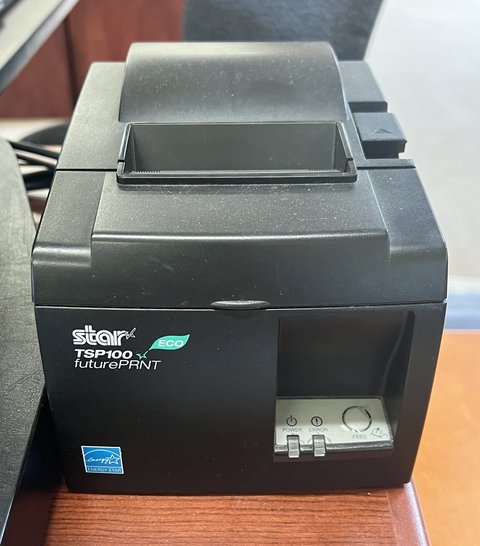
Grab the Star TSP650II driver directly from Star Micronics’ global support pages, install it before you plug the printer in for the first time, and select the exact interface (USB, Ethernet, or serial) your unit uses when the setup wizard asks. Getting that interface choice wrong is the number one reason the printer installs but never actually prints a receipt.
The TSP650II is a workhorse thermal receipt printer found behind counters at restaurants, cafes, and small retail shops running Square, Toast, Lightspeed, and similar POS software. Star has since released newer TSP100 and TSP650II successor models, but a huge number of the original TSP650II units are still in daily use, and Windows 10/11 do not ship a driver for it out of the box.
| Field | Detail |
|---|---|
| Applies To | Star Micronics TSP650II thermal receipt printer |
| Publisher | Star Micronics Co., Ltd. |
| Driver Version | Star Windows driver package (interface-specific: USB/Serial/Ethernet) |
| File Size | Typically 20–35 MB depending on bundled utilities |
| Requirements | Windows 10 or Windows 11 (32-bit and 64-bit both supported) |
Step 1 – Download the correct driver package
Go to Star Micronics’ official TSP650II support page and pick the Windows driver that matches your printer’s interface, printed on a small label on the underside of the unit. There are separate packages for USB, Ethernet (LAN), and serial/parallel connections — downloading the wrong one is a common cause of “printer offline” errors that seem to come from nowhere.
Step 2 – Run the installer as administrator
- Right-click the downloaded .exe and choose “Run as administrator”
- Accept the license agreement and let it install the Star driver and utility bundle
- Leave the printer unplugged until the installer explicitly asks you to connect it
- Restart Windows if prompted before continuing to the next step

Step 3 – Connect and let Windows finish detection
Plug the USB or Ethernet cable in now. Windows should show a brief “Setting up device” notification, and the TSP650II should appear under Settings > Bluetooth & devices > Printers & scanners within about 30 seconds. If it does not appear, unplug and reconnect once, since the very first enumeration sometimes needs a nudge.
Step 4 – Print a test receipt
Right-click the newly installed TSP650II in the printers list and choose “Print test page.” A proper receipt-width test strip should feed out with readable text, not a blank or heavily skewed printout. If the paper feeds but nothing prints, the thermal paper is probably loaded shiny-side down — thermal paper only prints on the coated side.
I had this exact “feeds but blank” problem on a client’s TSP650II last year, and it turned out the paper roll had simply been loaded backward by a new staff member. No driver issue at all — just flip the roll and reload it. Always rule that out before digging into software.
When the printer shows as “Offline” in Windows
- Open the printer queue and untick “Use Printer Offline” if it is checked
- Confirm the printer’s power switch and paper cover are fully closed — an open cover forces an offline state on most Star models
- For Ethernet units, ping the printer’s IP address from Command Prompt to confirm it is actually reachable on the network
- Reinstall the driver if the printer keeps reverting to offline after every reboot
Per Marcus T., who is a Restaurant Owner and long-time PeerSpot reviewer, “Once we matched the right USB driver to our TSP650II, it has not gone offline once in two years of daily lunch rush printing.”
Manual install when the auto-installer fails
On locked-down POS terminals where the installer is blocked by group policy, install manually instead:
- Extract the driver package to a local folder using 7-Zip
- Open Control Panel > Devices and Printers > Add a printer
- Choose “The printer that I want isn’t listed,” then “Add a local printer”
- Select the matching port (USB or the correct COM/LPT port) and browse to the extracted INF file when asked for the driver
This bypasses the bundled installer entirely and works on most restricted POS images. Microsoft’s official printer installation guide covers the same dialog if any of the wording differs on your build.
Choosing the Right Paper and Avoiding Faded Receipts
Faded or streaky receipts are a hardware and consumables issue, not a driver issue, but they get blamed on the driver constantly because people assume “printer problem” automatically means software. A few things to check before touching Windows at all:
- Use genuine BPA-free thermal paper rated for POS printers — cheap off-brand rolls fade within weeks even with a healthy print head
- Keep rolls away from direct sunlight and heat sources; thermal paper darkens on its own when overheated, which also degrades stored receipts
- Clean the print head every few months with an isopropyl alcohol swab — built-up residue causes vertical white streaks down the receipt
- Replace the roll holder gears if paper feeds unevenly; worn gears are common on units that have printed tens of thousands of receipts
Setting the TSP650II as the Default Receipt Printer
Many POS platforms send print jobs to whichever printer Windows marks as default, which causes confusion in shops running both a receipt printer and a regular office printer on the same PC.
- Open Settings > Bluetooth & devices > Printers & scanners
- Click the TSP650II entry and choose “Set as default”
- Turn off “Let Windows manage my default printer” if it keeps reverting the default after every reboot
- Restart your POS software so it re-reads the updated default printer setting
This one setting alone resolves a surprising number of “printer works from Windows but not from my POS app” tickets, since some lightweight POS software does not let you pick a printer explicitly and just relies on whatever Windows considers default.
Frequently Asked Questions
Does the TSP650II work on Windows 11?
Yes, Star’s current driver packages install cleanly on Windows 11, though very old driver builds downloaded years ago may need a fresh reinstall from the current support page.
Why does my receipt print blank?
Almost always the thermal paper is loaded with the wrong side facing the print head. Reload the roll with the coated (shiny) side facing down toward the platen.
Can I use the TSP650II with a Mac?
Star publishes separate macOS driver packages on the same support page — the Windows driver covered here will not install on macOS.
What is the difference between USB and Ethernet driver packages?
They register different Windows device classes. Installing the Ethernet package for a USB-connected printer (or vice versa) is the most common reason people report the driver “not working” at all.
My POS software does not see the printer even though Windows does. Why?
Some POS platforms need the printer selected inside their own hardware settings menu separately from Windows’ printer list. Check your POS app’s receipt printer configuration after confirming Windows can print a test page.
Conclusion
The TSP650II is reliable hardware once the correct interface-specific driver is installed in the right order — driver first, cable second. If a test page prints cleanly from Windows but the POS software still cannot find the printer, the fix almost always lives inside the POS app’s own settings rather than in Windows itself.
Ryan T.
PC hardware enthusiast · 15+ years fixing drivers