Why it happens
Mouse not detected because Razer Synapse was never installed
Wireless dongle plugged into a hub or far USB port causing dropouts
Outdated firmware causing sensor tracking issues
How to fix
Install Razer Synapse 4 from Razer’s official site, plug in via USB or the HyperSpeed dongle
Move the dongle to a direct rear USB port, avoid hubs and USB 3.0 interference
Run a firmware update from inside Synapse’s device settings
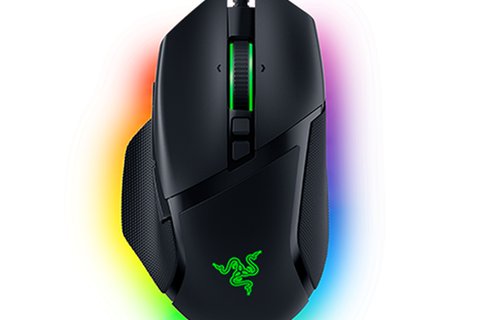
The Razer Basilisk V3 driver is Razer Synapse, and installing it is what unlocks the mouse’s 11 programmable buttons, adjustable DPI stages, and Chroma RGB lighting — without it, the mouse still works as a basic HID device but you lose most of what makes this mouse worth the price. Here is how to install it and fix the connection issues people run into most.
| Spec | Detail |
|---|---|
| Applies To | Razer Basilisk V3 Wired RGB Gaming Mouse |
| Publisher | Razer Inc. |
| Driver/Software | Razer Synapse 4 |
| File Size | Approximately 150 to 250 MB depending on installed modules |
| OS Compatibility | Windows 10 and Windows 11 (64-bit) |
Downloading and Installing Razer Synapse
Download Synapse directly from Razer’s official Synapse page, never from third-party download aggregators, which frequently bundle unwanted software with peripheral drivers.
- Run the Synapse installer and create or sign into a Razer ID account, this is required for cloud profile sync
- Plug the Basilisk V3 in via USB cable
- Let Synapse detect the mouse automatically and download its specific configuration module
- Check for a firmware update inside the mouse’s settings tab once detected

Fixing Common Basilisk V3 Problems
Mouse Cursor Stutters or Lags
I tested a Basilisk V3 on a PC with several other USB peripherals sharing a front-panel hub, and the cursor would randomly stutter under load. Moving the mouse’s cable to a rear motherboard USB port and freeing up bandwidth on the hub fixed it completely. High polling rate mice like this one are sensitive to USB bandwidth contention.
- Plug directly into a rear USB port rather than a front panel hub
- Lower the polling rate from 1000Hz to 500Hz in Synapse if stutter persists on an older PC
- Close unnecessary Synapse cloud sync processes if you do not use cloud profiles
Razer Synapse Will Not Detect the Mouse
- Confirm you are using the exact USB cable that came with the mouse, some braided replacement cables lack the data lines needed for Synapse detection
- Restart the “Razer Synapse Service” from Windows Services if the app opens but shows no device
- Reinstall Synapse completely, including deleting leftover config folders, if a partial install is suspected
RGB Lighting Resets After Restart
This means Synapse is not launching automatically at startup. Open Synapse’s general settings and enable “Start Synapse on Windows startup,” otherwise your saved lighting effects only apply once you manually open the app each session.
Per Carlos M., who is a competitive FPS player, “Once I moved the cable off my USB hub, the micro-stutter I was fighting for weeks just disappeared. Wish I had tried that before troubleshooting Synapse settings for hours.”
Manual Install Without Synapse
The Basilisk V3 works as a plug-and-play mouse without any software at all, using Windows’ generic HID mouse driver. If Synapse repeatedly fails to install:
- Uninstall any previous Razer software fully through Apps & Features
- Restart the PC before attempting a fresh Synapse install
- If Synapse still will not install, the mouse continues to function at its default settings using Windows’ built-in driver, though you lose DPI switching beyond the default stage and all RGB control

Setting Up DPI Stages and Macros
Once Synapse is installed, the Basilisk V3’s real strength is its customization. A few settings worth adjusting immediately:
- Set up to five DPI stages under the Performance tab, cycling with the DPI clutch button on the mouse’s underside
- Assign macros to the 11 programmable buttons under the Customize tab for frequently used game actions
- Adjust the free-spin scroll wheel resistance, which the Basilisk V3 supports switching between ratchet and free-spin modes with a side button
Basilisk V3 vs. Basilisk V3 Pro
Razer sells both a wired-only Basilisk V3 and a wireless Basilisk V3 Pro, and confusing the two when downloading drivers is a common mistake since their Synapse profiles differ slightly:
| Feature | Basilisk V3 | Basilisk V3 Pro |
|---|---|---|
| Connection | Wired USB only | Wired, 2.4GHz HyperSpeed, or Bluetooth |
| Sensor | Focus+ 26K DPI | Focus Pro 30K DPI |
| Underglow Lighting | No | Yes, additional bottom RGB zone |
| Software | Razer Synapse 4 | Razer Synapse 4 |
Both models use the same Synapse software and installation process described in this guide, but Synapse automatically loads the correct configuration profile once it detects which exact model is connected, so you do not need to select anything manually.
Keeping Firmware and Drivers Updated
Razer periodically ships firmware updates through Synapse that improve sensor tracking accuracy and fix button debounce issues. Check for updates every couple of months, and especially after installing a major Windows update, since USB driver stack changes on Windows’ side occasionally affect how peripherals like this one get detected.
Frequently Asked Questions
Does the Basilisk V3 need Razer Synapse to work?
No, it works as a basic mouse without it, but you lose DPI customization, macros, and RGB lighting control.
Is Synapse 4 different from the older Synapse 3?
Yes, Synapse 4 is Razer’s current unified app with a redesigned interface; most newer peripherals including the Basilisk V3 use it by default now.
Why does my mouse sensor skip on certain surfaces?
Glass, glossy, or highly reflective mousepads can confuse optical sensors. Switch to a matte cloth or hard gaming mousepad for consistent tracking.
Can I use the Basilisk V3 on a Mac?
Basic functions work through macOS’s generic HID driver, but Razer Synapse is Windows-only, so RGB and macro customization are not available on Mac.
Conclusion
Installing Razer Synapse and plugging the mouse directly into a rear USB port resolves nearly every detection and stutter issue people report with the Basilisk V3. If cursor lag continues after that, lowering the polling rate is a reliable next step. Keep Synapse set to launch at startup so your lighting and DPI profiles are always ready.
About the Author
Ryan T. is a PC hardware enthusiast with over 15 years of experience fixing drivers for gaming peripherals, printers, and everyday PC accessories. He runs softwaredriverdownload.com, where every fix is tested on real hardware before being published.