The Citizen CL-S621 is a desktop label and barcode printer built to handle both direct thermal and thermal transfer printing, which makes it a flexible choice for warehouses and small shipping operations. Getting Windows to recognize it correctly starts with installing the Seagull-based Citizen Windows driver rather than relying on generic plug-and-play detection.
I helped set up a CL-S621 for a small parts warehouse switching from handwritten labels to barcodes, and the printer connected over USB immediately, but label size and darkness were wrong until the proper Citizen driver replaced the basic driver Windows had installed on its own.
Quick Spec Reference
| Field | Detail |
|---|---|
| Applies To | Citizen CL-S621 desktop thermal transfer / direct thermal label printer |
| Publisher | Citizen Systems |
| Driver Package | Citizen Windows Printer Driver (Seagull-based driver) |
| Version | Latest release listed on Citizen Systems’ drivers and tools page |
| File Size | Approximately 15–30 MB |
| Requirements | Windows 11, Windows 10, Windows 8.1, Windows 7 (32/64-bit); USB, Serial, Parallel, or Ethernet depending on configuration |
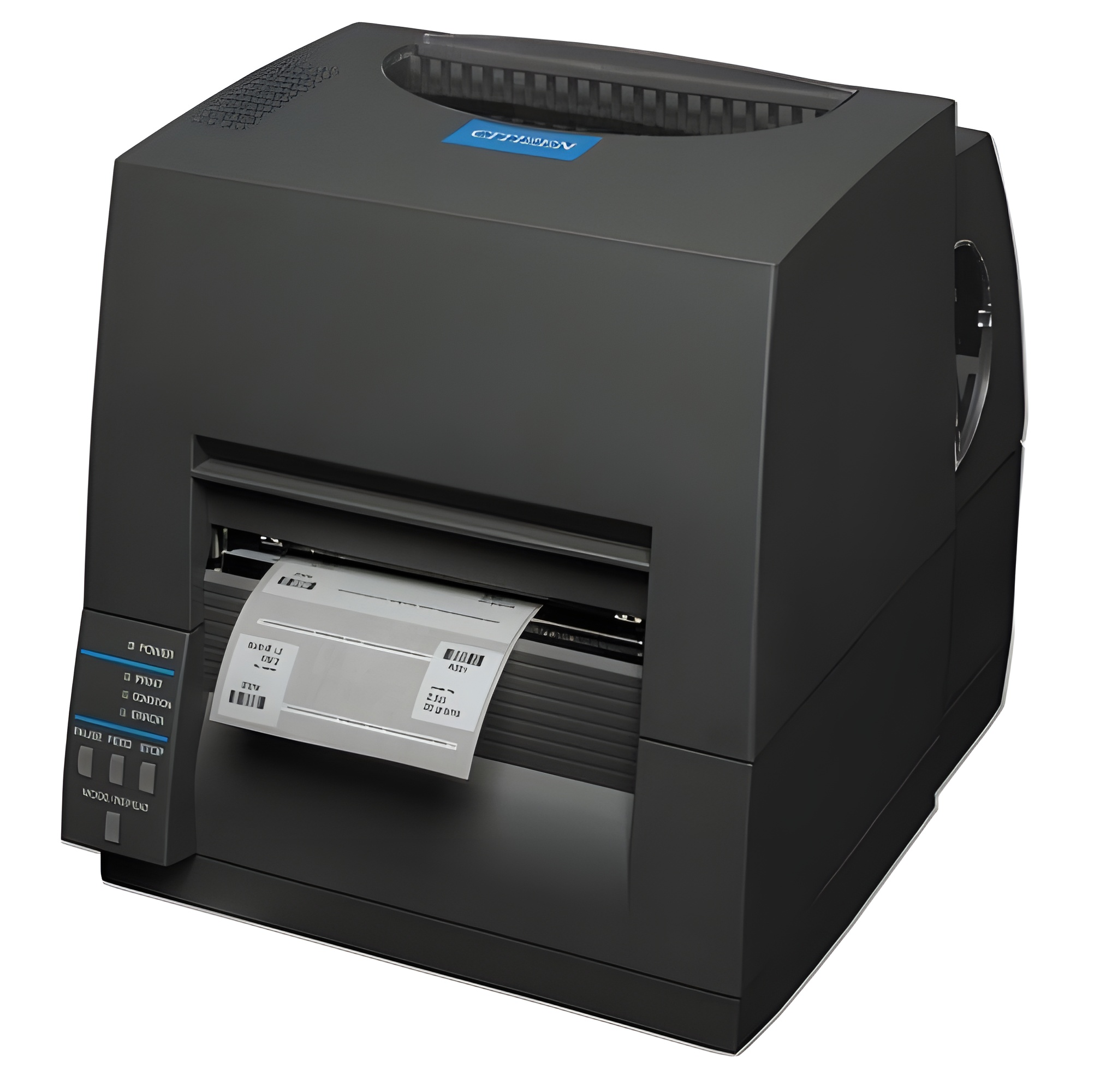
Downloading the Citizen CL-S621 Driver
- Go to Citizen Systems’ official Drivers & Tools page and select the CL-S621 from the model list.
- Download the Windows Printer Driver for your version of Windows.
- Run the installer and choose your connection type — USB is the default on most CL-S621 units.
- Select the CL-S621 specifically from the model list during setup — do not choose the CL-S621II unless you actually own the Type II successor, since the driver files and default settings differ.
- Print a test label from Devices and Printers once installation finishes.
Citizen’s printer drivers are built on the Seagull driver engine, the same one used by BarTender and several other label design programs, so once installed, the CL-S621 shows up as a normal Windows printer that any label software can target directly.
Manual Driver Install via Device Manager
- Download and extract the driver package instead of running the installer directly.
- Connect the CL-S621 over USB and power it on.
- Open Device Manager, find the printer under “Printers” or “Other devices,”
- Right-click, choose Update driver, then Browse my computer for drivers, and select the extracted folder.

Fixing Common Citizen CL-S621 Problems
Labels Print at the Wrong Size or Position
- Open the driver’s printing preferences and set the exact label dimensions to match your stock — Windows defaults to a generic page size that rarely matches label media.
- Run the printer’s built-in label calibration (check your model’s manual for the exact button sequence) so the sensor correctly detects the gap between labels.
- Confirm the media sensor is positioned under the actual label edge; it is adjustable and easy to bump out of place when loading new stock.
Print Looks Faint or Inconsistent (Thermal Transfer Mode)
- Check that a compatible ribbon is loaded correctly — the CL-S621 needs a ribbon for thermal transfer mode; without one, only direct thermal labels will print.
- Adjust the darkness/heat setting in the driver’s printing preferences, since default settings do not always match every ribbon and label combination.
- Clean the print head with an isopropyl alcohol swab if streaks appear consistently across every label.
Windows Shows the Printer as Offline
- Check the USB cable and try a different port; the CL-S621’s connection can drop with a marginal or overly long USB cable.
- In Devices and Printers, right-click the CL-S621 and confirm “Use Printer Offline” is unchecked.
- Restart the Print Spooler service from
services.mscif the printer stays offline after reconnecting.
Per Grzegorz N., who is a Warehouse Operations Lead, “The CL-S621 handles both label modes well once it’s calibrated properly — most of the setup trouble we saw was really a driver-and-label-size mismatch, not the printer itself.”
Reinstalling After a Failed Setup
- Uninstall the existing Citizen driver from Settings > Apps and remove the printer entry from Devices and Printers.
- Restart the computer.
- Power-cycle the printer.
- Reinstall using a freshly downloaded driver, selecting the CL-S621 model specifically.
Choosing Ribbon and Label Stock
Because the CL-S621 supports two print modes, picking the right consumables matters more than on a direct-thermal-only printer.
- For labels that need to survive months of handling (asset tags, outdoor shipping labels), use thermal transfer mode with a wax or wax-resin ribbon.
- For short-term labels like shipping receipts or visitor badges, direct thermal media without a ribbon is cheaper and simpler.
- Match ribbon width to label width as closely as possible — a ribbon much wider than the label wastes material and can print unevenly at the edges.
Frequently Asked Questions
Does the CL-S621 support both direct thermal and thermal transfer printing?
Yes, the CL-S621 can switch between direct thermal (no ribbon needed) and thermal transfer (ribbon required for longer-lasting prints) depending on your label stock.
What is the difference between the CL-S621 and CL-S621II?
The CL-S621II is the Type II successor model with updated internals; while visually similar, it uses its own driver listing on Citizen’s site, so always match the driver to your exact model.
Can I use the CL-S621 with BarTender label software?
Yes, since the Citizen driver is Seagull-based, it works natively with BarTender and most other Windows label design programs once installed.
Why do my barcodes scan inconsistently even though they look fine printed?
This is often a darkness or print speed mismatch for your specific label and ribbon combination — lower the print speed slightly and increase darkness if barcodes are marginal for scanners.
Does the CL-S621 work over a network instead of USB?
Yes, if your unit has the optional Ethernet interface installed; check your specific configuration, since not every CL-S621 ships with network connectivity by default.
Conclusion
The Citizen CL-S621 is a capable dual-mode label printer once the correct Windows driver is installed and the label size and darkness settings are calibrated to match your actual media — most setup complaints come down to one of those two things rather than a hardware fault.
If barcodes still scan poorly after a clean driver install and calibration, try lowering the print speed slightly; a small reduction in speed often improves scan reliability more than any other single adjustment.
Ryan holds a Computer Science degree and has over 20 years of hands-on experience with PC hardware, software, and driver troubleshooting. He is the author behind softwaredriverdownload.com, where he helps everyday users fix driver issues quickly and accurately. Ryan has personally tested most of the fixes on this site across a range of Windows 10 and Windows 11 machines.